Buttons
Learn how to use the Buttons node in YourGPT Studio to present clickable choices to users and branch your chatbot flow.
Buttons
The Buttons node presents clickable options to users, letting them select from a predefined list rather than typing free text. Each button can branch the conversation to a different part of the flow, making it easy to build decision trees and guided experiences.
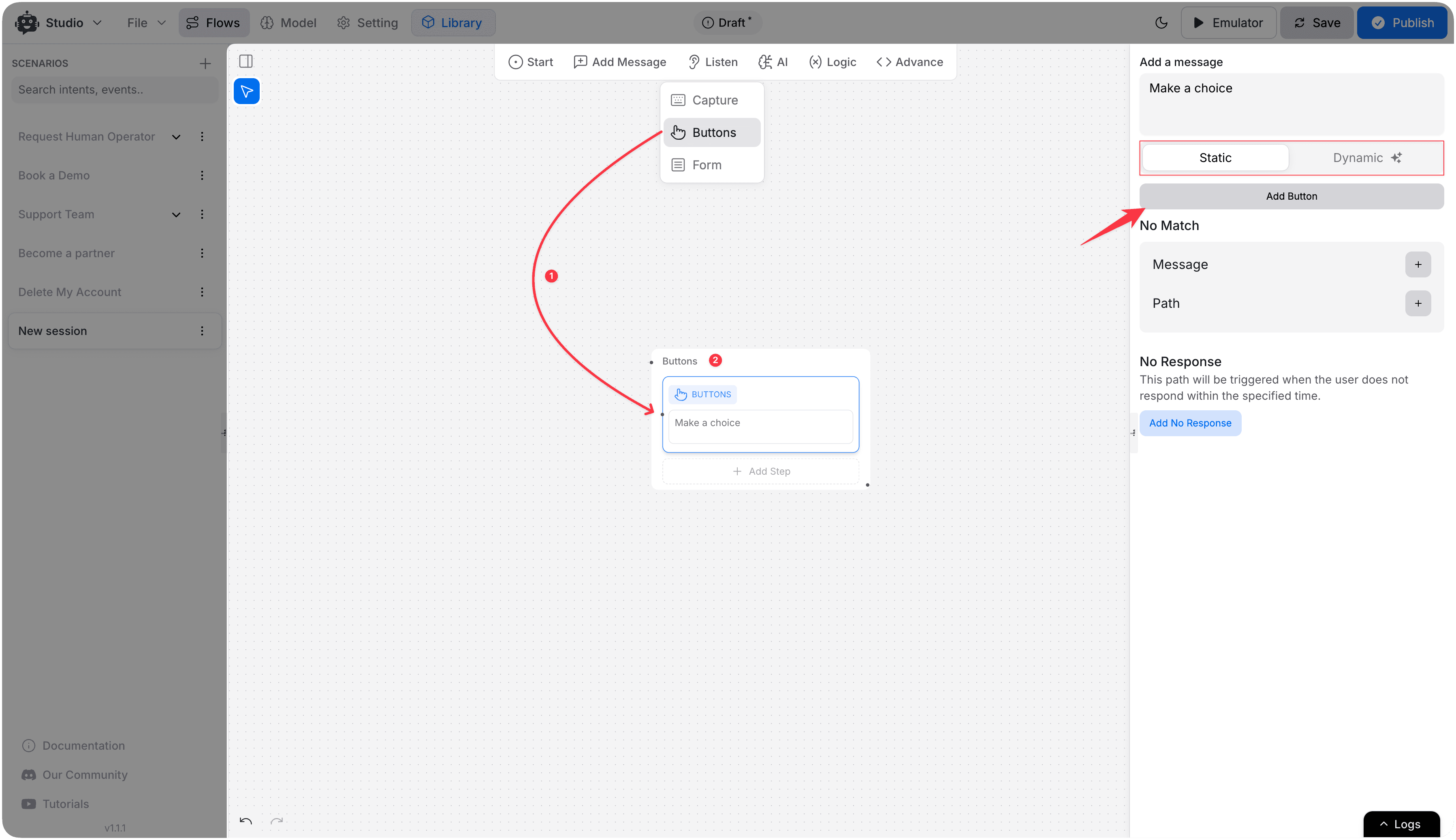
Button Source Types
Static Buttons
Define buttons manually. Each button has a label (what the user sees) and is connected to a specific path in your flow.
Steps to configure:
- Add the Buttons node to the canvas.
- Enter the display text shown above the buttons.
- Click Add Button to add each option.
- Connect each button's output handle to the next node in that branch.
Dynamic Buttons
Generate buttons at runtime from a variable — useful when the list of options comes from an API response or is determined by earlier steps in the flow.
| Field | Description |
|---|---|
| Source Variable | The variable containing the list of options |
| Label Expression | Expression to extract the display label from each item |
| Value Expression | Expression to extract the value from each item |
| Store Into Variable | Variable to store the user's selected value |
No Match & No Response Handling
| Path | When triggered |
|---|---|
| No Match | The user types something other than a button label |
| No Response | The user doesn't interact within the timeout period |
Use Cases
- Main menu navigation ("Sales", "Support", "Billing")
- Yes/No confirmation prompts before taking an action
- Product or category selection sourced from a dynamic API response
- Survey answer choices with different routing per option
Note
Buttons are ideal for guiding users through structured flows. For free-text input collection, use the Capture node instead.