Actions
Actions in Studio
Actions can be performed: Transfer to Bot, Update Segment, Mark as Resolved, Create Contact.
Actions are the operations that you can perform in chatbot studio. You can use actions to perform various operations like transferring the chat to a bot, updating a segment, marking a chat as resolved, and creating a contact.
How to use Actions
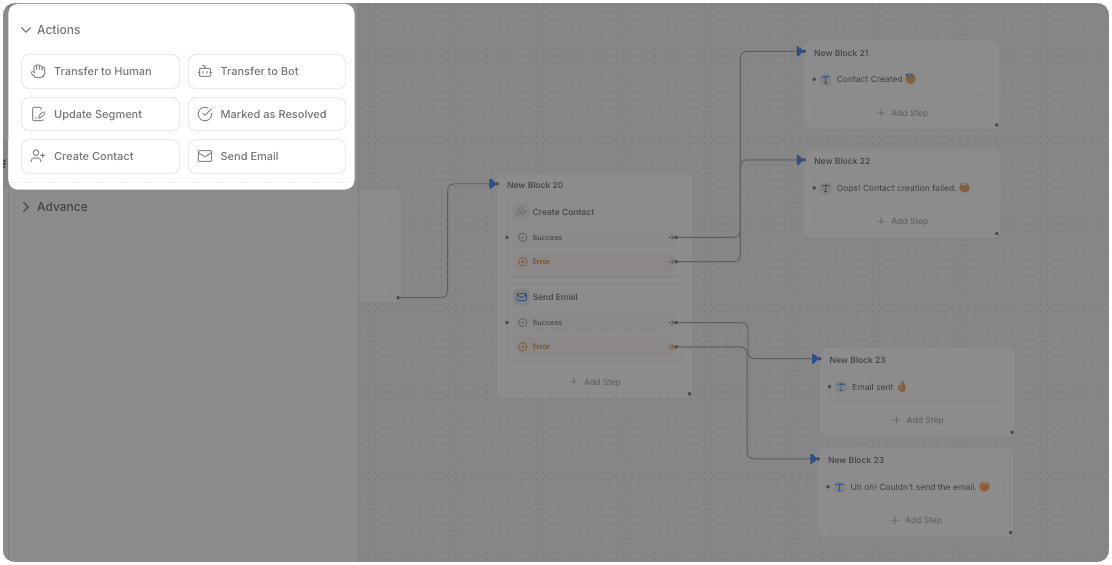
To use Actions, follow these steps:
-
Go to the
FlowSection in the Chatbot Studio. Hover over the Advanced Section and drag theActionsComponent on to the canvas. -
Select the Action you want to perform from the dropdown. You can choose from a variety of options, including:
- Escalate to Human
- Transfer to Bot
- Update Segment
- Mark as Resolved
- Close Chat
- Create Contact
- Send Email
- Assign Member
- Send SMS
- Whatsapp template
Success and Error Paths
Now we have Success and Error paths in Create Contact and Send Email nodes.
Usage
- Add Create Contact or Send Email node wherever you need it in your flow
- After adding you will see Success and error paths in the node you added, connect them to the respective nodes to handle the fail and success of the action.
Example Use Cases
Gives the flow builder an option in case the action fails or succeeds for:
- Create Contact
- Send Email
How To Use Actions
Learn how to use actions in AI chatbot studio.
1. Escalate to Human
Transfer to Agent action allows you to transfer the chat to an Human agent (human handoff) using the chatbot studio.
Use Case:
- You can use the Transfer to Agent action to transfer the chat to a human agent when the user requests to talk to a human agent.
- You can add custom conditions to transfer the chat to a human agent based on the user's request.
- You can transfer the chat to a human agent based on the user's sentiment or intent.
2. Transfer to Bot
Transfer to Bot action allows you to transfer the chat to a bot in the AI chatbot studio.
use case:
- The 'Transfer to Bot' action allows you to shift the conversation to a bot if the user has been waiting for an operator for more than specific period. This action also enables you to revert the chat back to the bot.
3. Update Segment
Update Segment action allows you to update the segment of the chat in the chatbot studio. You can update the segment of the chat based on the user's interaction.
use case:
- You can assign segments to the chats based on the user's behavior or interaction.
- Route the chat to a specific department or agent based on the user's interaction.
4. Mark as Resolved
Mark as Resolved action allows you to mark the chat as resolved in the AI studio. You can mark the chat as resolved when the user's query has been resolved.
use case:
- You can use the Mark as Resolved action to mark the chat as resolved when the user's query has been resolved.
5. Create Contact
Create Contact action allows you to create a new contact in the AI studio. You can create a new contact by providing the contact details like name, email, phone, company, country, city, region, and tags.
Now we have Success and Error paths in the Create Contact node, allowing you to handle different outcomes of the action.
use case:
- You can use the Create Contact action to create a new contact in the AI studio when a user provides their contact details.
- With Success and Error paths, you can direct the flow to different nodes based on whether the contact creation was successful or failed.
6. Send Email
Send Email action allows you to send an email using AI studio. You can send an email to the user by providing the email details like subject, body, and recipient.
Now we have Success and Error paths in the Send Email node, allowing you to handle different outcomes of the action.
use case:
- You can use the Send Email action to send an email to the user using AI studio.
- With Success and Error paths, you can direct the flow to different nodes based on whether the email was sent successfully or failed.
7. Close Chat
The Close Chat action closes the current chat session. Once triggered, the visitor cannot send further messages in the same session — they must start a new conversation to interact again.
When the Close Chat action executes:
- The chat session is marked as closed.
- The chat window becomes inactive for the visitor.
- The session appears as closed in the agent inbox.
use case:
- Close the session after a support ticket has been resolved.
- End the conversation automatically after a completed purchase or booking flow.
- Terminate sessions following a final "Thank you" message.
- Close abandoned or idle sessions after a timeout sequence.
8. Assign Member
The Assign Member action assigns the current conversation to a specific team member. Use it to automatically route high-value conversations, escalations, or specialized queries to the right person.
use case:
- Route enterprise or VIP users to a dedicated account manager.
- Escalate flagged conversations to a senior support agent.
- Assign conversations based on language or region (combine with Conditions).
- Ensure returning customers speak with the same agent they worked with before.
Note
Assign Member routes the conversation but does not pause the chatbot flow. The bot continues executing remaining nodes after assignment. To fully hand off control to a human agent, use Escalate to Human instead.
9. Send SMS
The Send SMS action sends an SMS message to a specified phone number using Twilio.
Prerequisites: Connect a Twilio account under Settings → Integrations → Twilio before using this action.
Configuration:
| Field | Description |
|---|---|
| Send From | Select a Twilio phone number or enter a custom number |
| Send To | Recipient phone number (supports variable expressions) |
| SMS Text | Message content (supports variable expressions) |
Both Send To and SMS Text support dynamic variable expressions, for example:
Hello {{visitor.name}}, your order {{order.id}} has been shipped!use case:
- Send order confirmation or shipping notifications after a purchase.
- Deliver appointment reminders before a scheduled meeting.
- Follow up after a completed support conversation.
10. WhatsApp Template
The WhatsApp Template action sends a pre-approved WhatsApp message template to a recipient. WhatsApp requires all business-initiated messages to use Meta-approved templates.
Prerequisites: Connect your WhatsApp Business account under Settings → Integrations → WhatsApp and ensure templates are approved in Meta Business Manager. Use the Sync button in the action to refresh the template list after changes.
Configuration:
| Field | Description |
|---|---|
| Template | Select an approved template by name or category |
| Send To | Recipient WhatsApp phone number (supports variable expressions) |
| Template Variables | Dynamic values for each placeholder in the template |
After selecting a template, an input field appears for each placeholder variable (e.g., {{1}}, {{customer_name}}). You can use static text or variable references like {{visitor.name}} or {{order.trackingNumber}}.
use case:
- Send order confirmations or shipping updates after a purchase.
- Deliver appointment reminders before a scheduled time.
- Re-engage users after a conversation session has been closed.
- Send promotional messages to opted-in contacts.
Messages
Messages are the building blocks of a chatbot conversation. They are used to convey information to users in various formats, such as text, images, cards, and carousels.
Listeners
Listeners play a crucial role in capturing user responses and enabling interactive elements like buttons within flow. These components facilitate user engagement and data capture for seamless interactions.