Conversation Logs
Session Logger
The Session Logger allows you to track and analyze conversations within the chatbot. Learn how to use the Session Logger in the Studio to gain insights into user interactions.
To quickly access and review the details of any chat session, follow these simple steps to gather all the relevant information.
Part 1: Checking Log for Specific Chat
To access the logs for a specific chat session, follow the steps outlined below.
How to Access
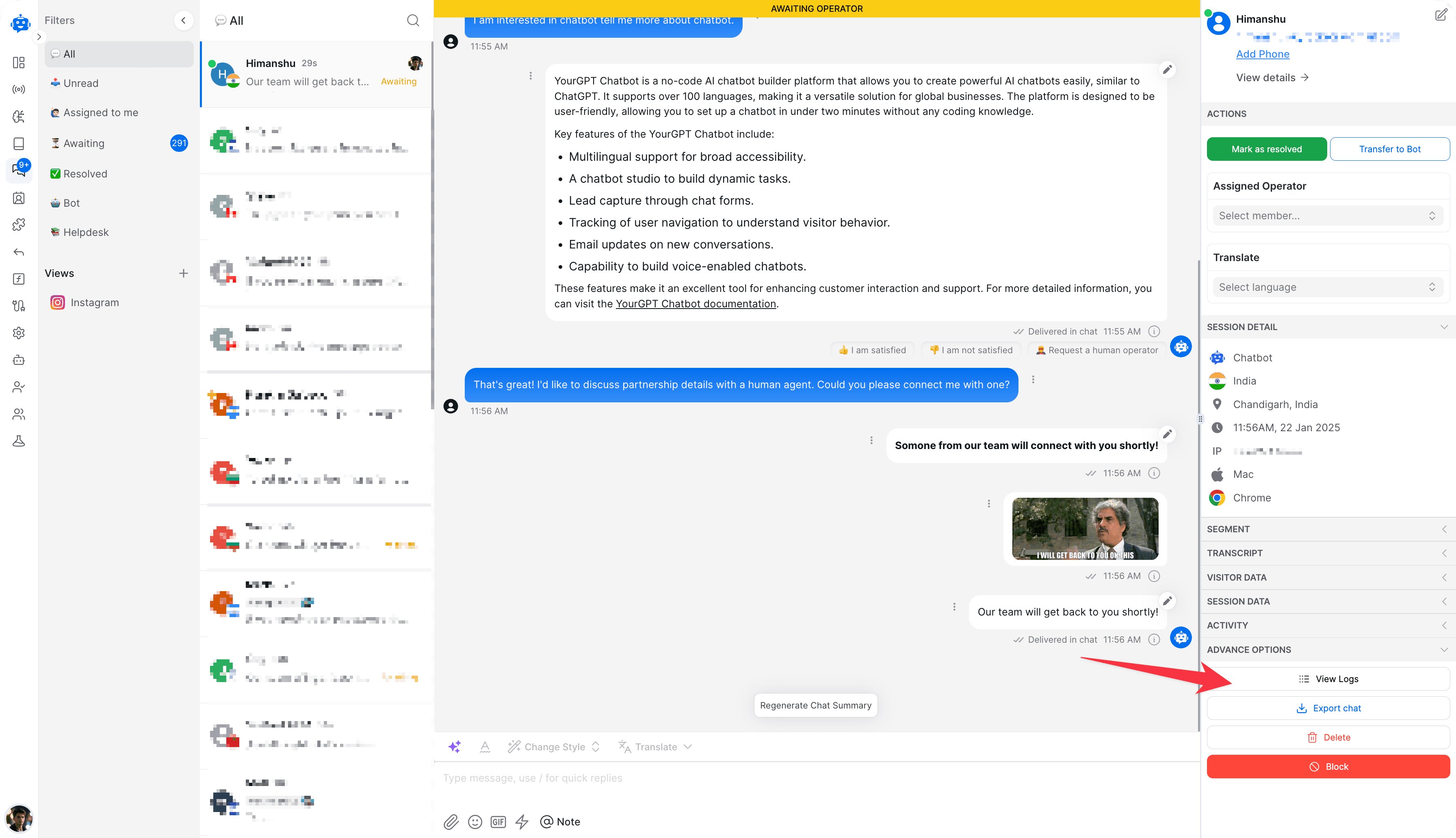
- Open the chat conversation you want to check.
- From the right-side dashboard panel, click View Logs.
- The logger page opens with your chat session's logs.
Understanding the Log Display
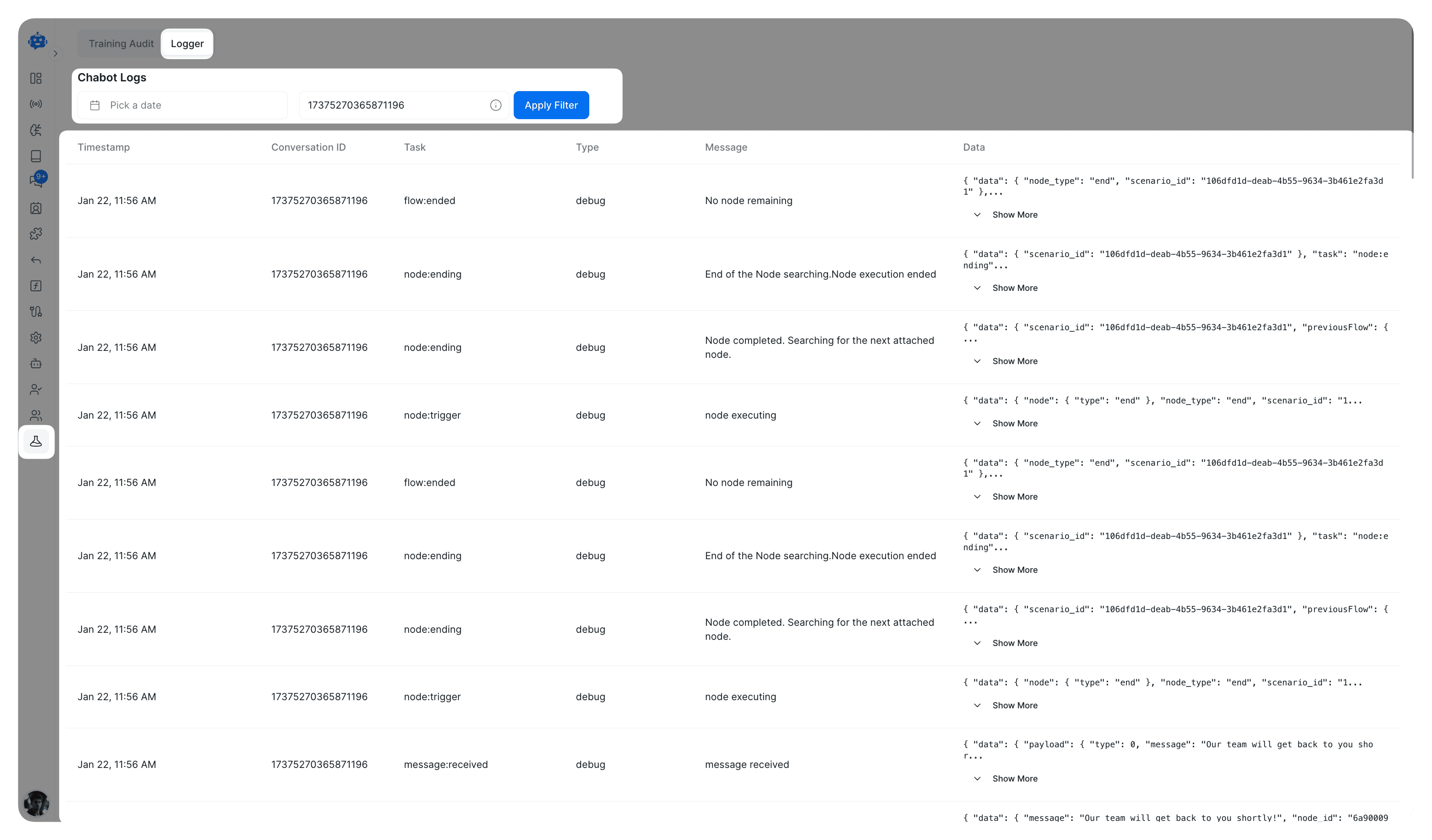
Each log entry shows:
Time Information
- Timestamp shows when each action occurred.
- Format:
Month Day, HH:MM AM/PM.
Session Details
- Conversation ID: Unique number for each chat.
- Example:
17375270365871196.
Action Information
- Task: What action occurred, such as:
flow-ended: Conversation flow completionnode-ending: Node completionnode-trigger: Start of node executionmessage-received: New message arrival
Status Types
debugerror
Progress Updates
- Message: Plain text describing the current step.
- Examples:
Node executingNo node remainingMessage received
Output Details
- Data: Contains responses and technical information.
- Use Show More to view full details.
- Shows data in JSON format.
Part 2: Checking All Session Logs
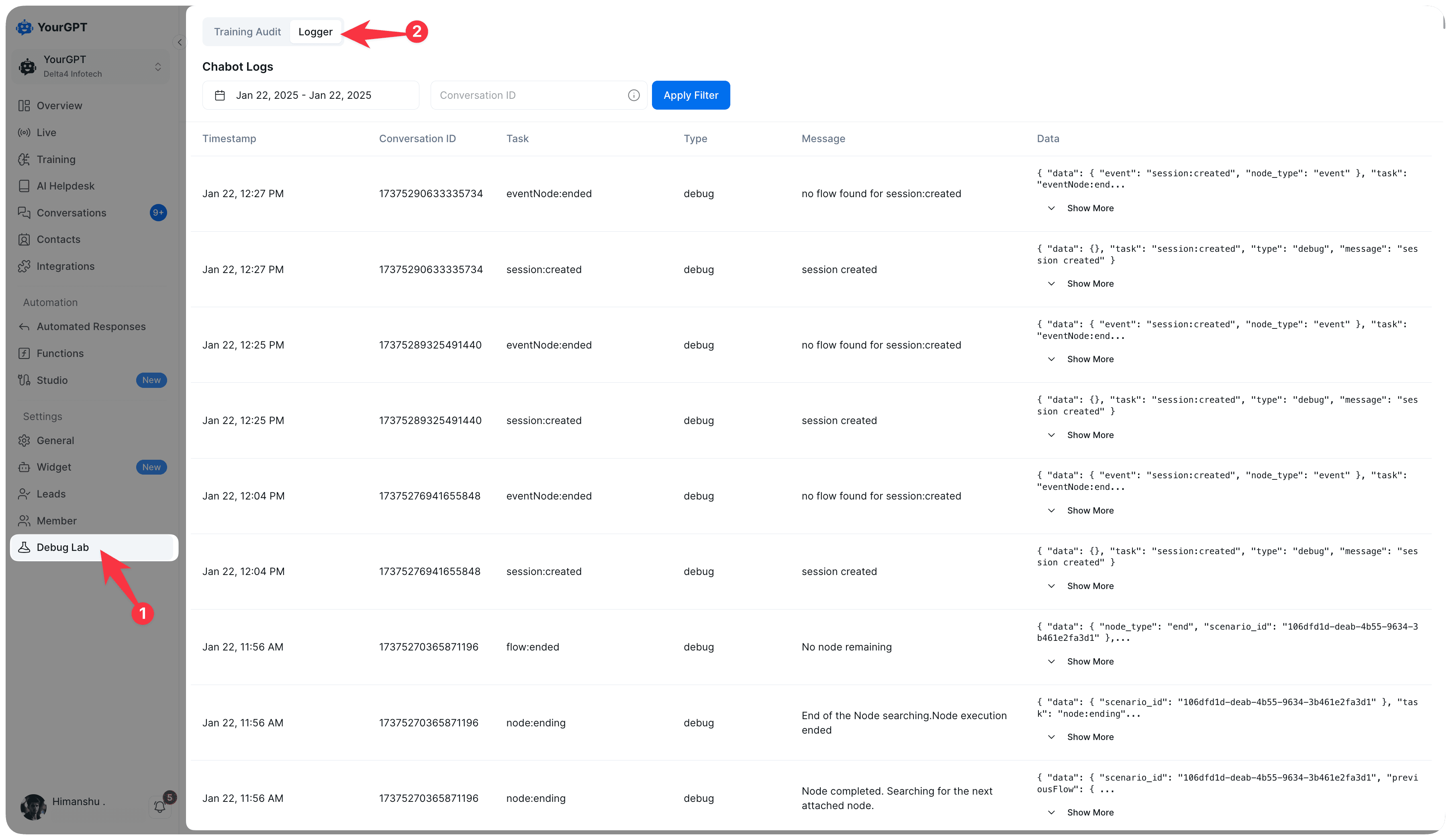
- Open the Debug Lab, then tap on the Logger option.
- View all chat session logs in one place.
- Click any session to see its detailed logs.
This gives you a complete view of all chat interactions across different sessions.
How to Read Your Logs
- Start from the most recent entry (bottom).
- Look at the Timestamp to track when things happened.
- Follow the Message column to understand the sequence.
- Check the Data column for specific responses.
- Use Show More buttons to view complete information.