Training Audit
Search across training sources to find the best-matching content and quickly locate, edit, or delete the source node.
Training Audit helps you debug answer quality by searching across your chatbot's training sources and showing the best matches for a query.
Each result includes a Match Score and a preview of the matched content—so you can quickly identify which training source is influencing the bot and then fix it.
How to open Training Audit
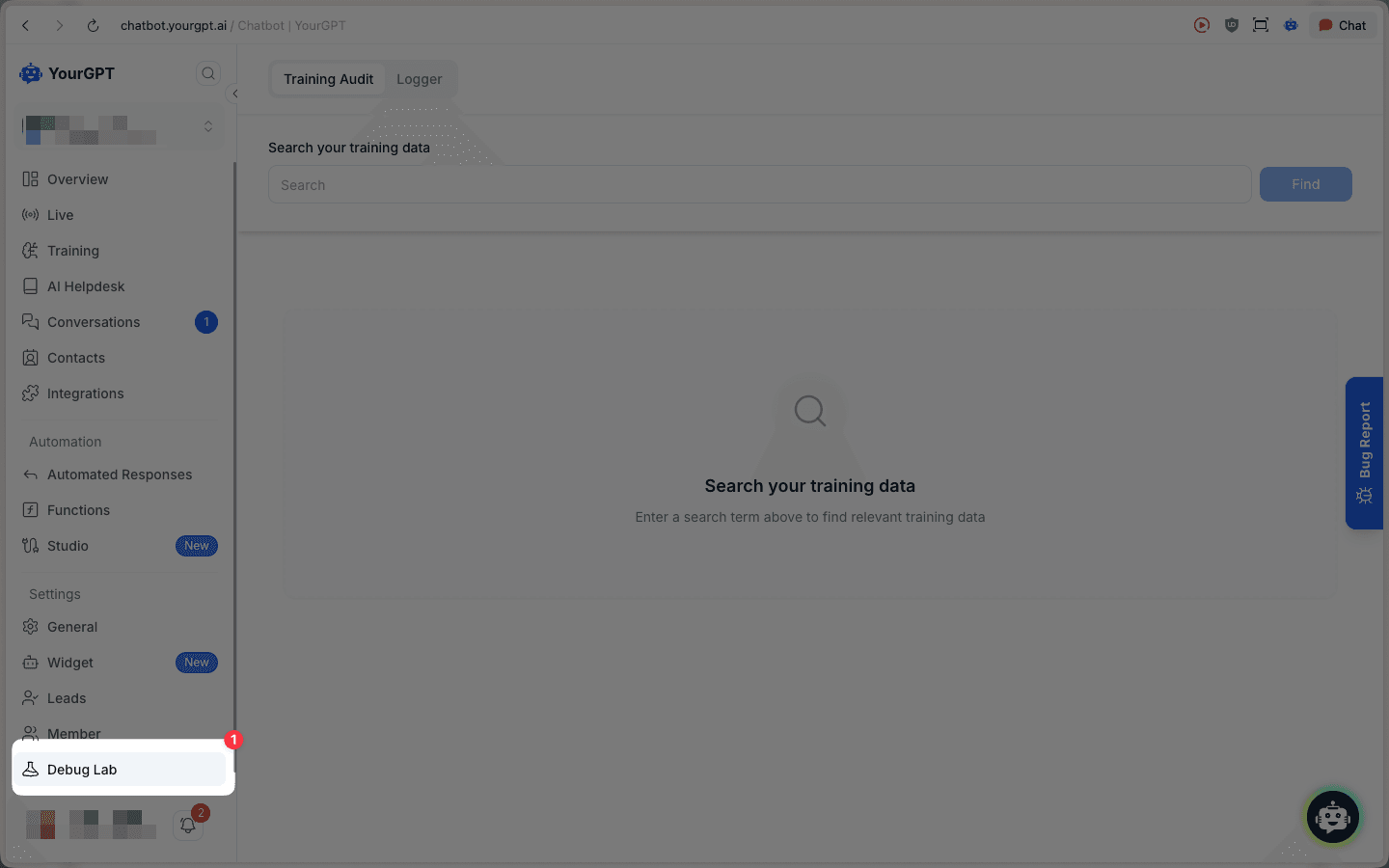
From the left sidebar, open Debug Lab.
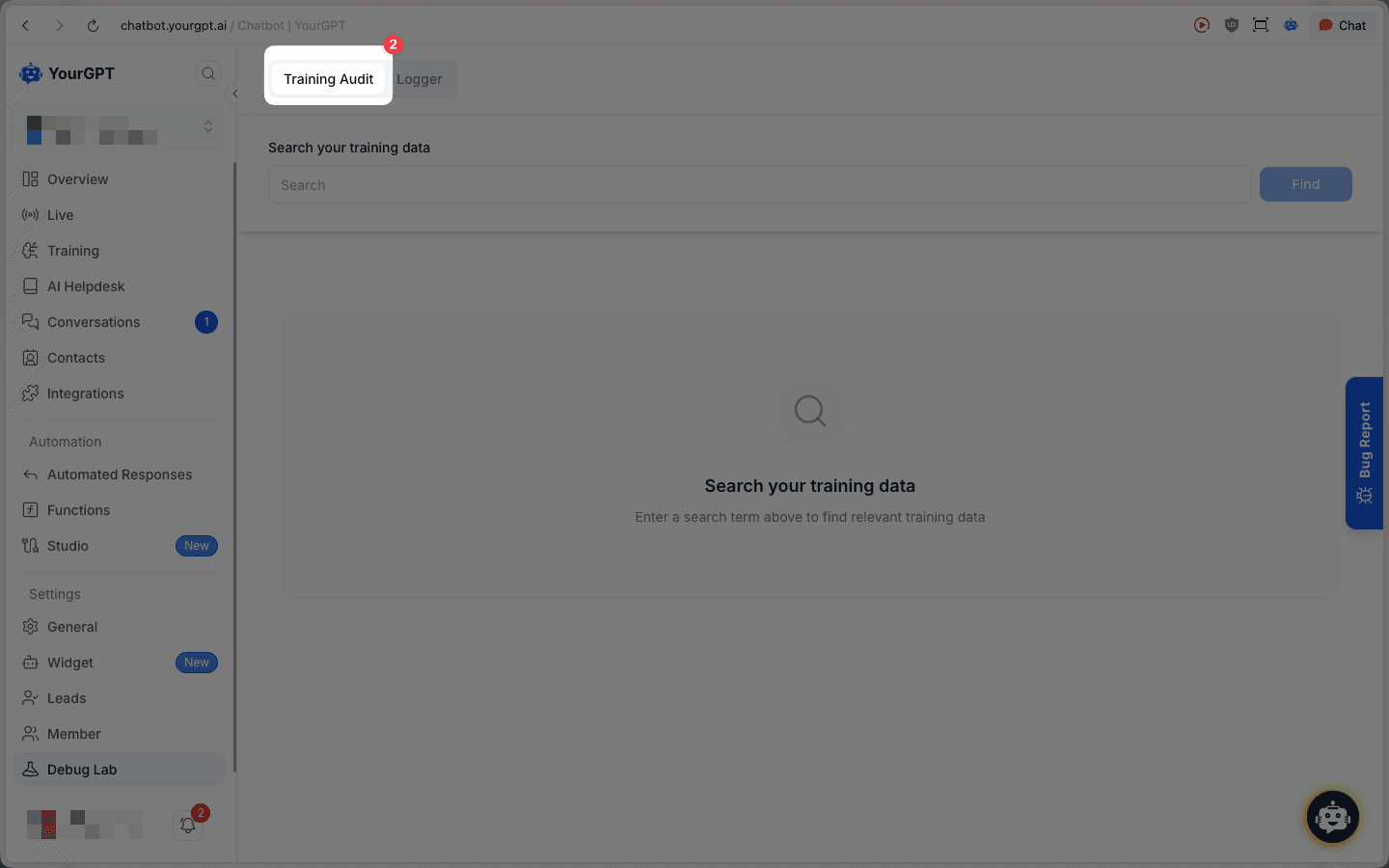
Click the Training Audit tab.
Search your training data
Enter a keyword or phrase related to the answer you're trying to debug.
Click Find to search.
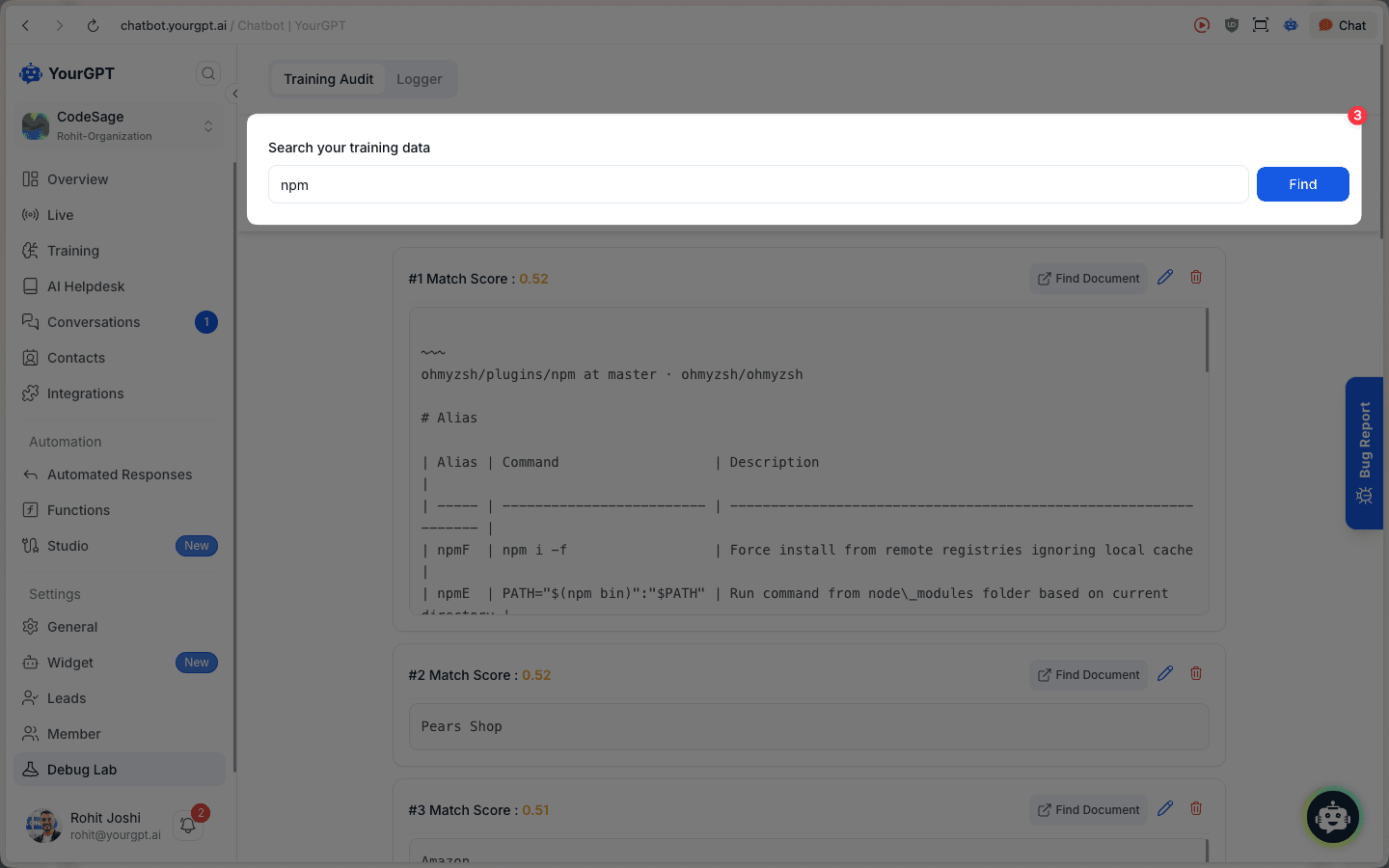
How to read the results:
- Best match first: results are ranked, with the most relevant match at the top.
- Match Score: a higher score usually means the content is closer to your query.
- Preview: you'll see the matched content snippet so you can verify relevance quickly.
Inspect a match
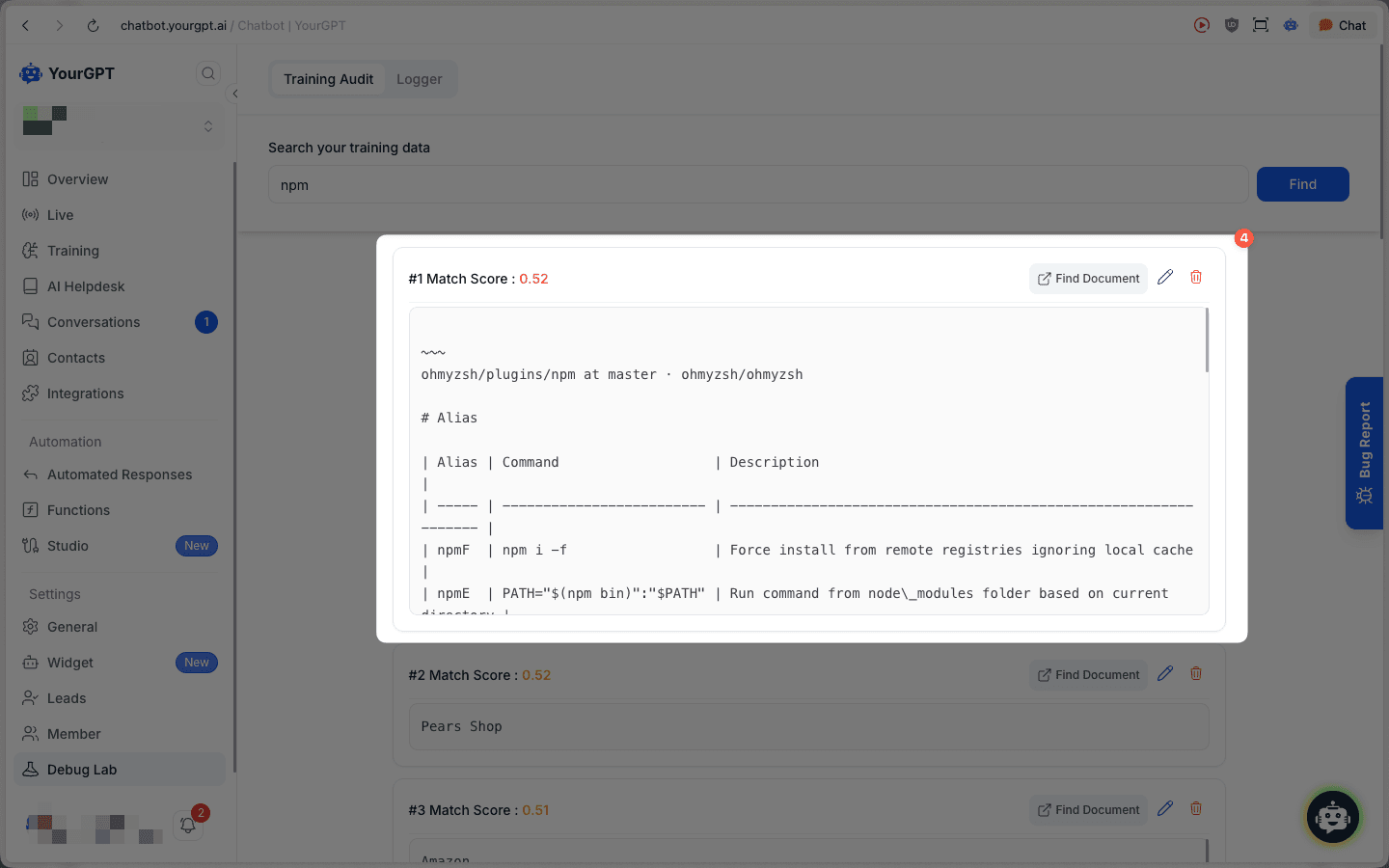
Open a result to view the matched content in a larger preview and verify why the chatbot is producing a certain answer (it's likely pulling from this training content).
Click a result to open the preview/modal.
Locate the source node
Once you've identified the right match, you can jump directly to the underlying training source node and modify it.
Click Find Document on the matched result. This opens the related entry in Training Datasets and applies a Node ID filter—so you can locate the exact source node that contains the matched content.
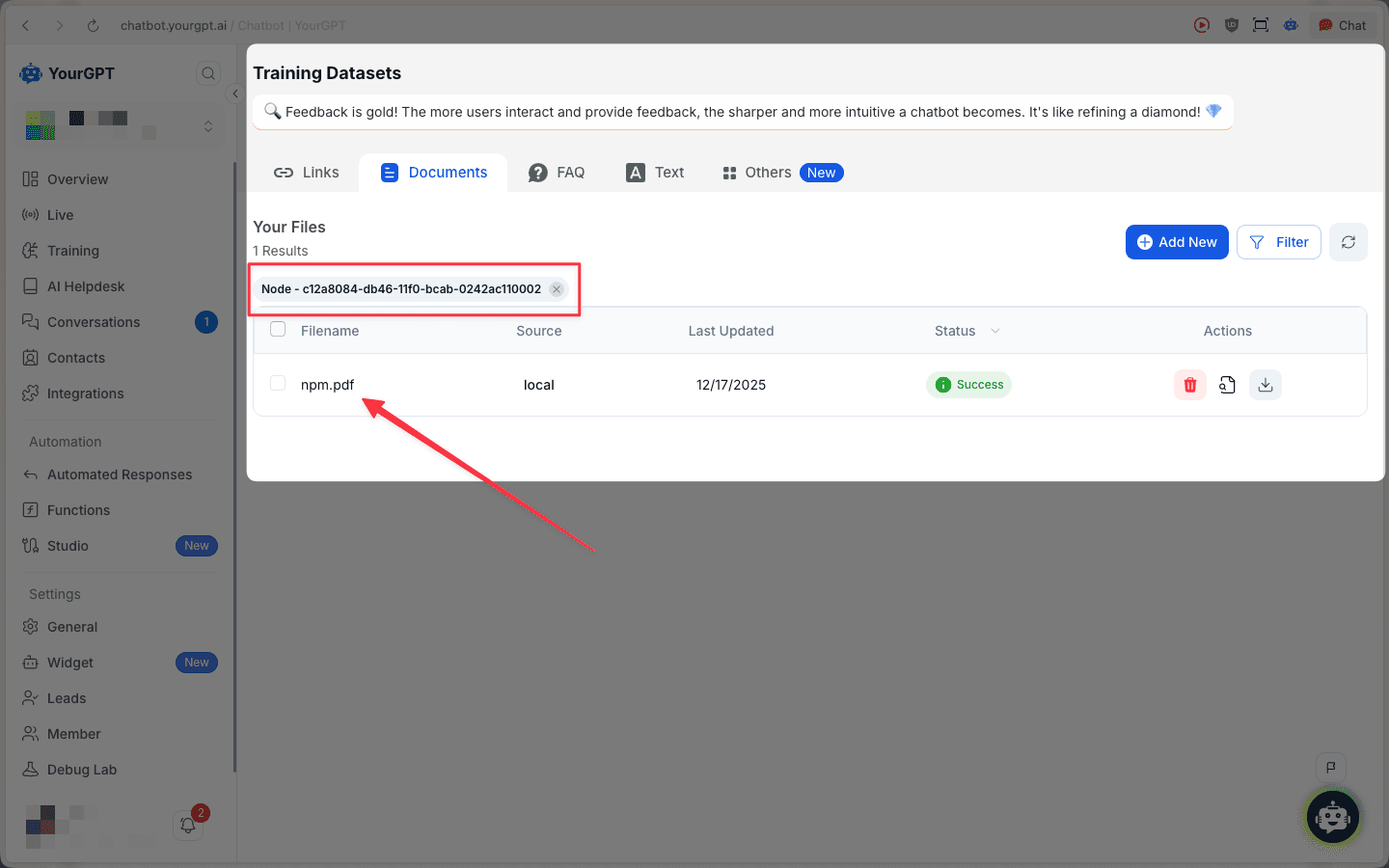
Use the filtered dataset list to find the source and then:
- Edit the source (for example, correct outdated or misleading text)
- Delete the source to remove it from training
View training source
To view the source of training data, follow these steps:
- Go to the Chatbot.
- Click on the Debug Lab tab.
- Click on Training Audit and type your query.
- Click on the Find button.
Tips & troubleshooting
Tips
- Try multiple phrasings: search for synonyms or a direct quote from the incorrect answer.
- Low scores: broaden the query (fewer words) or search for a distinctive phrase you expect to exist in training data.
- After edits/deletes: re-test after the changes are processed so you can confirm the updated training data is reflected in responses.