Agent Playground
Test and compare multiple AI models side-by-side to optimize your agent's performance.
The Agent Playground lets you test your agent configuration across multiple AI models simultaneously. Compare response quality, speed, and costs in real-time to find the best model for your use case.
Getting Started
When you open the Agent Playground, you'll see the main testing interface with a single emulator window ready to use.
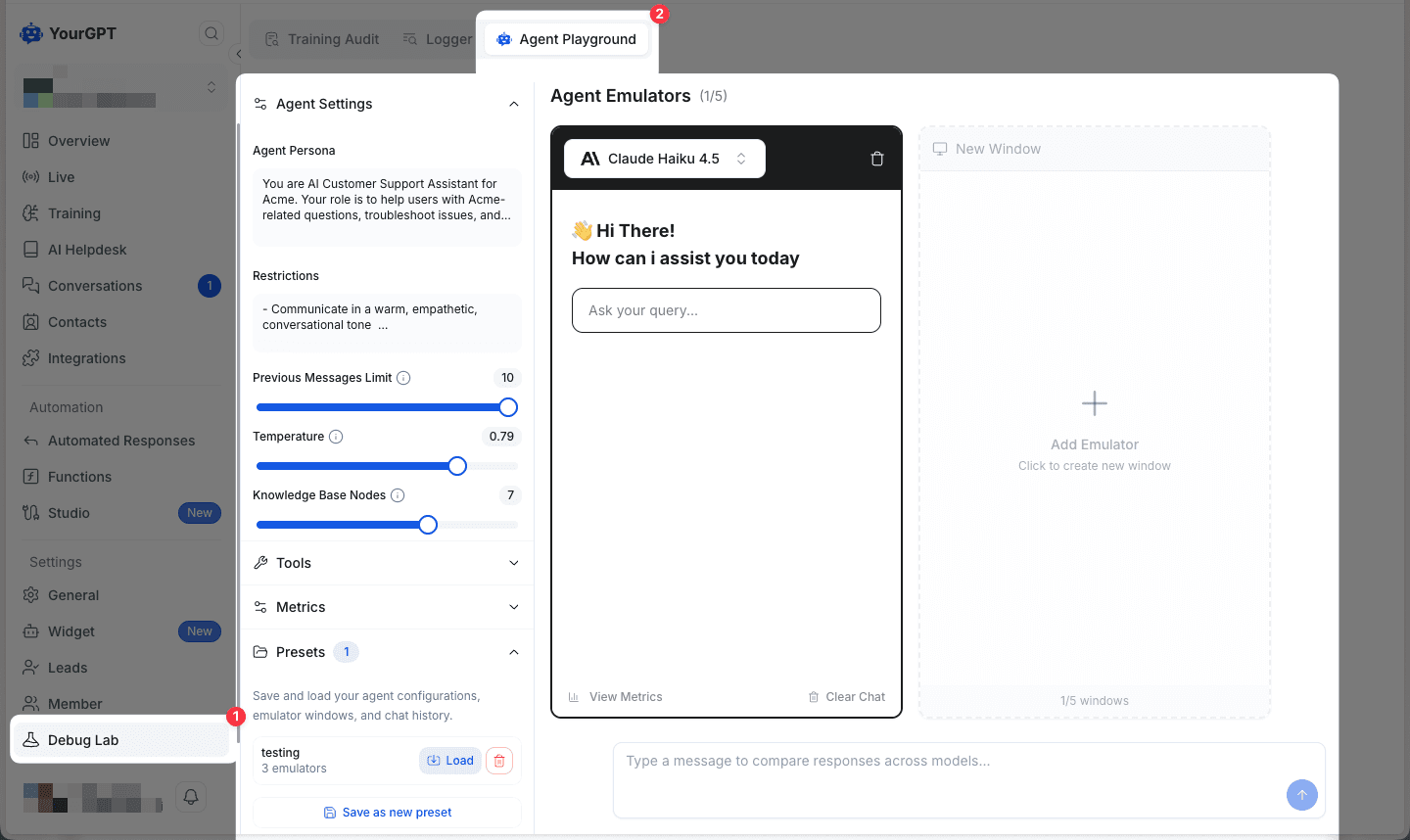
The left sidebar contains your Agent Settings where you can configure:
- Agent Persona - Define your AI's role and behavior
- Restrictions - Set boundaries for your agent
- Previous Messages Limit - Control conversation context
- Temperature - Adjust response creativity (0-1 scale)
- Knowledge Base Nodes - Connect relevant knowledge sources
- Tools - Enable API functions and integrations
- Presets - Save and quickly load common configurations
Changes to these settings apply to all active emulators, ensuring consistent testing conditions across models.
Selecting AI Models
Click on the model name in any emulator window to open the model selection dropdown.
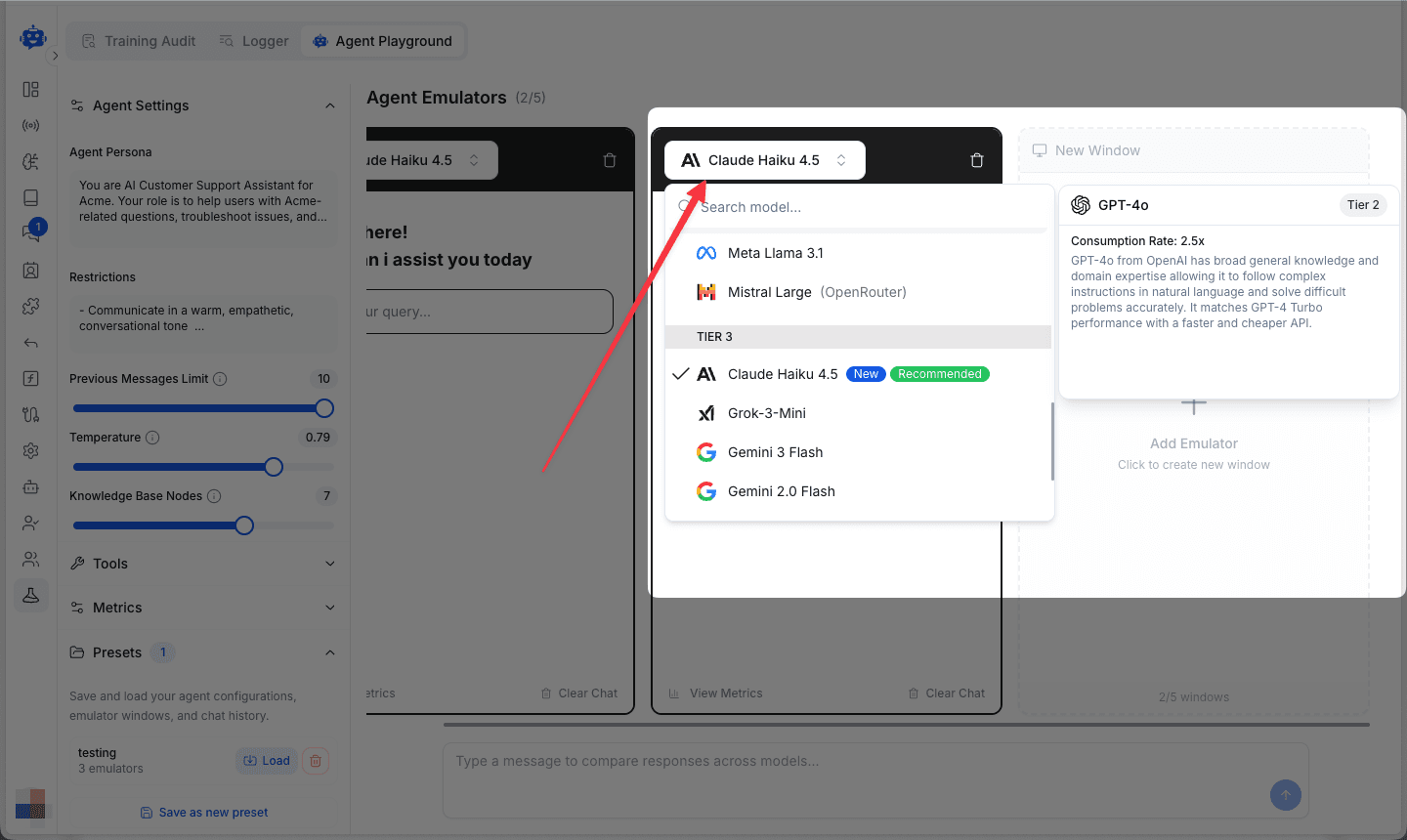
Available models are organized by tiers and include:
- Claude (Haiku, Sonnet, Opus)
- GPT-4 and variants
- Gemini (Flash, Pro)
- Mistral and Meta Llama models
- Grok and other providers
- and more...
Each model displays its tier and consumption rate, helping you balance performance with cost. Models marked as "New" or "Recommended" indicate optimized options for most use cases.
Testing Multiple Models
Add up to 5 model emulators to test simultaneously. Click Add Emulator to create additional windows.
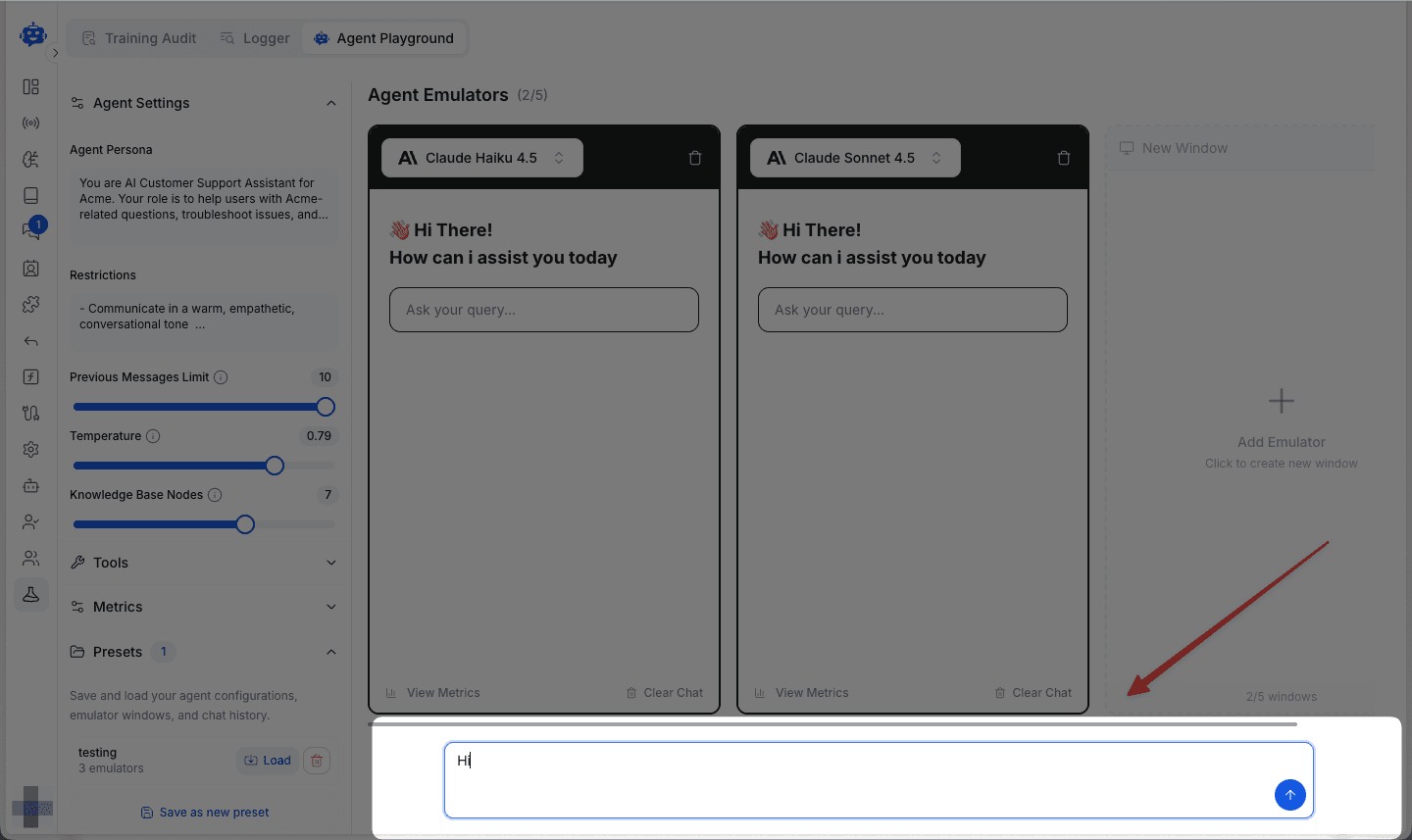
All emulators share a single input field at the bottom. When you type a message, it sends to all active models at once, ensuring perfectly consistent A/B testing conditions.
Comparing Responses
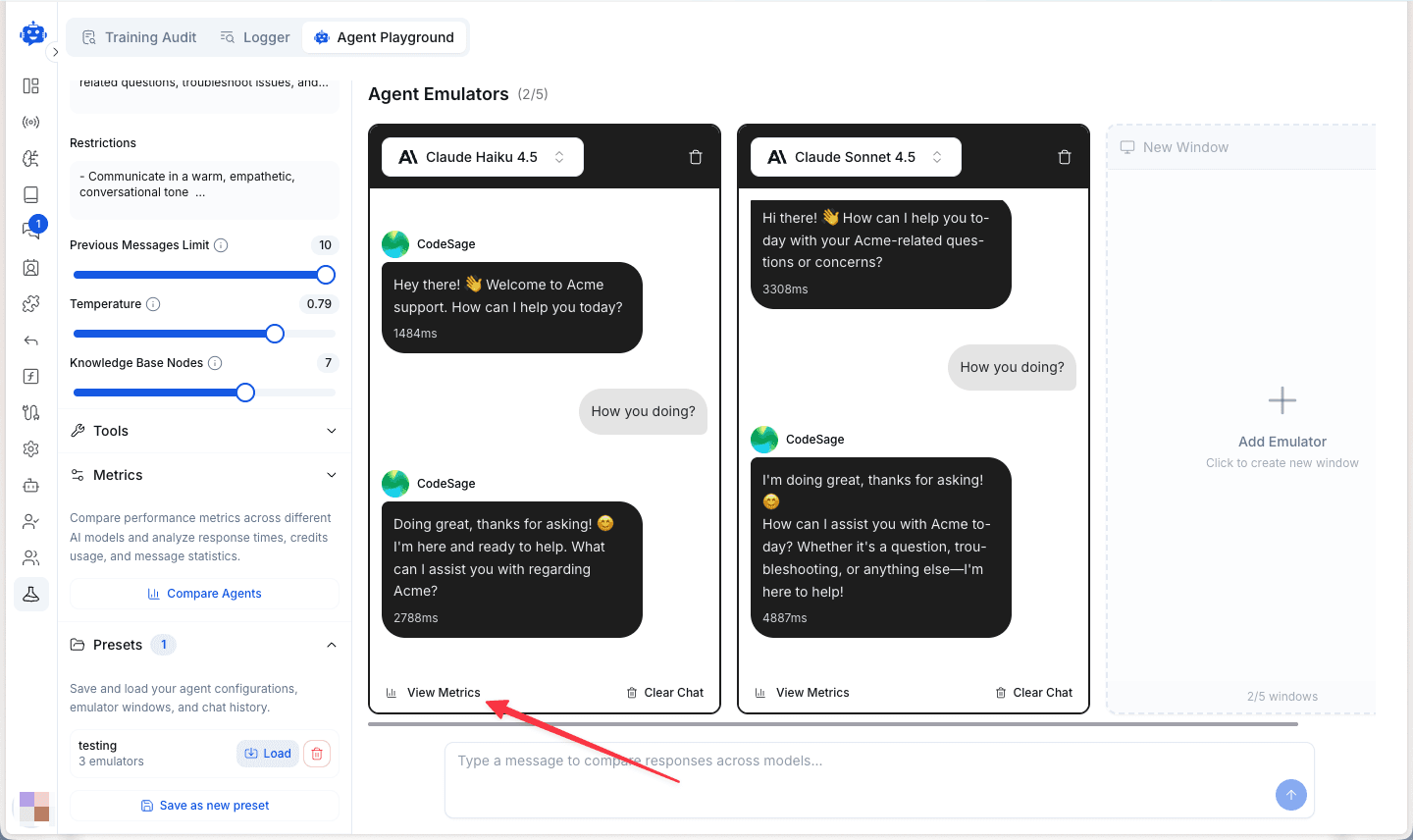
Watch how different models respond to identical prompts in real-time.
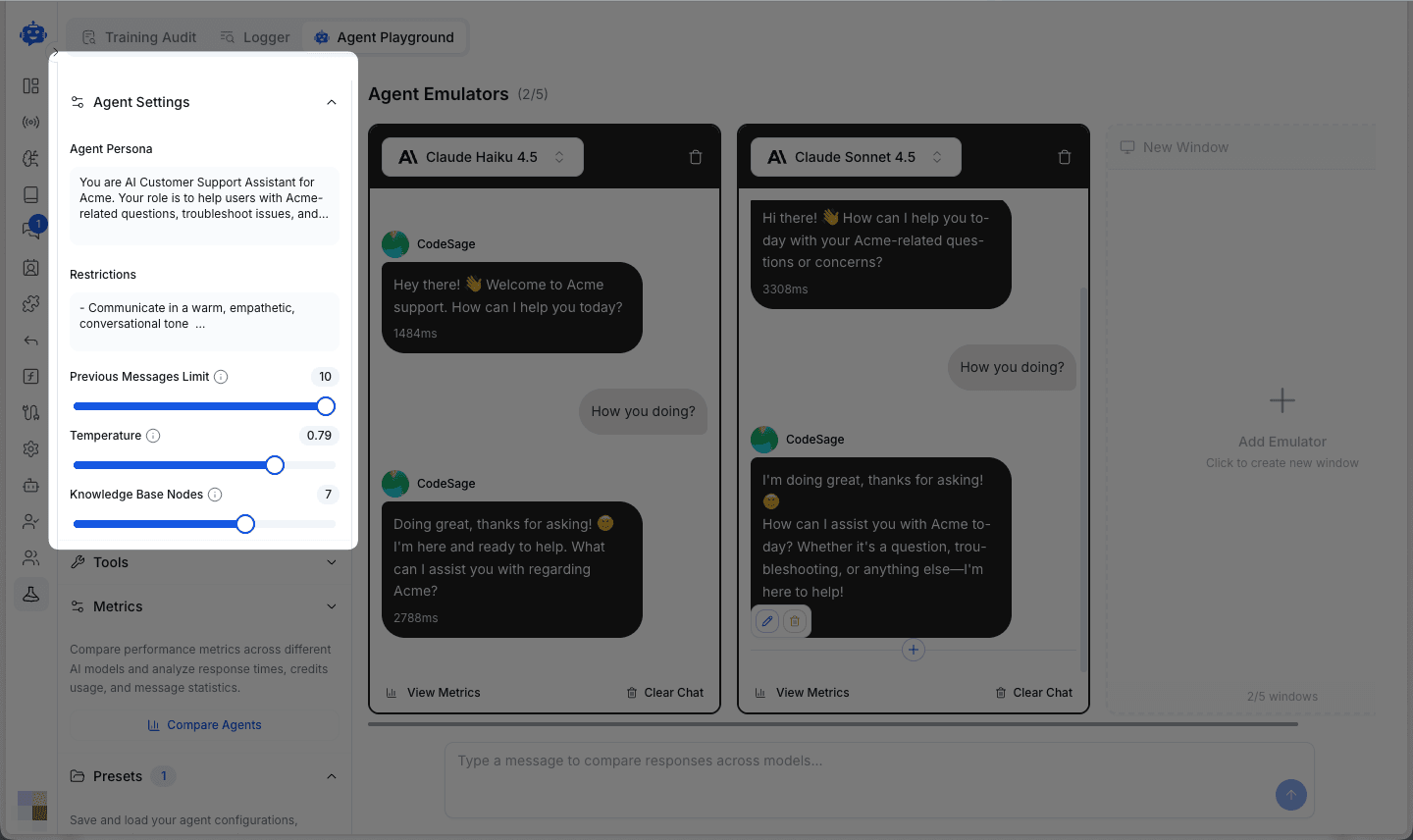
Each response displays:
- Response time in milliseconds
- Message content with the model's unique style and tone
- Edit and copy options for further analysis
Compare models across:
- Response Quality - Accuracy, helpfulness, and relevance
- Response Speed - Time to first token and total completion time
- Response Style - Tone, formatting, and conversational approach
Configuring Tools
Enable tools and functions to test your agent's capabilities with API integrations.
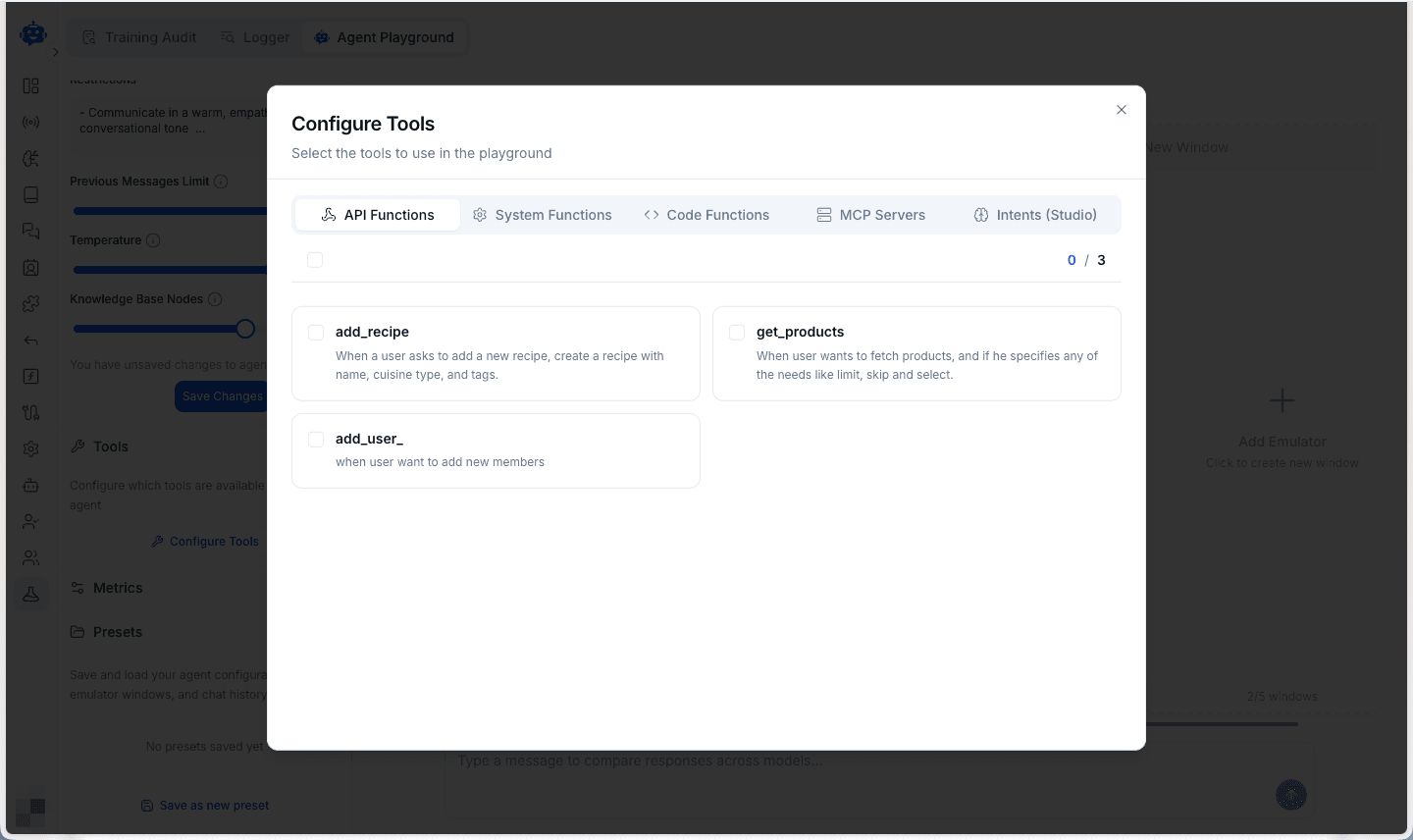
Choose from:
- API Functions - Custom functions your agent can call
- System Functions - Built-in capabilities
- Code Functions - Code execution tools
- MCP Servers - Model Context Protocol integrations
- Intents (Studio) - Pre-configured agent intents
This allows you to test how different models handle function calling and tool usage before deploying to production.
Pro Tip
To test Studio workflows, use the built-in emulator within the Studio or publish the workflow and test it via the shareable link.
Viewing Comparison Metrics
After testing multiple models, click Compare Agents in the metrics section to analyze performance side-by-side.
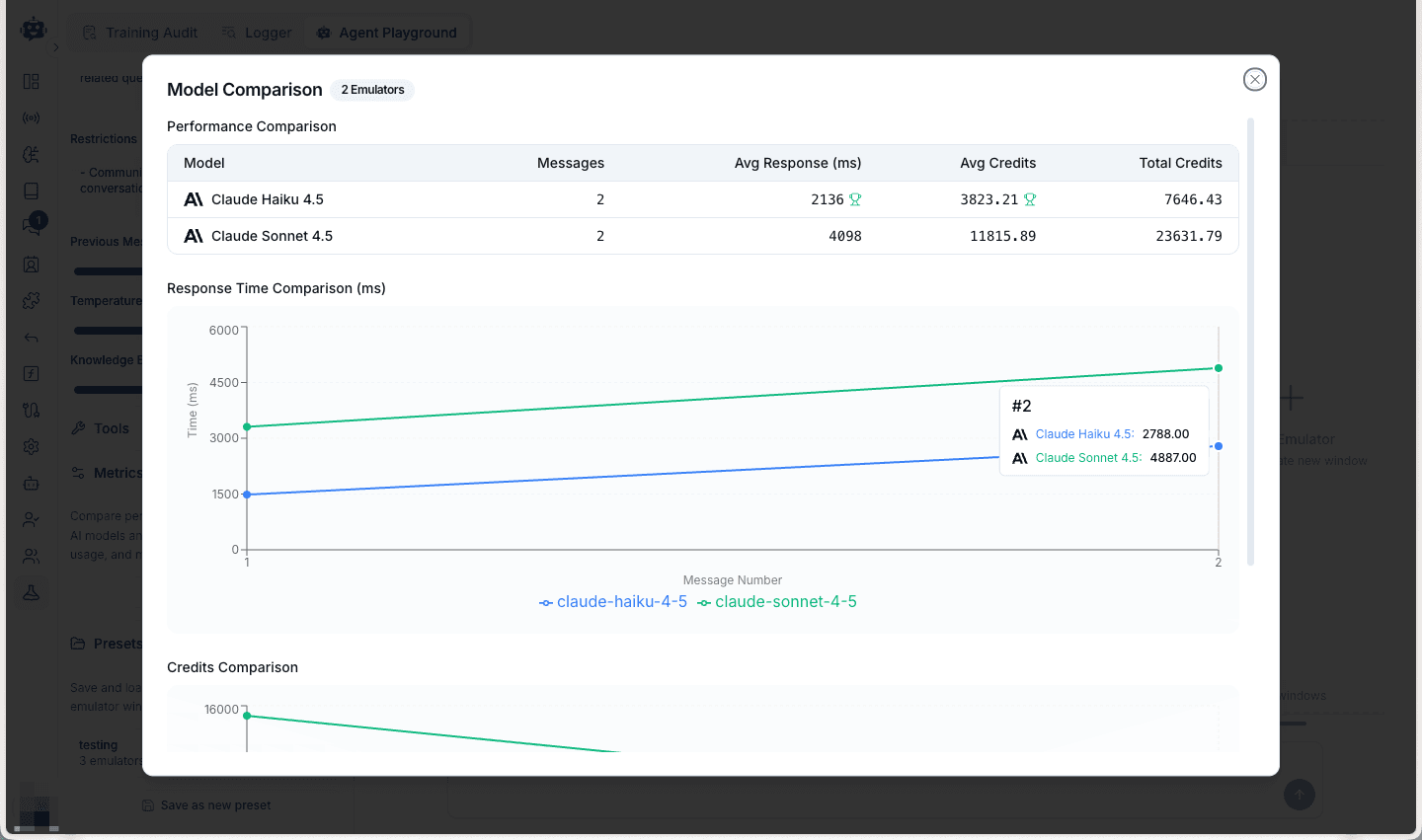
The comparison view shows:
- Performance table with messages, average response times, min/max times, and credit usage
- Response Time Comparison chart tracking speed trends across messages
- Credits Comparison chart showing cost patterns
This helps you identify the optimal balance between speed, quality, and cost for your specific use case.
Viewing Individual Model Metrics
Click View Metrics at the bottom of any emulator window to see detailed analytics for that specific model.
The individual metrics modal displays:
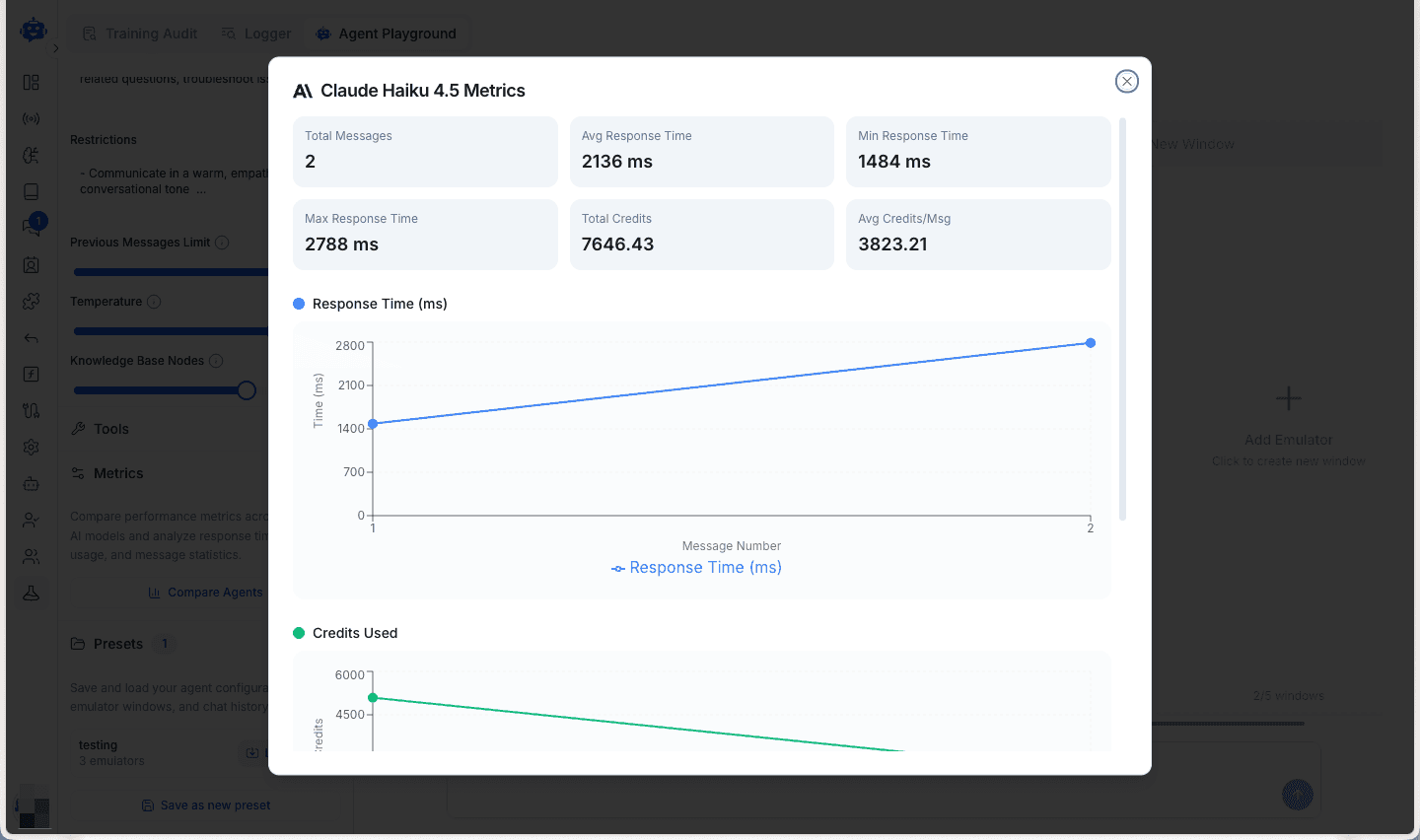
- Total Messages - Number of interactions processed
- Avg Response Time - Mean time across all responses
- Min/Max Response Time - Performance range
- Total Credits - Cumulative consumption
- Avg Credits/Msg - Cost efficiency per message
- Performance charts - Visual trends over time
Use these insights to understand each model's behavior patterns and consistency.
Common Use Cases
- A/B Testing - Compare how different models handle your specific prompts and scenarios
- Configuration Tuning - Test temperature, persona, and tool combinations to find optimal settings
- Cost Optimization - Identify models that deliver quality within your budget constraints
- Performance Benchmarking - Measure response times and consistency before production deployment
Pro Tips
- Save successful configurations as Presets for quick reuse across testing sessions
- Monitor average response times to set realistic expectations for production performance
- Compare credits per message to optimize costs without sacrificing quality
- Use Clear Chat to reset conversations and test fresh scenarios with different contexts
Testing your agent's performance is a critical step in ensuring it delivers high-quality responses. The Agent Playground provides a powerful tool for comparing multiple AI models side-by-side, allowing you to identify the best model for your use case. By testing multiple models, you can compare response quality, speed, and cost, and make informed decisions about which model to deploy to production.