Vercel
Learn how to integrate YourGPT Chatbot with your Vercel website with our detailed, step-by-step guide
Connecting Your AI Chatbot with Vercel
Installation
Follow these steps to integrate your YourGPT chatbot with your Vercel website:
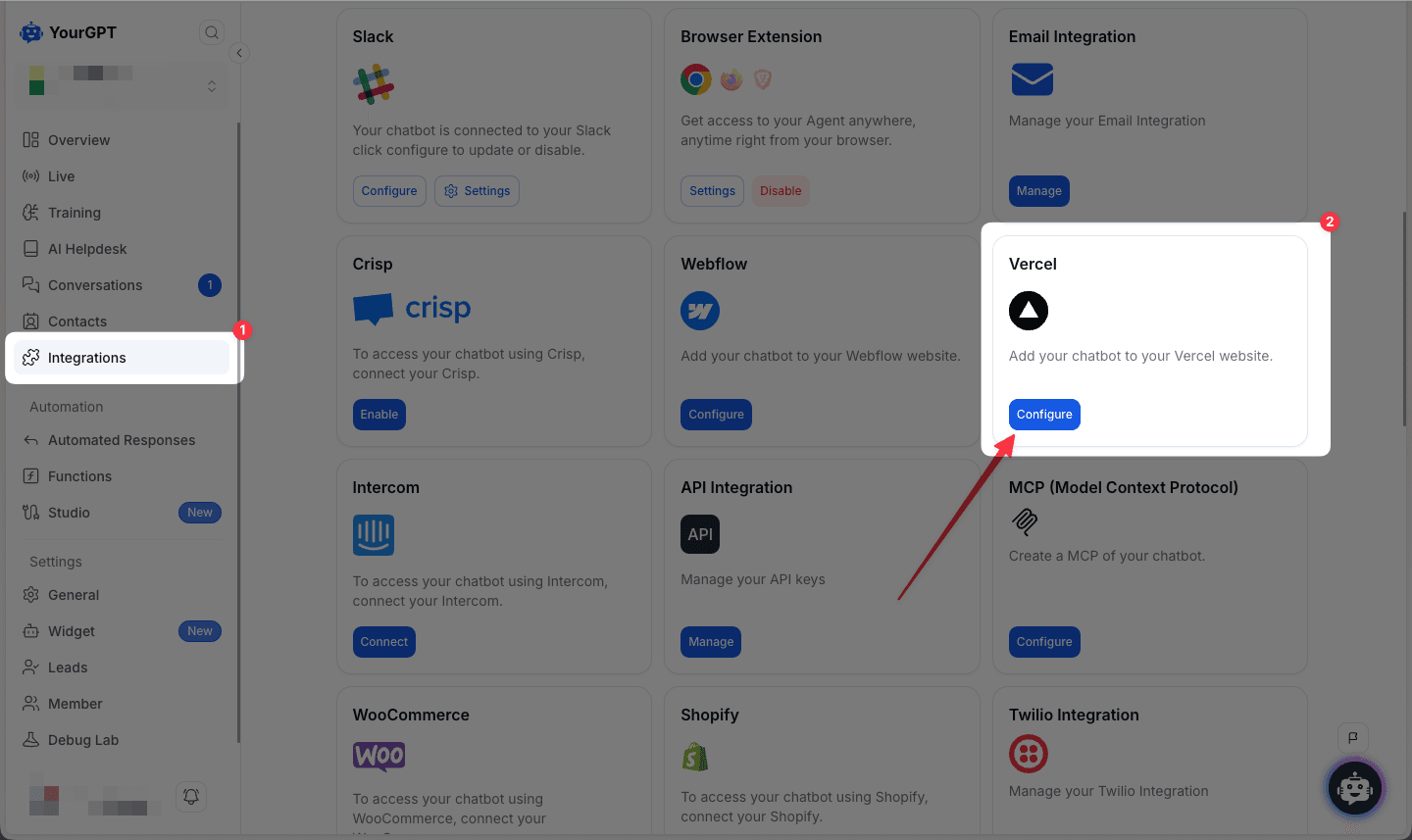
Navigate to Integrations in your YourGPT dashboard and click Configure on the Vercel integration card.
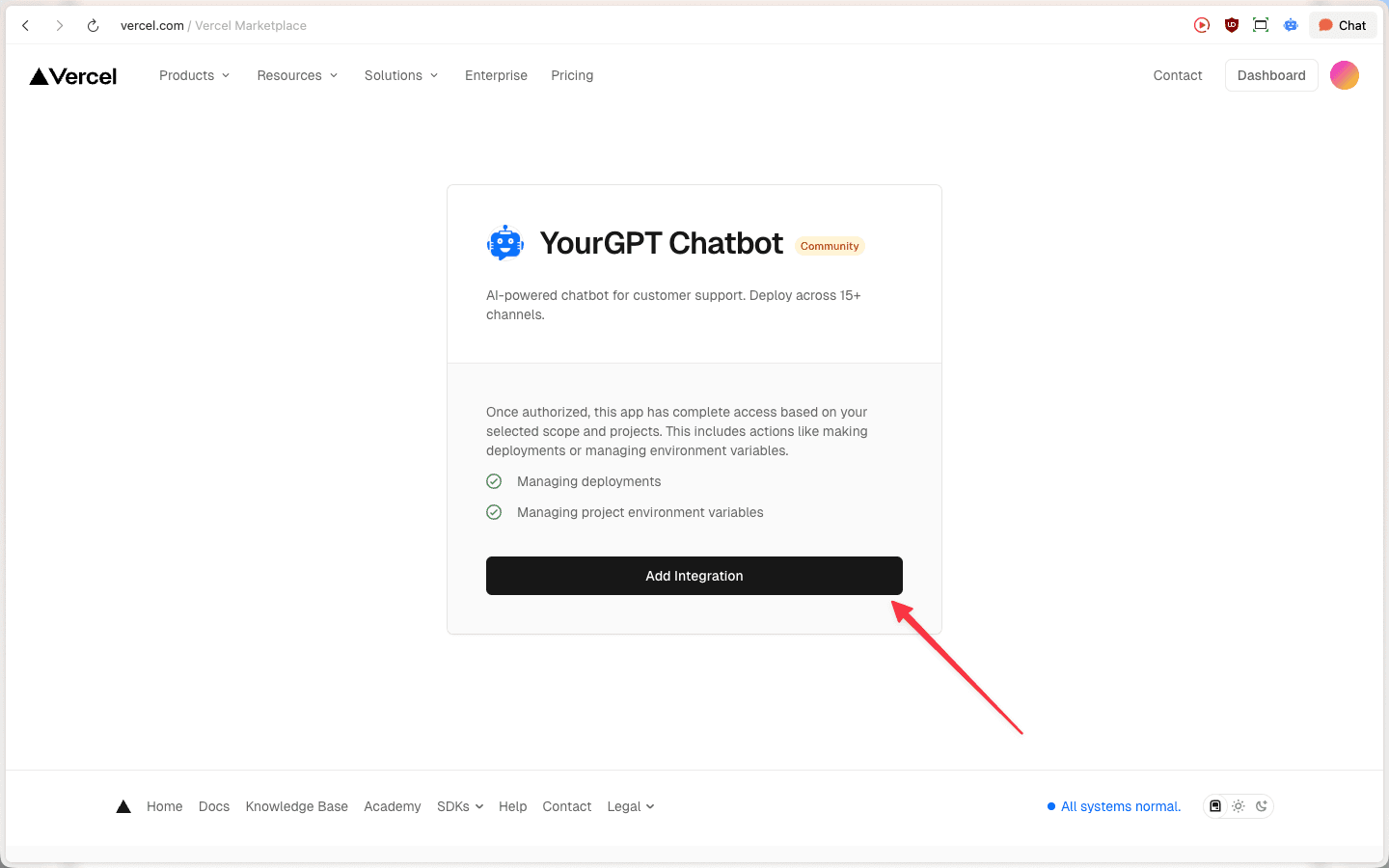
On the Vercel Marketplace page, review the integration permissions and click Add Integration.
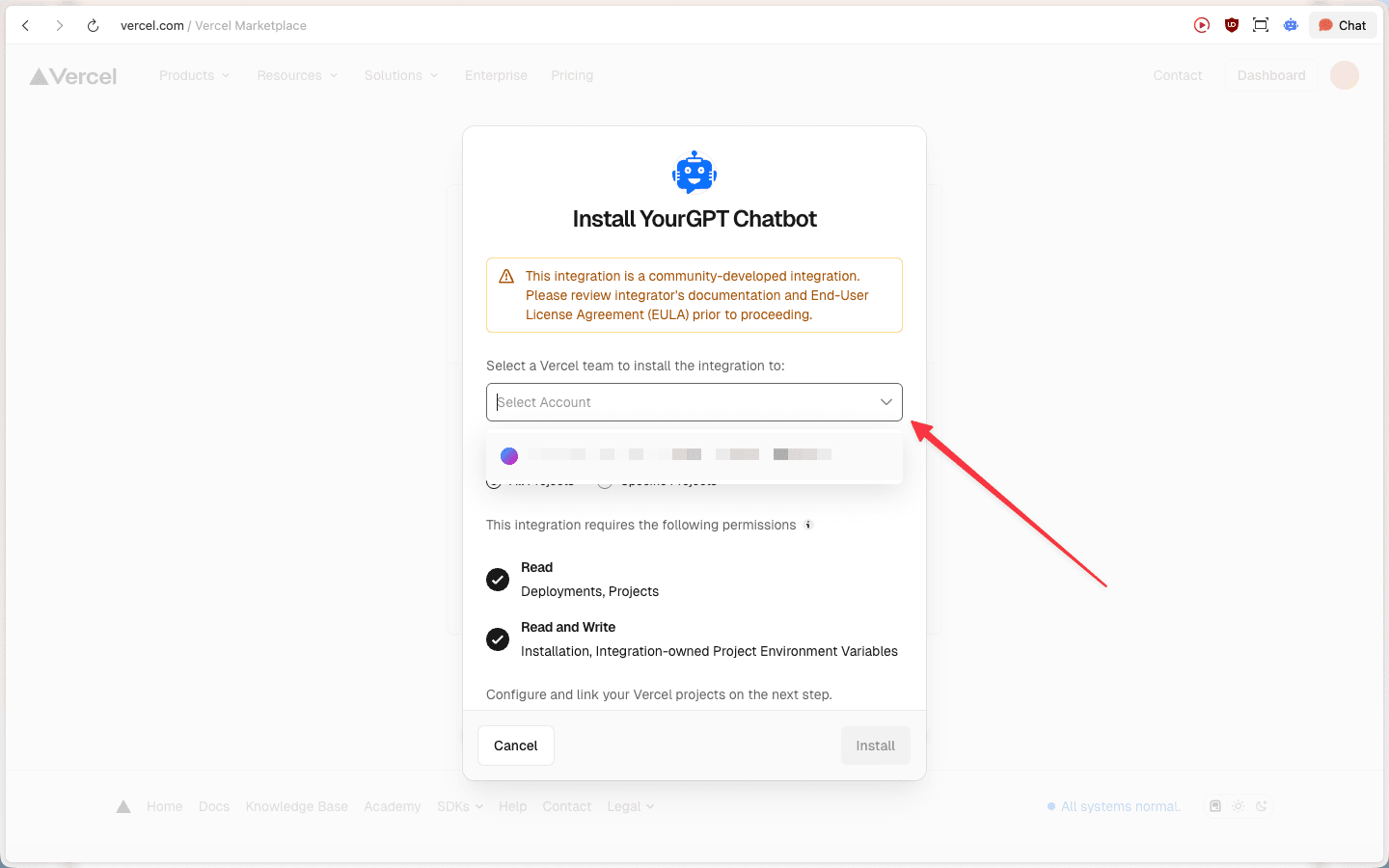
Select your Vercel account to install the integration.
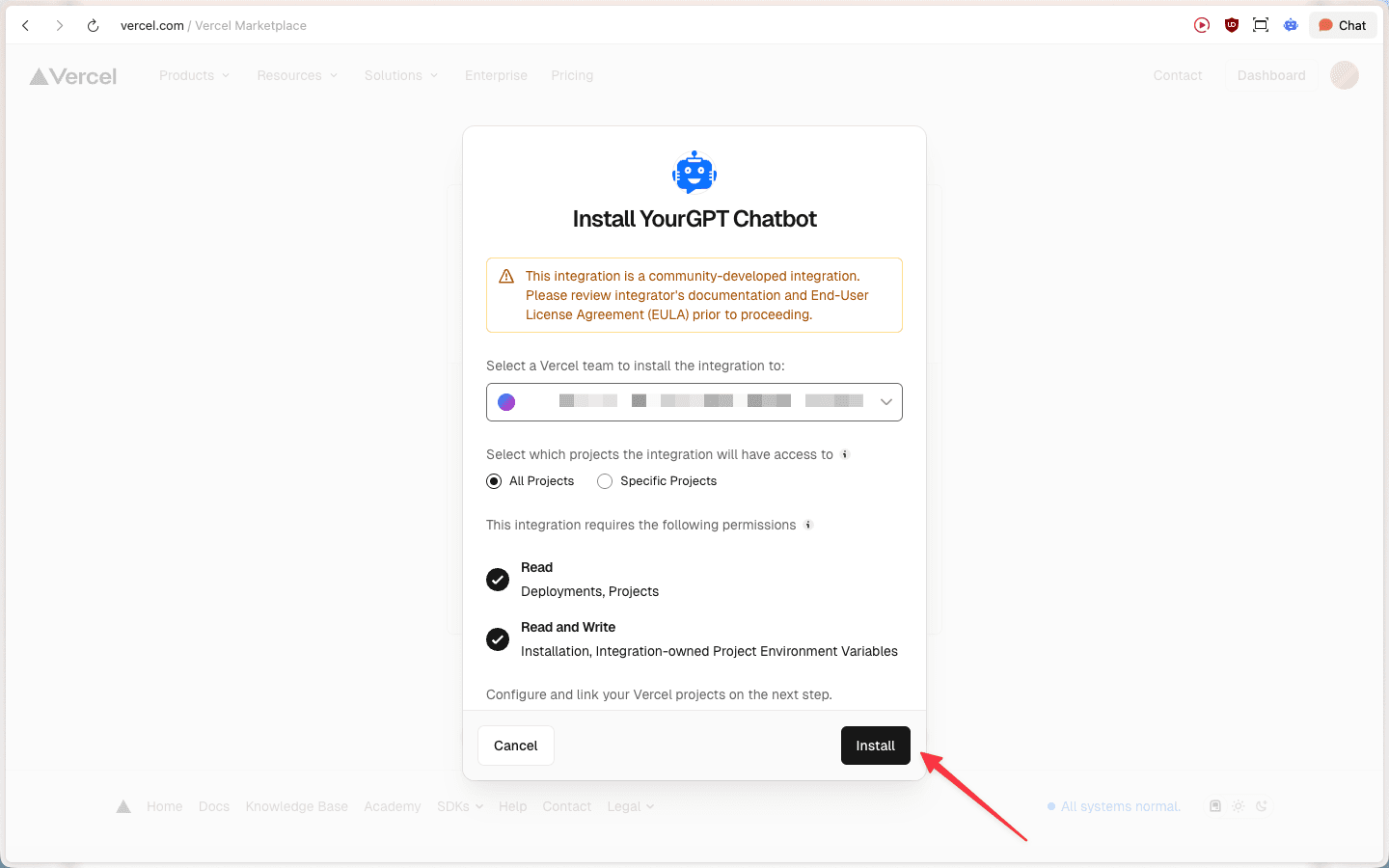
Choose which projects the integration will have access to (All Projects or Specific Projects), then click Install.
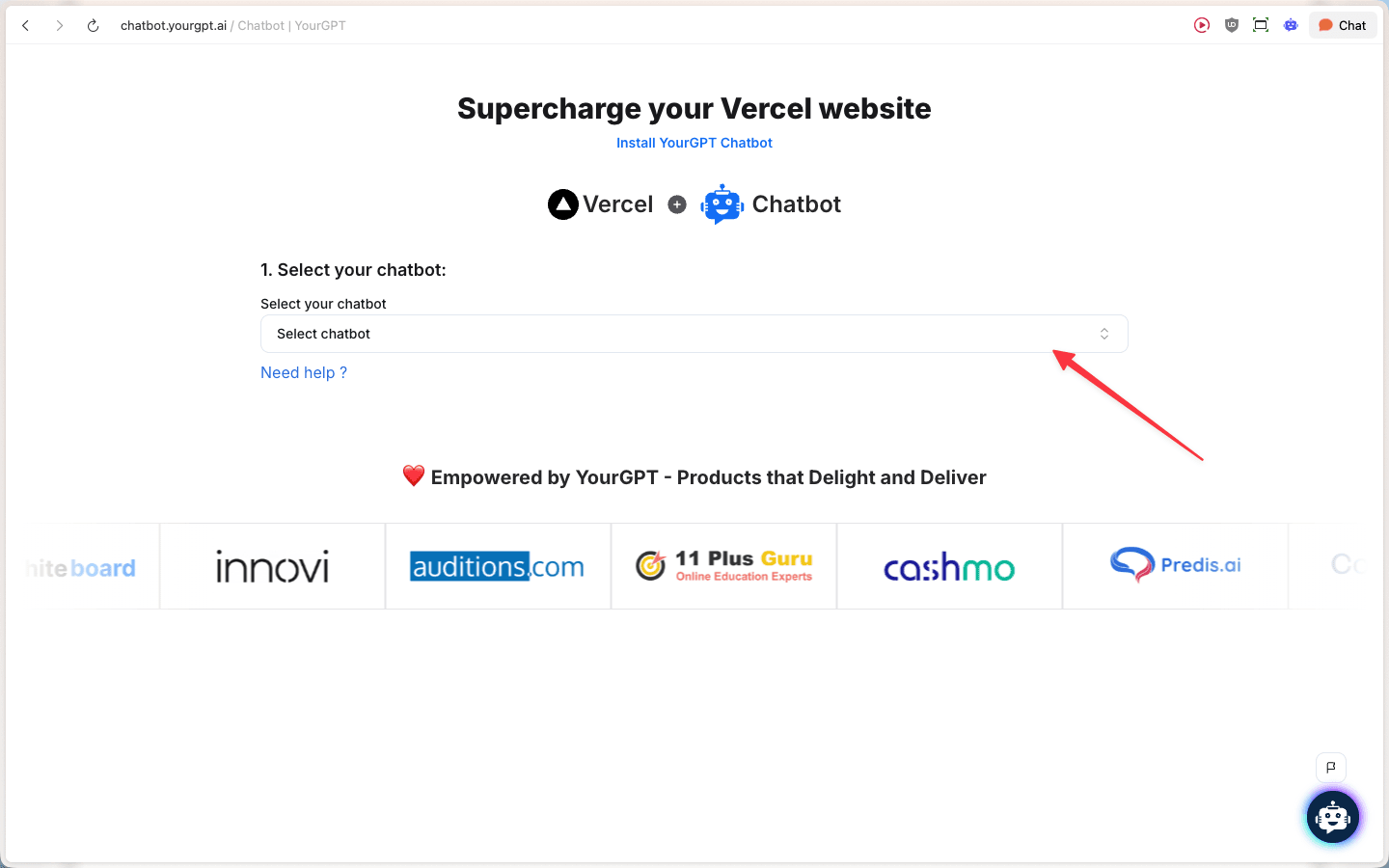
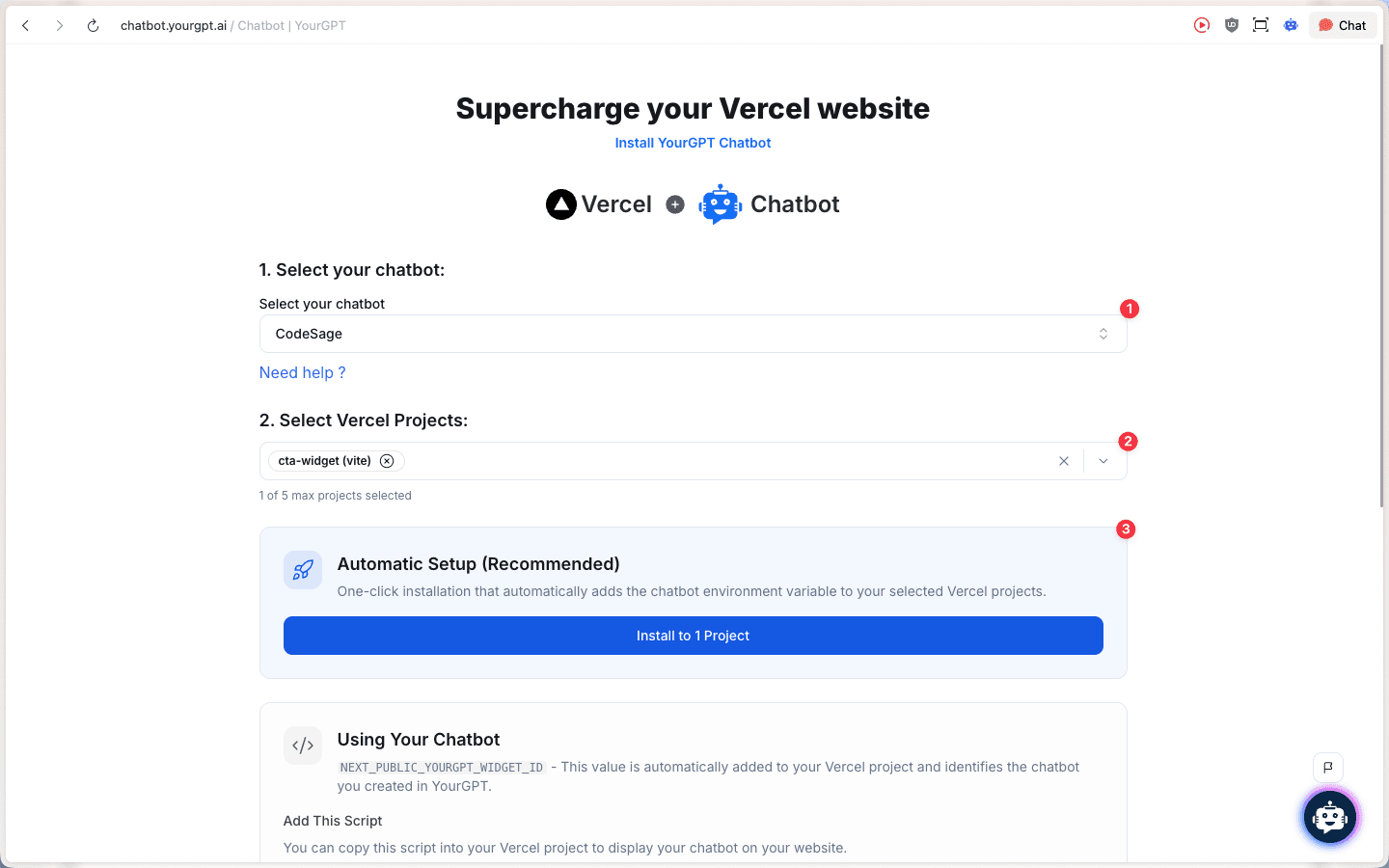
You'll be redirected to the YourGPT configuration page. Select your chatbot from the dropdown menu.
Select the Vercel project(s) you want to integrate with, then click Install to 1 Project (or more if you selected multiple). The integration will automatically add the chatbot environment variable to your selected Vercel projects.
Manual Setup
Step 1: Environment Variable
Once connected, the following environment variable is automatically added to your Vercel project:
| Variable | Description |
|---|---|
NEXT_PUBLIC_YOURGPT_WIDGET_ID | Your selected YourGPT chatbot widget UID |
Step 2: Embed the Widget
You can copy this script into your Vercel project to display your chatbot on your website.
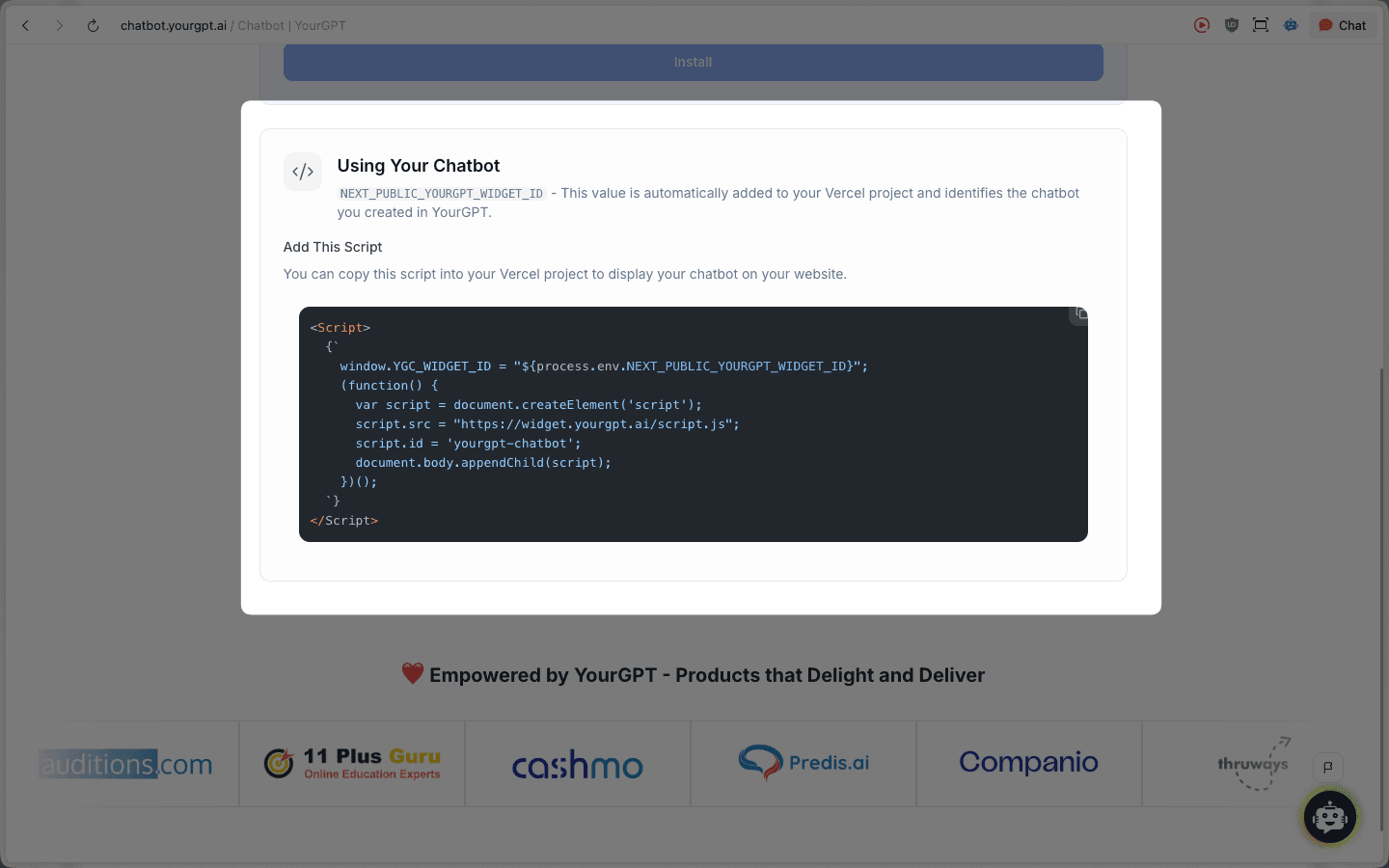
<script>
    window.YGC_WIDGET_ID = "${process.env.NEXT_PUBLIC_YOURGPT_WIDGET_ID}";
    (function() {
      var script = document.createElement('script');
      script.src = "https://widget.yourgpt.ai/script.js";
      script.id = 'yourgpt-chatbot';
      document.body.appendChild(script);
    })();
</script>