Shopify
Learn how to integrate a GPT Chatbot with your Shopify store with our detailed, step-by-step guide
💡 Connecting Your Chatbot with Shopify
GPT AI Chatbot Installation
Integrating GPT Chatbot with your Shopify store is a seamless process that enhances customer interaction. Follow these steps:
Copy Widget Script
Go to the YourGPT Integration section and copy the provided widget script.
Open Shopify Admin Panel
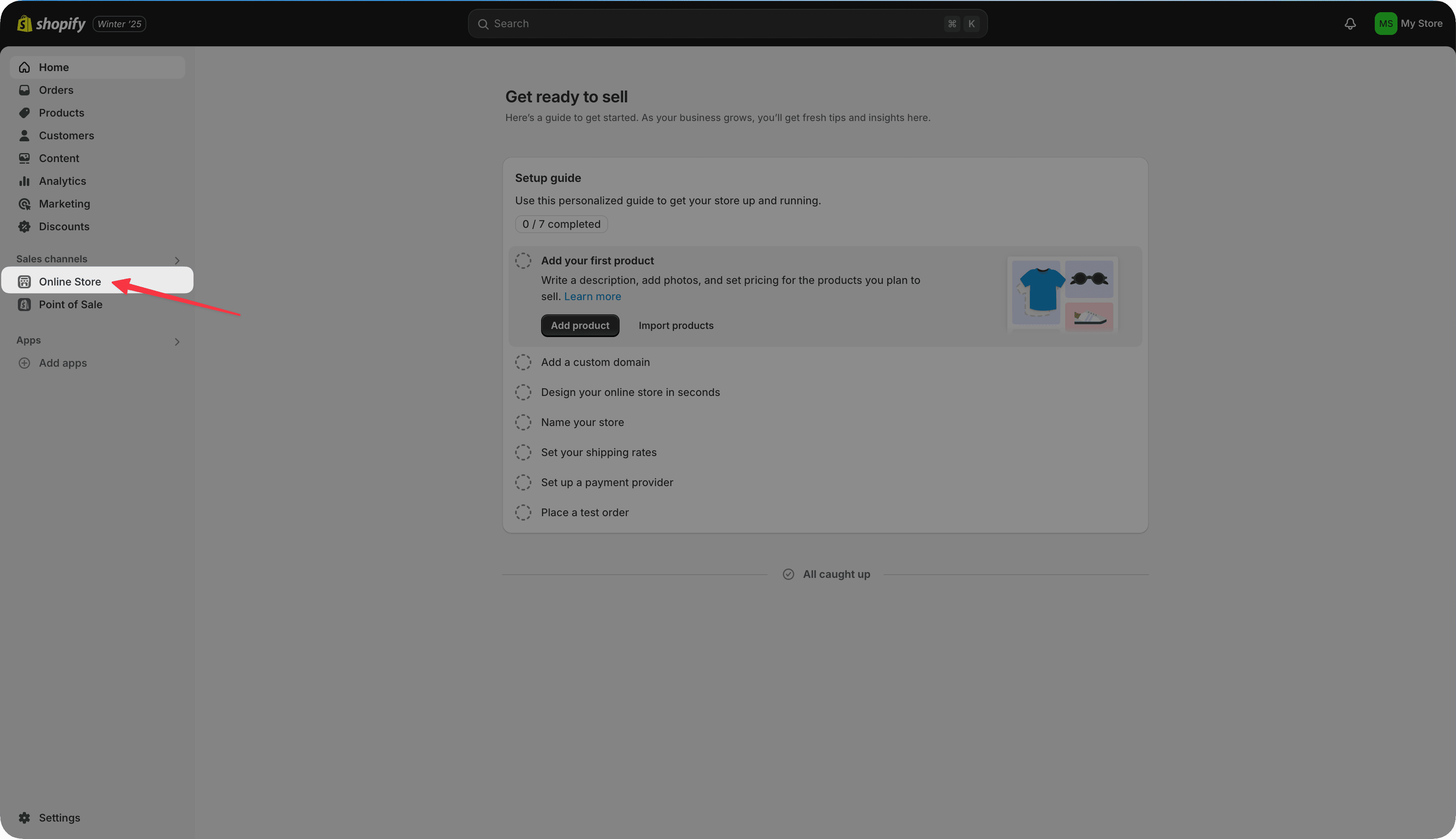
Go to Online Store from the Shopify Admin dashboard.
Select Themes under "Sales channels."
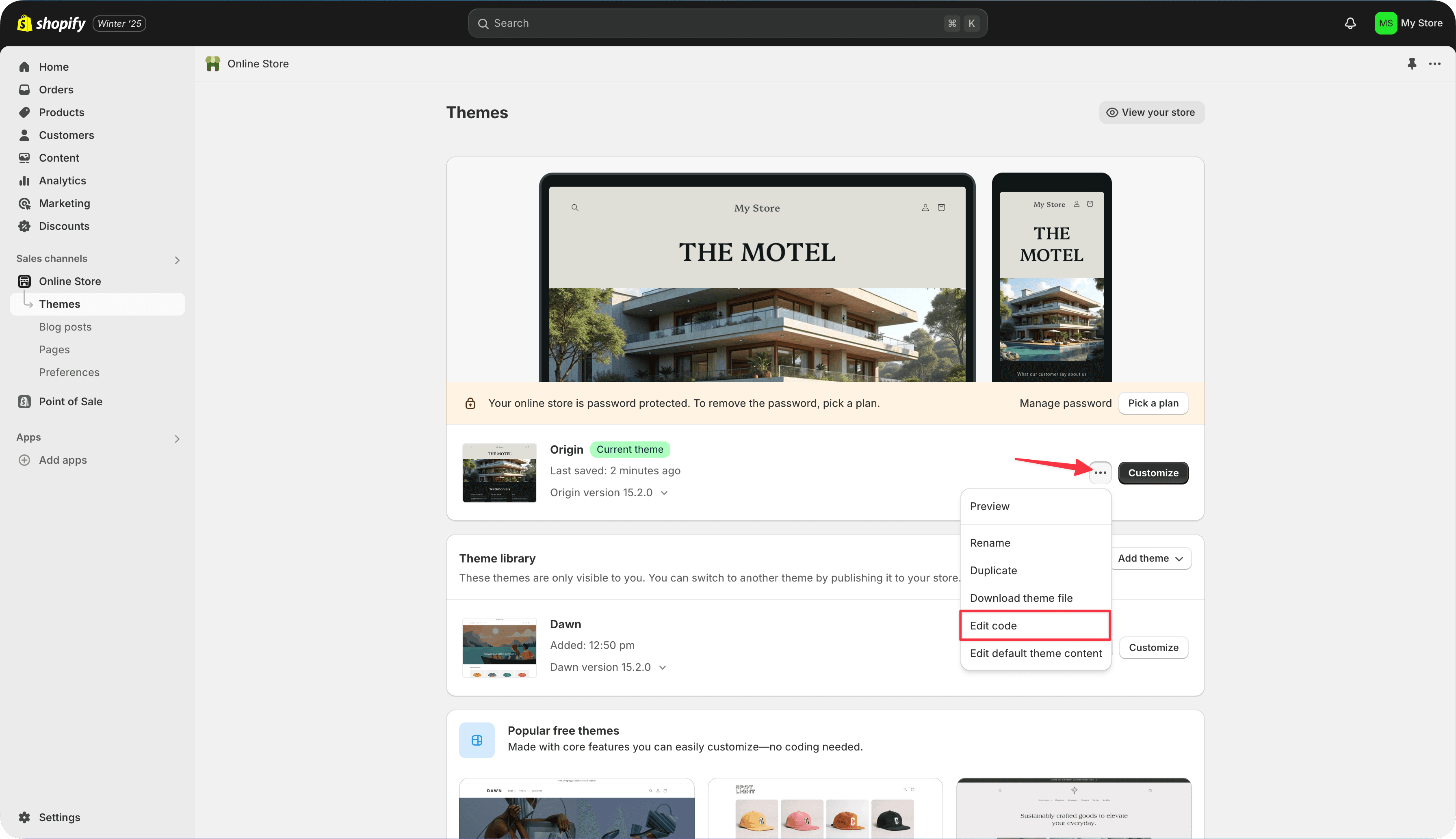
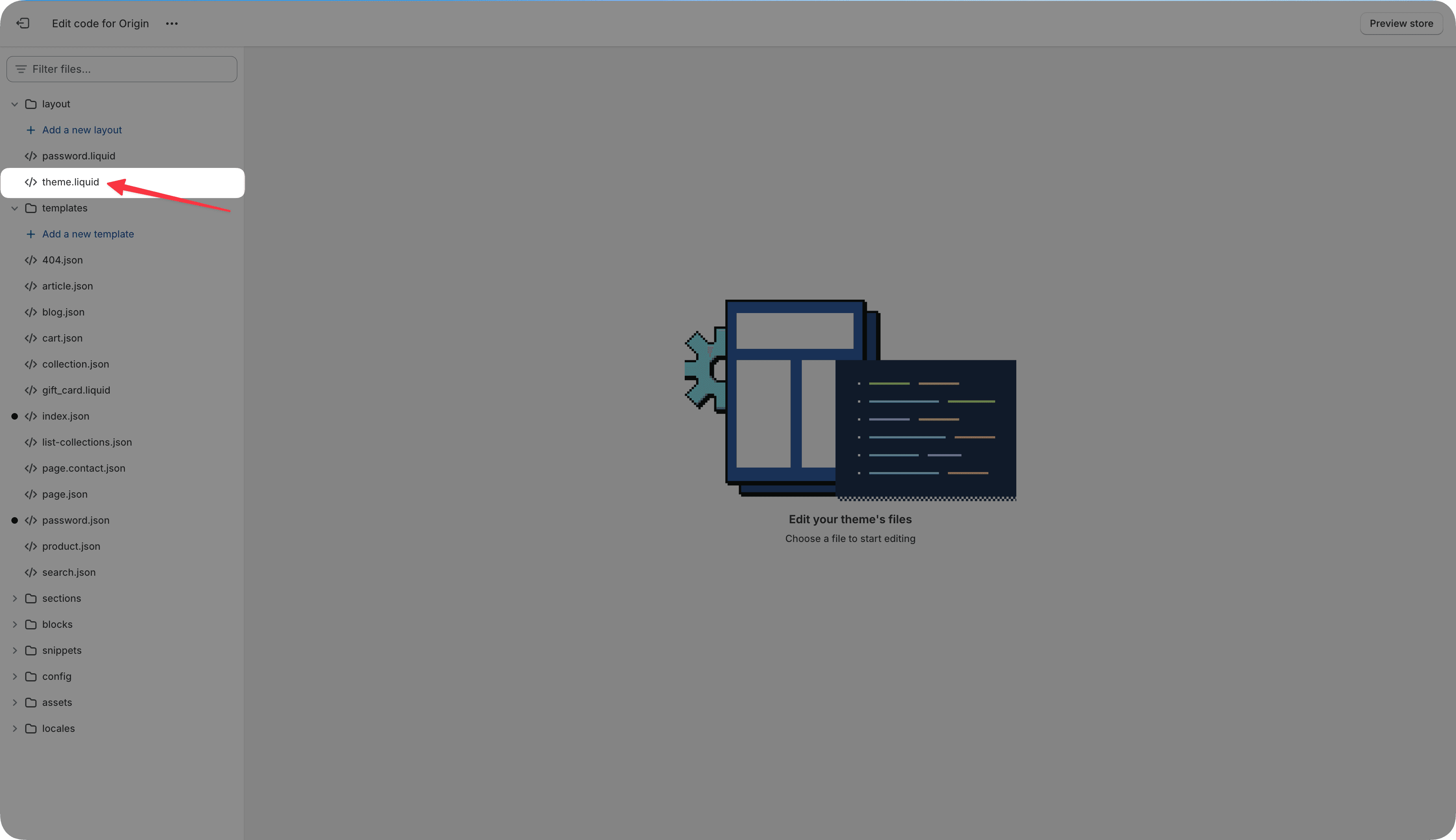
Locate theme.liquid File
In the code editor, navigate to Layout -> theme.liquid.
Open the file to modify the theme's main structure.
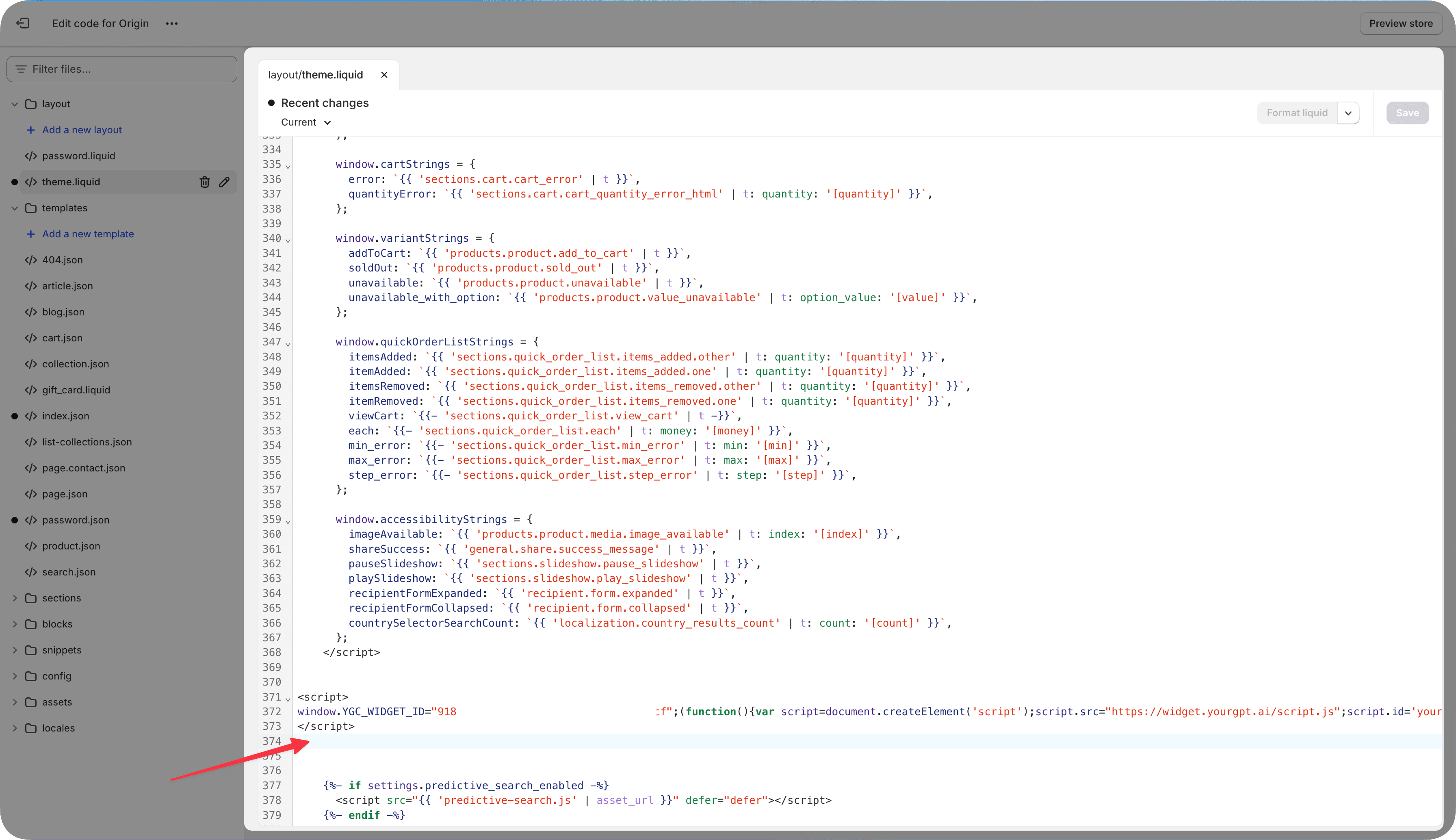
Insert Custom Script
Add the following JavaScript code inside that you have copied from yourgpt chatbot.
Save the file by clicking Save at the top.
Generating Token for Shopify (Chatbot Studio)
To generate a Shopify Auth Token, you need to follow these steps:
Create a New App
Create a new app in your Shopify admin panel.
You can do this by going to Apps -> apps and sales channel -> Develop apps -> create an app.
Fill in App Details
Fill in the app details. You can use any name and email you like.
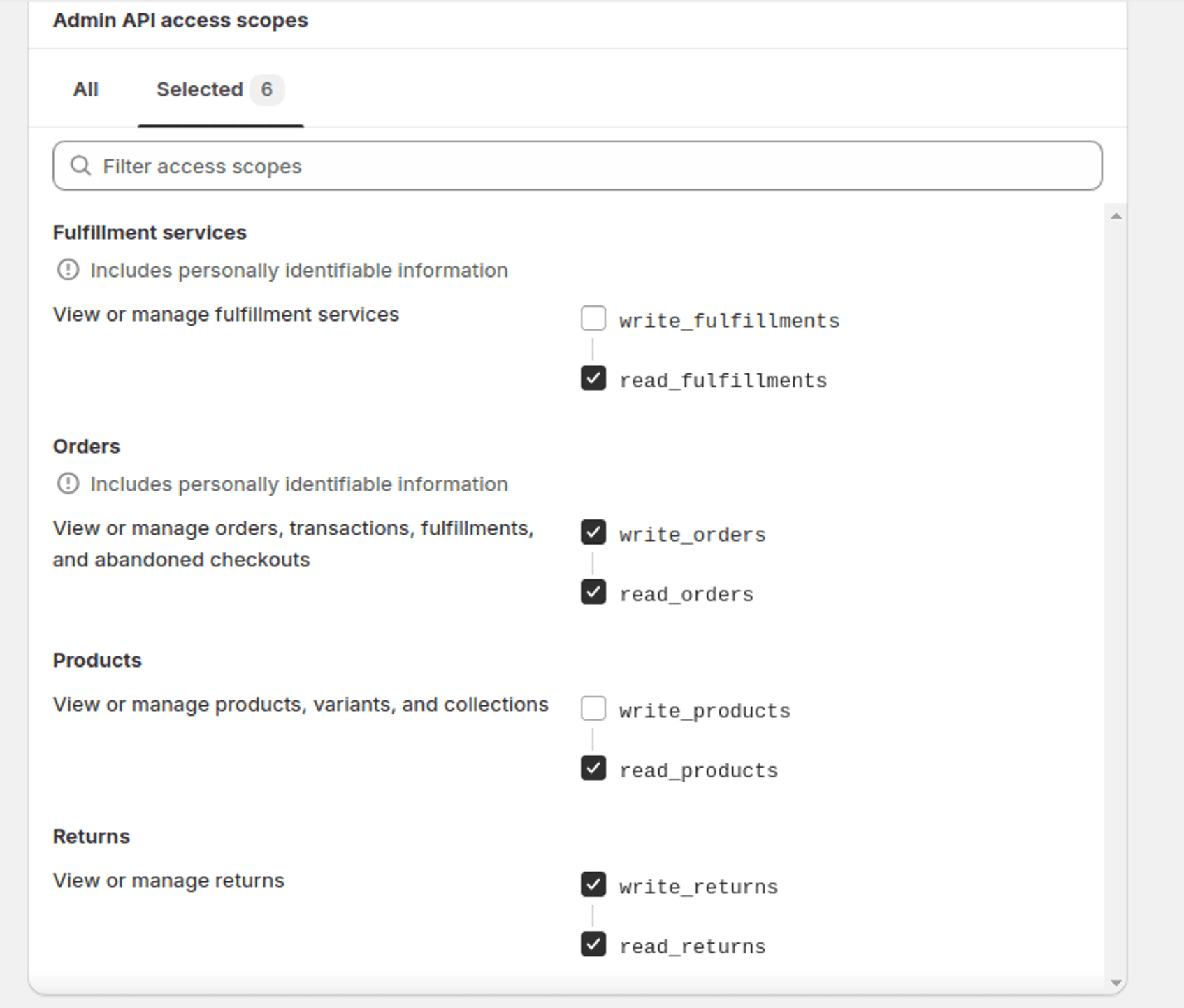
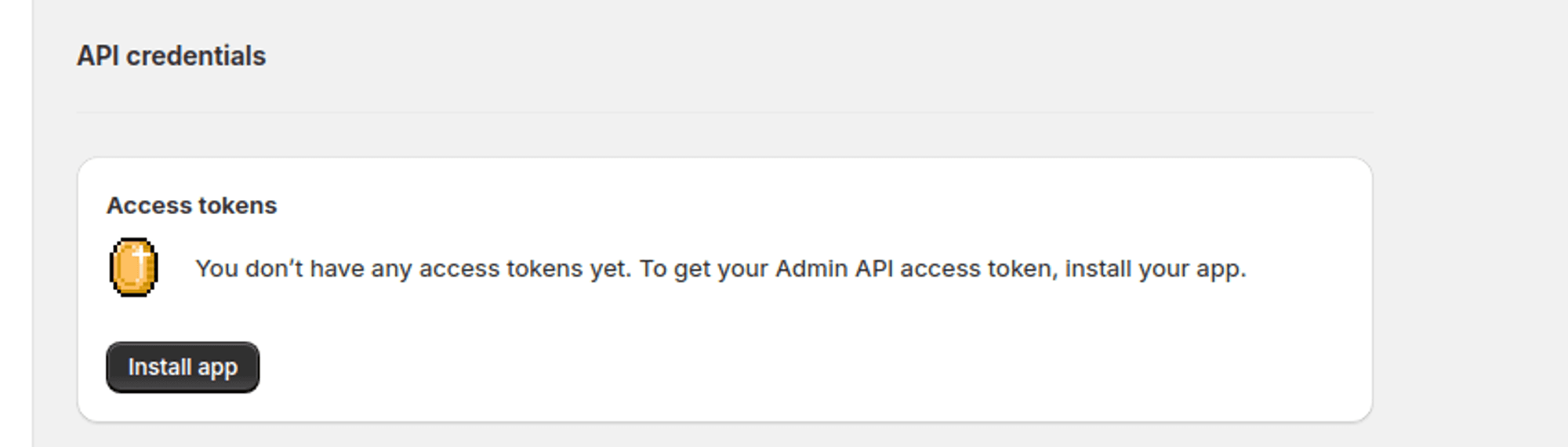
Install App and Reveal Token
After that, install the app and click on Reveal token once you will get your token.
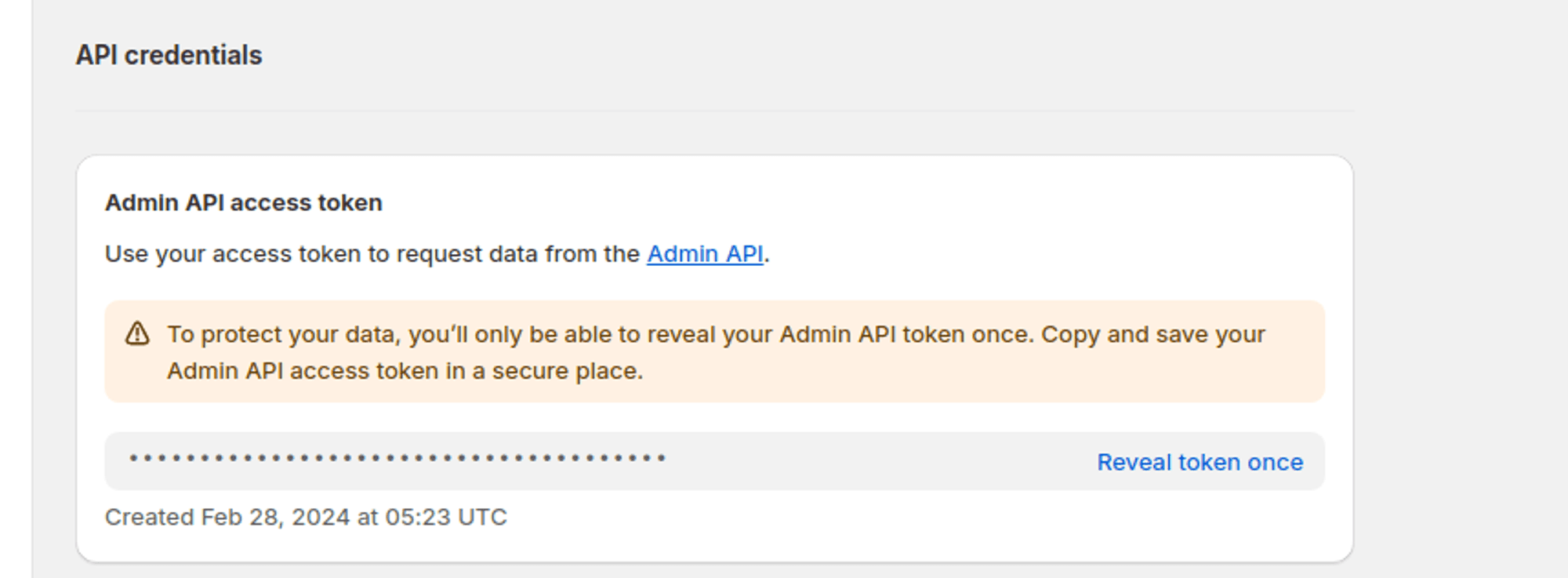
It is crucial to securely store your Auth Token as it provides access to your Shopify administration.
Troubleshooting
Need Help?
For further inquiries or technical support regarding GPT Chatbot integration with Shopify, feel free to contact us at Mail YourGPT Support or Chatbot Live Support.
We trust this integration will enhance customer engagement and satisfaction on your Shopify store!