Slack
Integrate YourGPT Chatbot with Slack to automate conversations in your workspace.
💡 Connecting Your Chatbot with Slack
Create Your First App
To begin integrating Slack, you will need to register on the Slack API site.
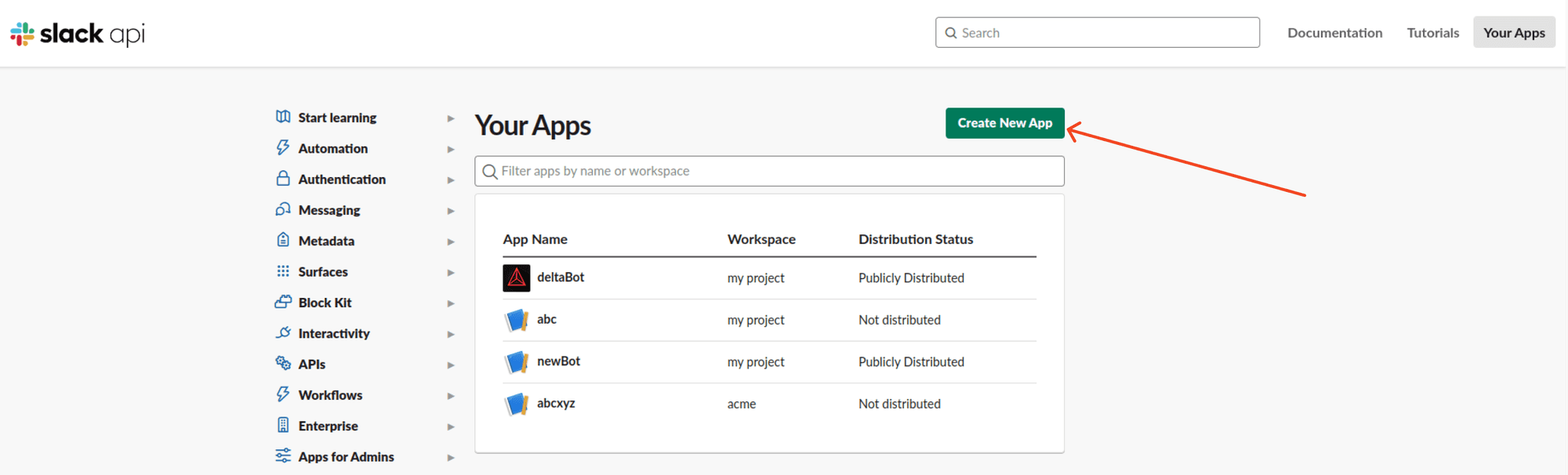
Once registered, head to Slack Apps to create your first app.
Obtain App ID and Access Token
To obtain the App ID and Access Token, you need to create an app, select the option From Scratch. You will now be redirected to the next page. Here, enter your App Name and select the Workspace where you wish to develop your app. Once done, click on Create App.
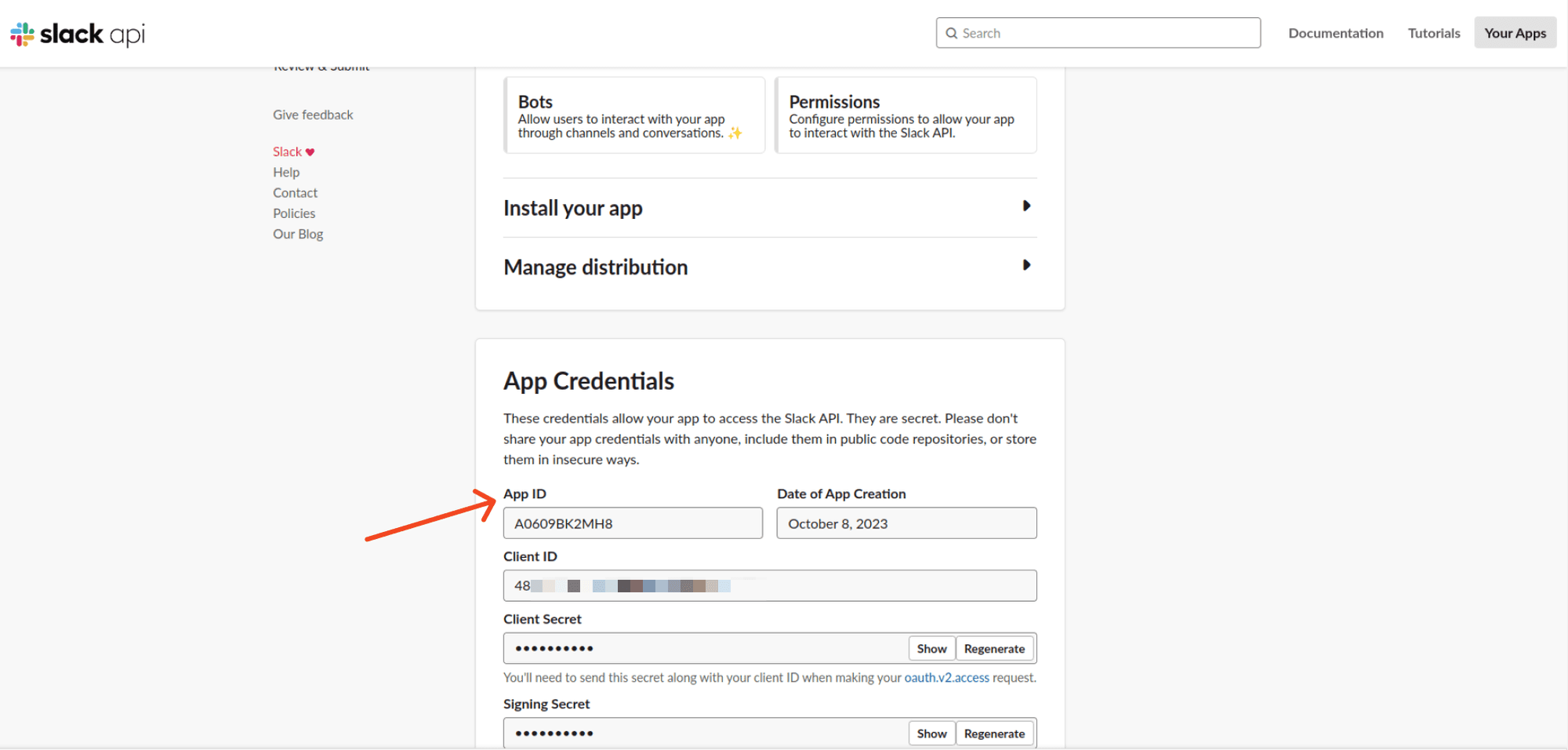
After creating the app, copy the following details from the Basic Information section:
- App ID
Configure OAuth & Permissions
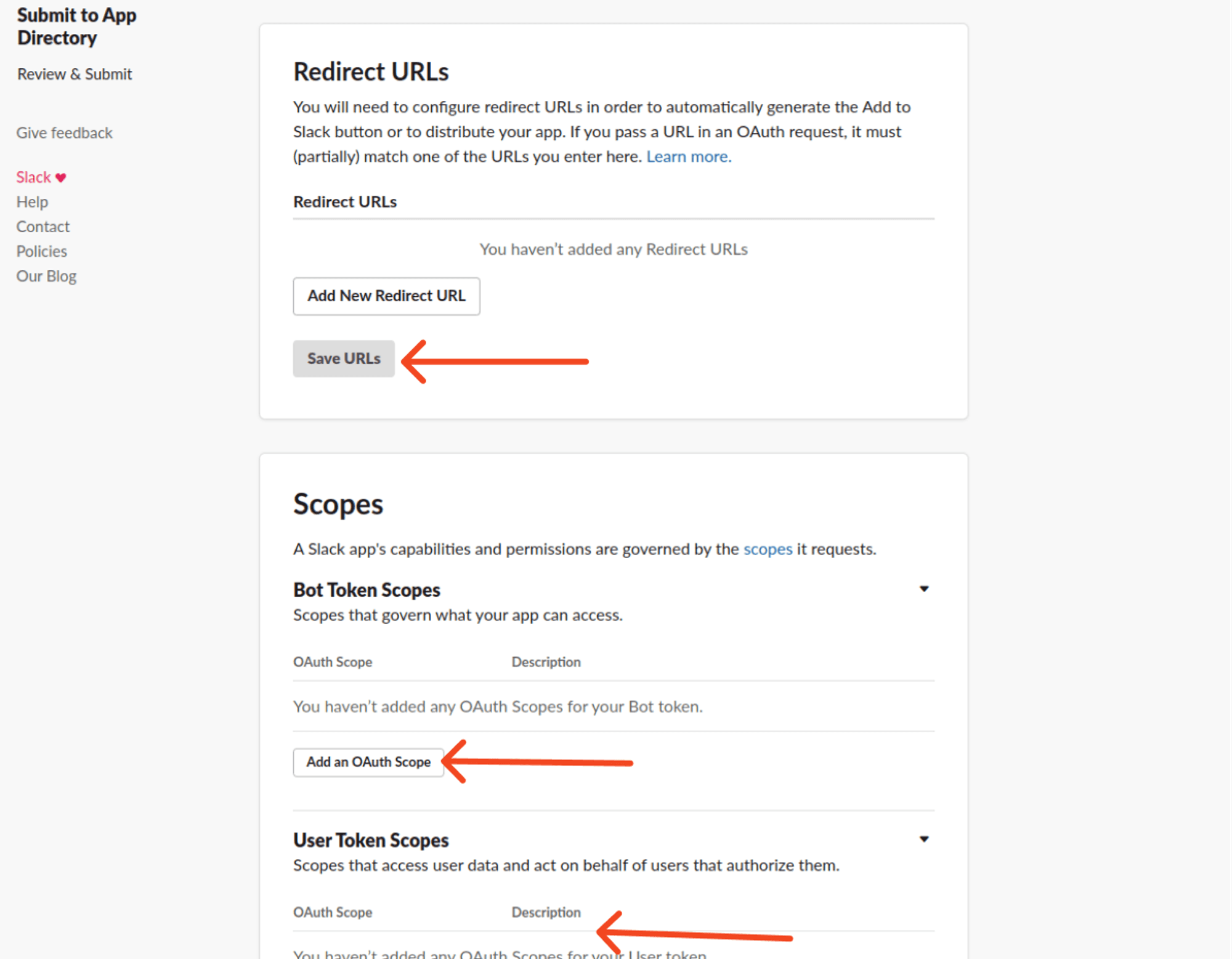
Configure redirect URLs and choose the necessary bot scopes required to access workspace data. Enable bot commands for interaction.
Redirect URLs: You need to add a valid URL from your domain as the redirect URL.
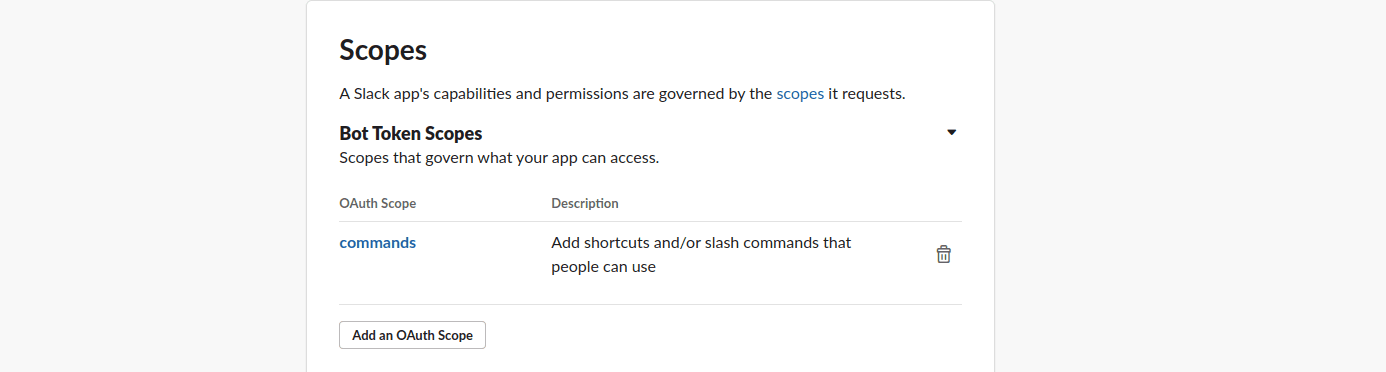
Bot Scope: Choose the commands Bot Token Scope.
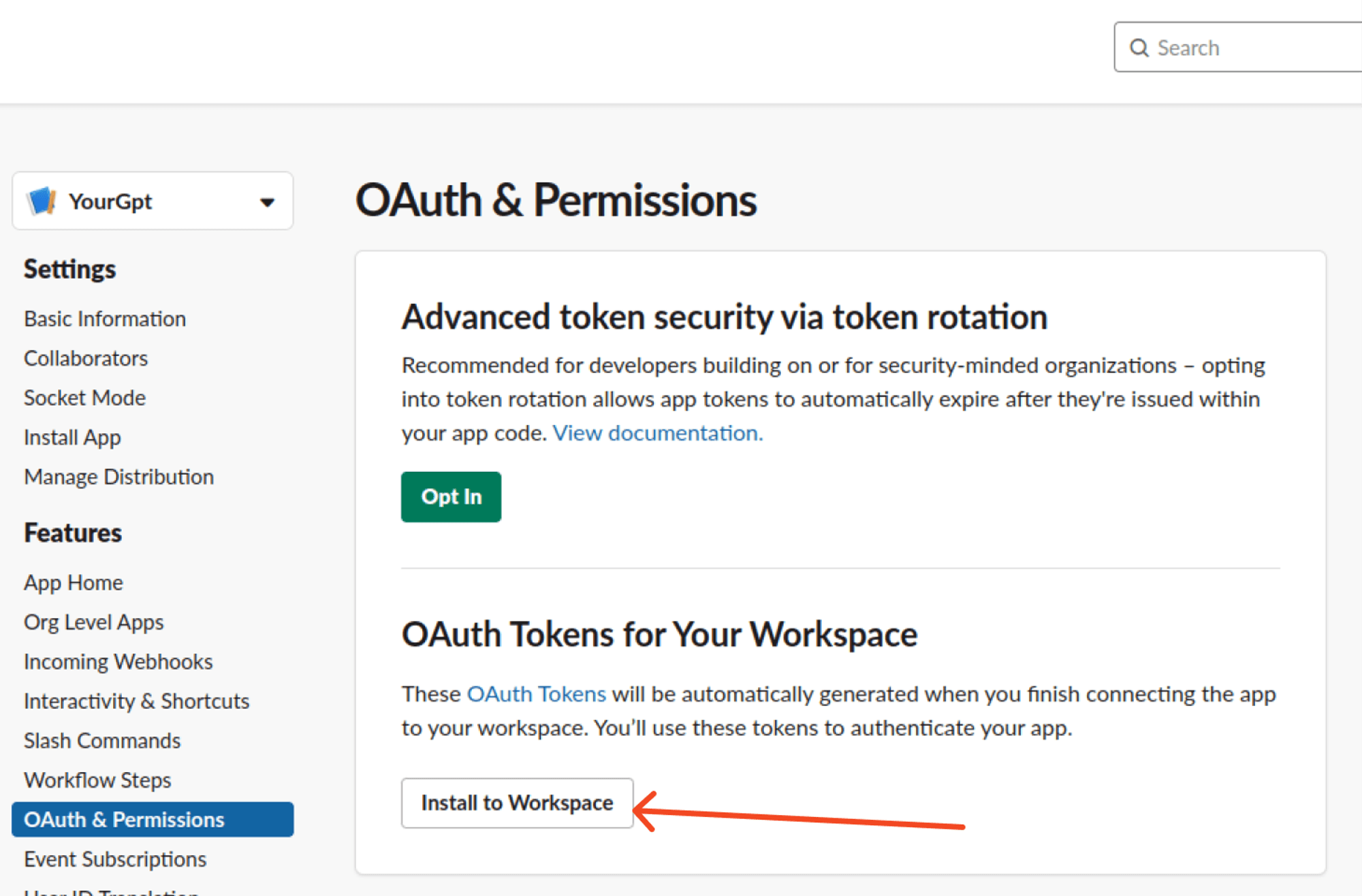
Install the app to your workspace.
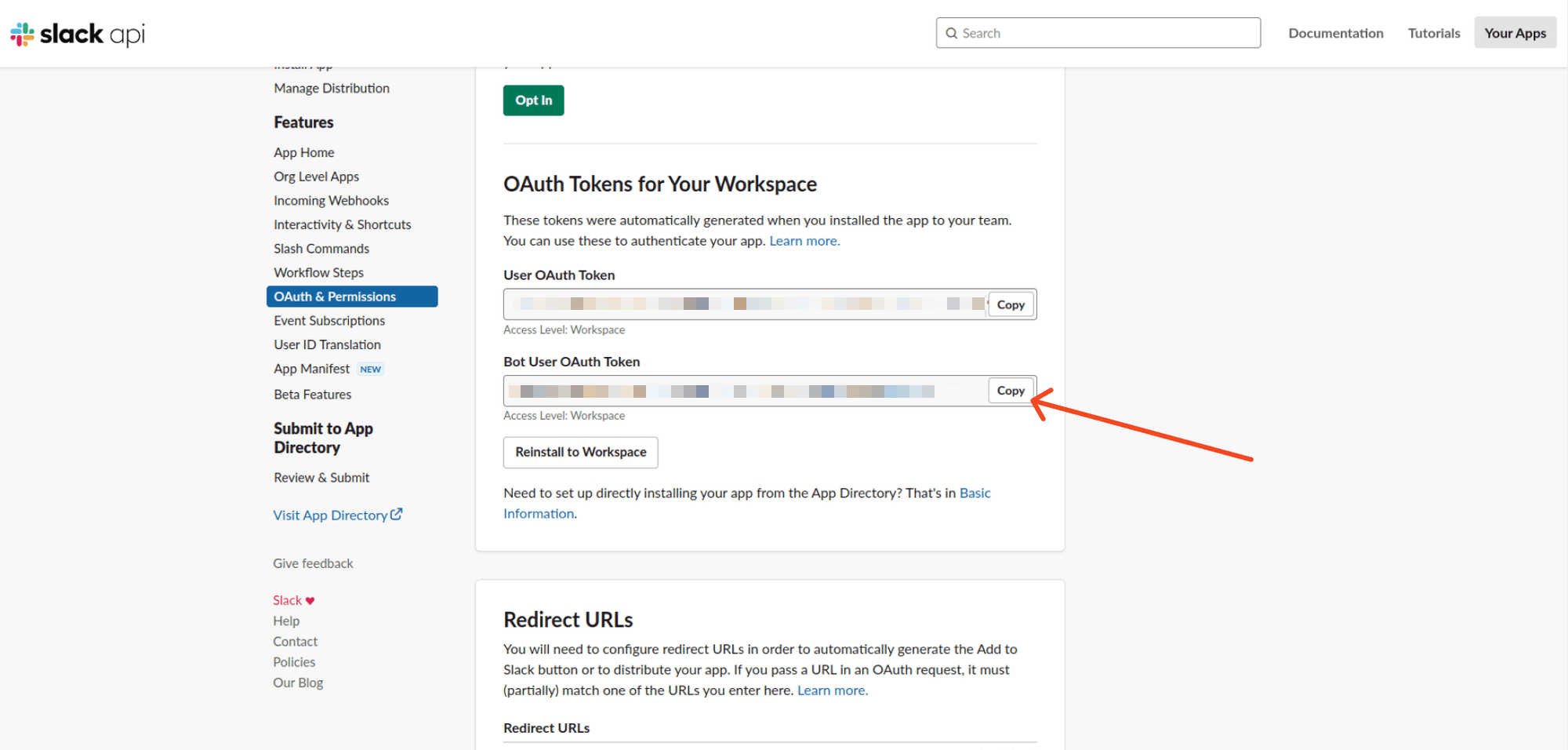
Copy the Bot User OAuth Token and paste the token in YourGPT Slack Access Token field.
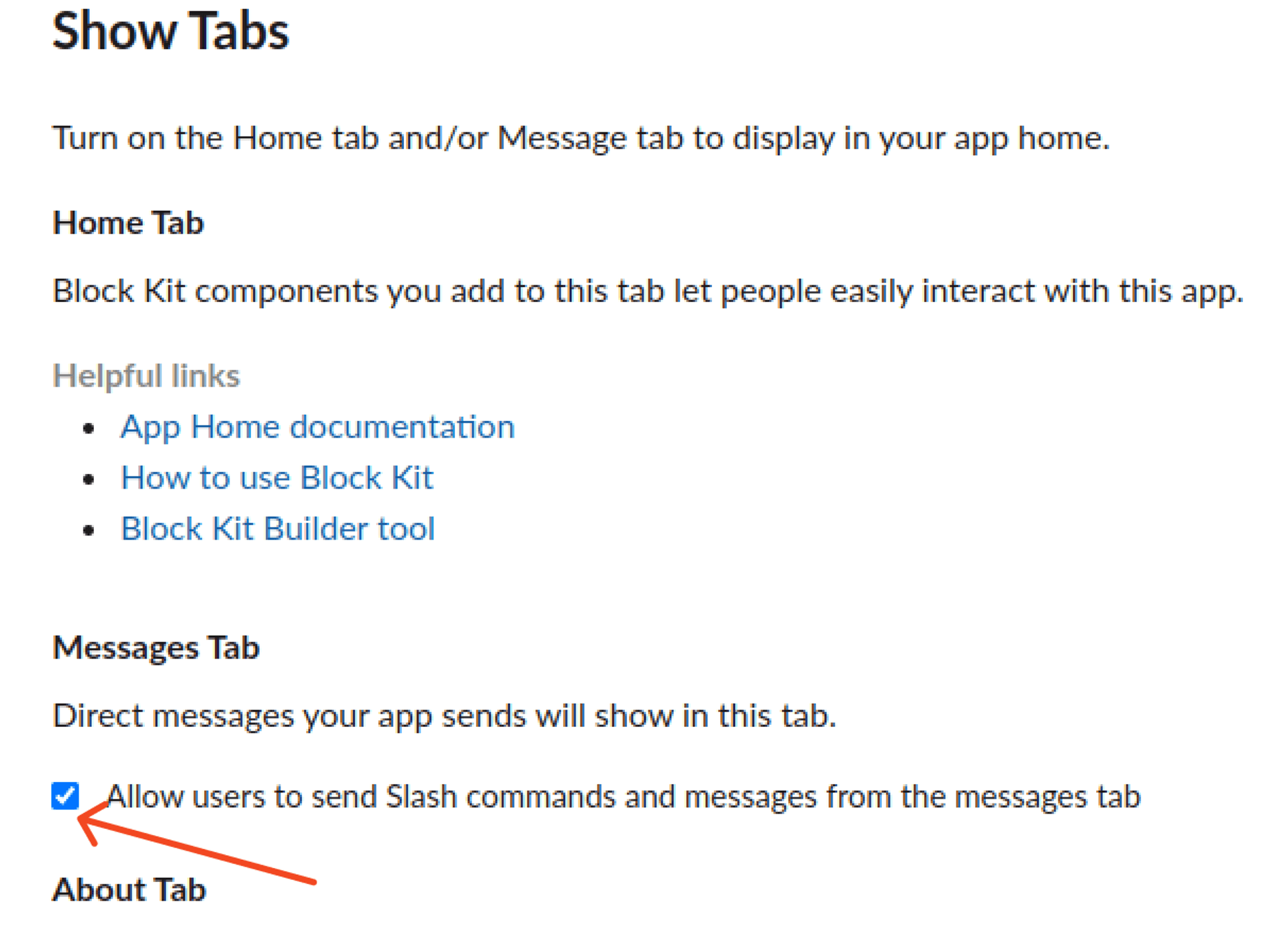
In the App Home section, enable the option "Allow users to send messages with slash commands".
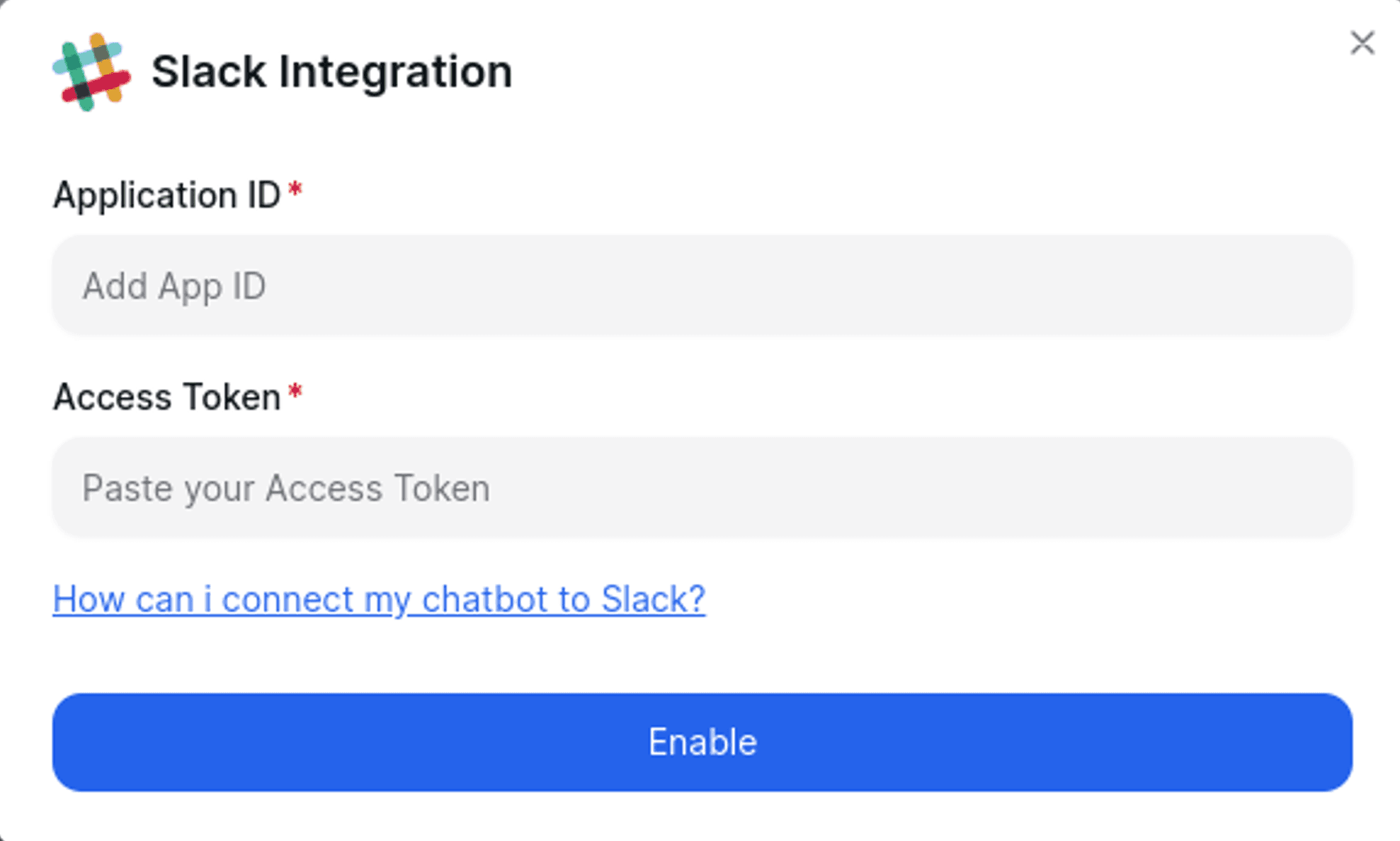
Enable Integration
To enable integration, follow these steps:
- Obtain the app ID from the Basic Information section of your Slack app.
- Paste the copied App ID into the Application ID field of YourGPT Slack Integration.
- Copy the Bot user Auth Token from the OAuth & Permissions section.
- Paste the copied credentials into the Access Token field of YourGPT Slack Integration.
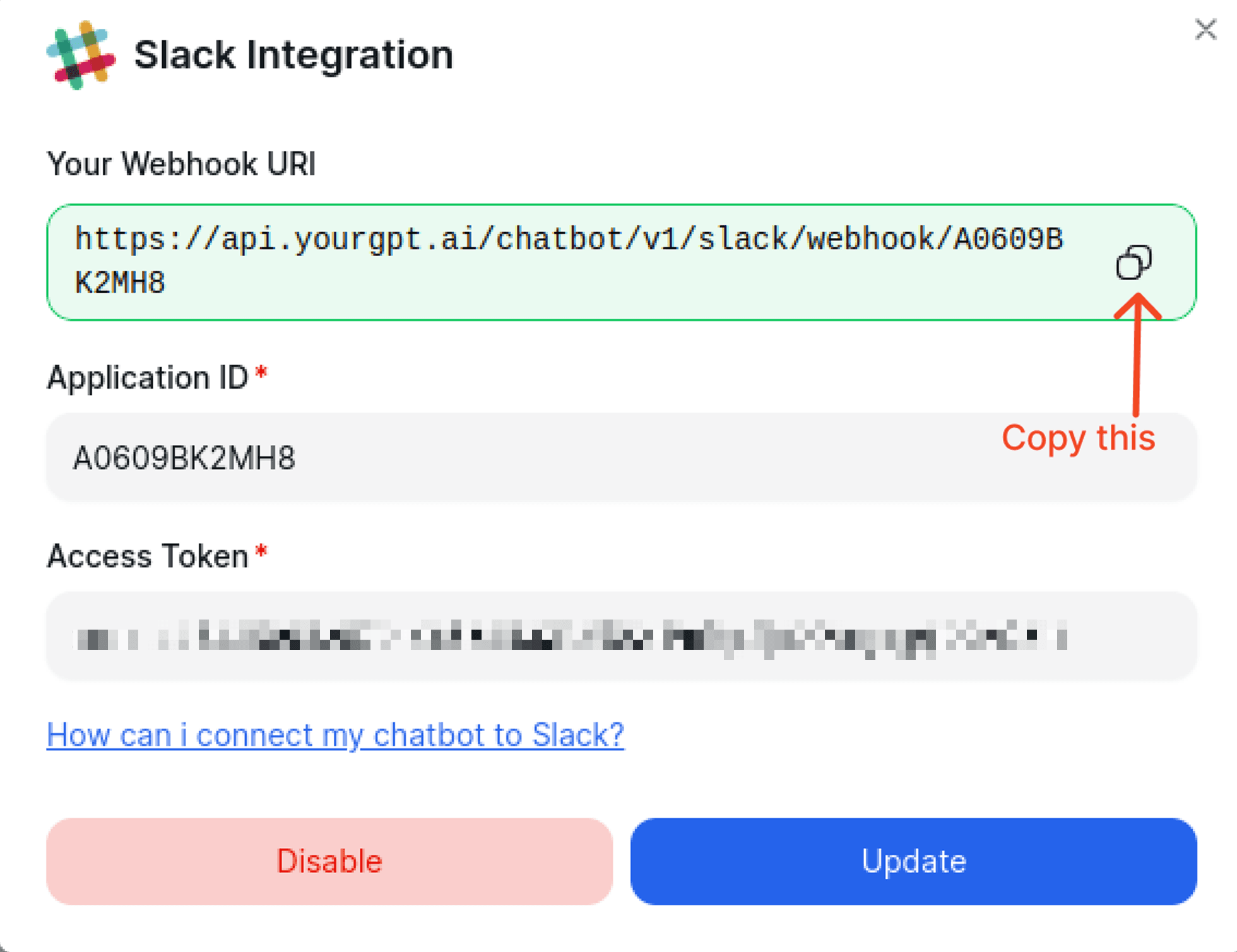
Create Slash Command
Go to the Slash Commands section and create a new slash command.
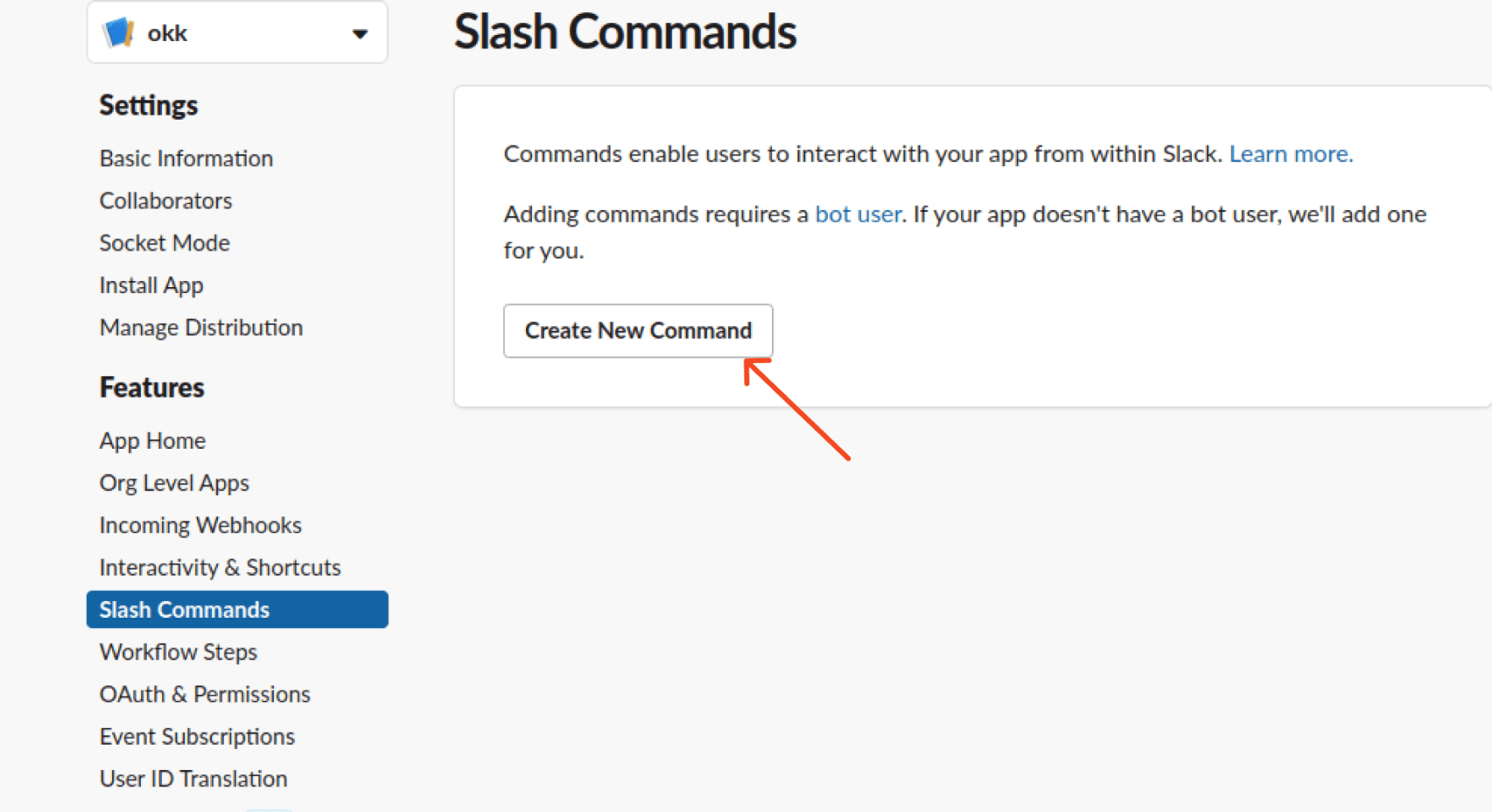
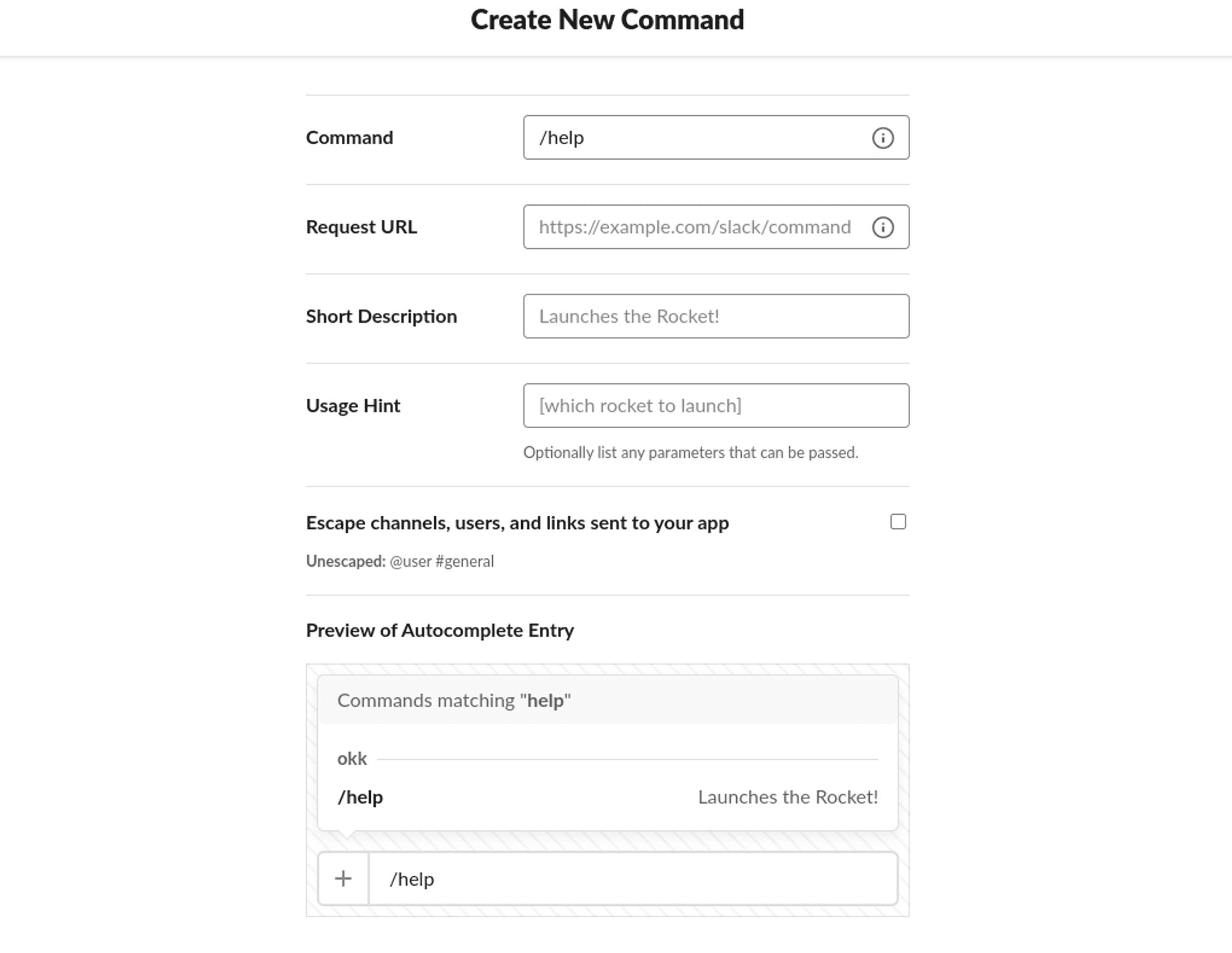
Add the following details:
- Command: The command you want to use to interact with the bot.
- Request URL: Paste the webhook into the request URL.
- Short Description: A description of the command.
- Usage Hint: A brief description of the command.
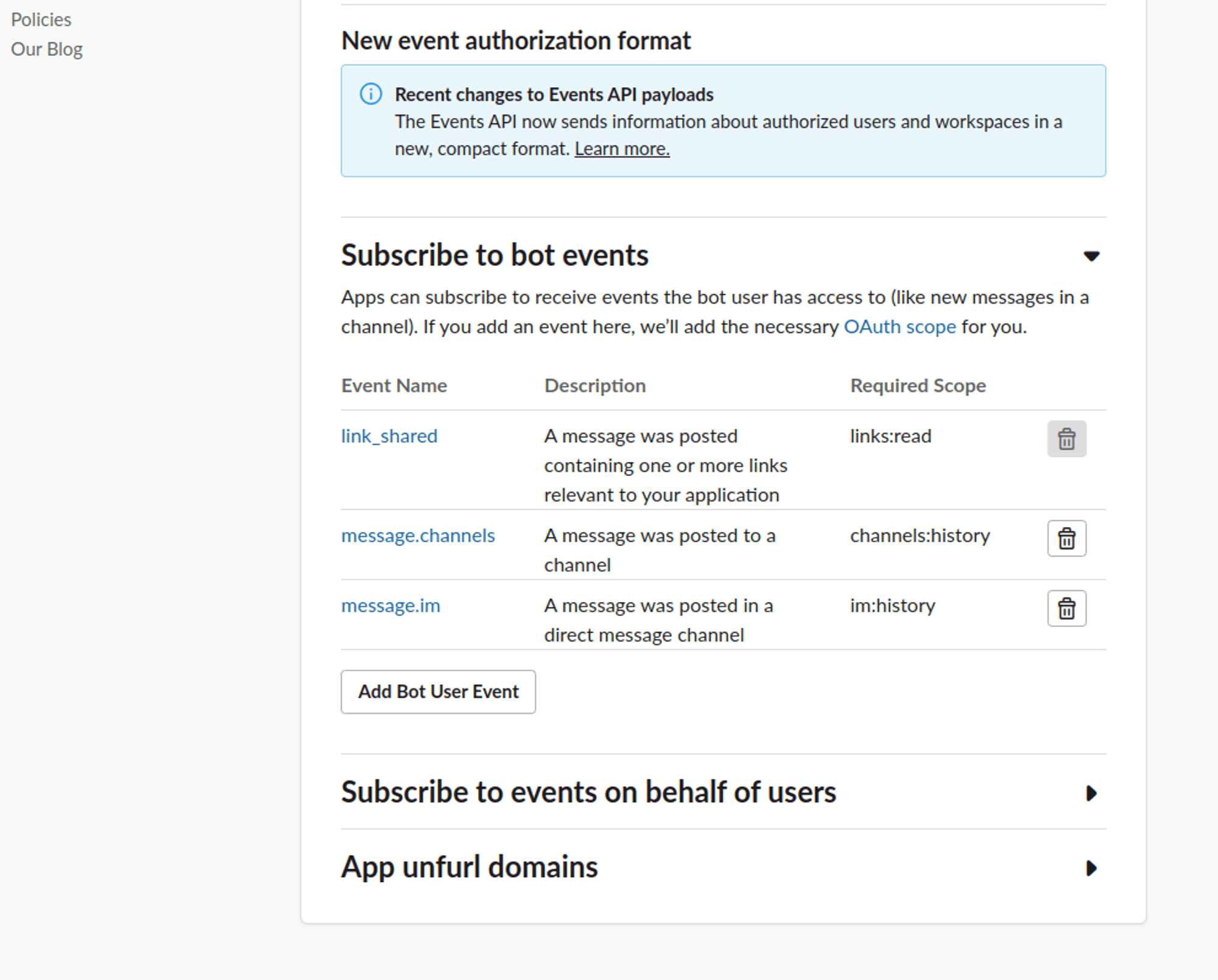
Additional Configuration
To receive notifications for desired events, add the copied webhook URL.

Subscribe to the link_shared, message.im, and message.channels events.
Flow Messaging Setup
Ensure webhook URL is added for flow messages to function properly.
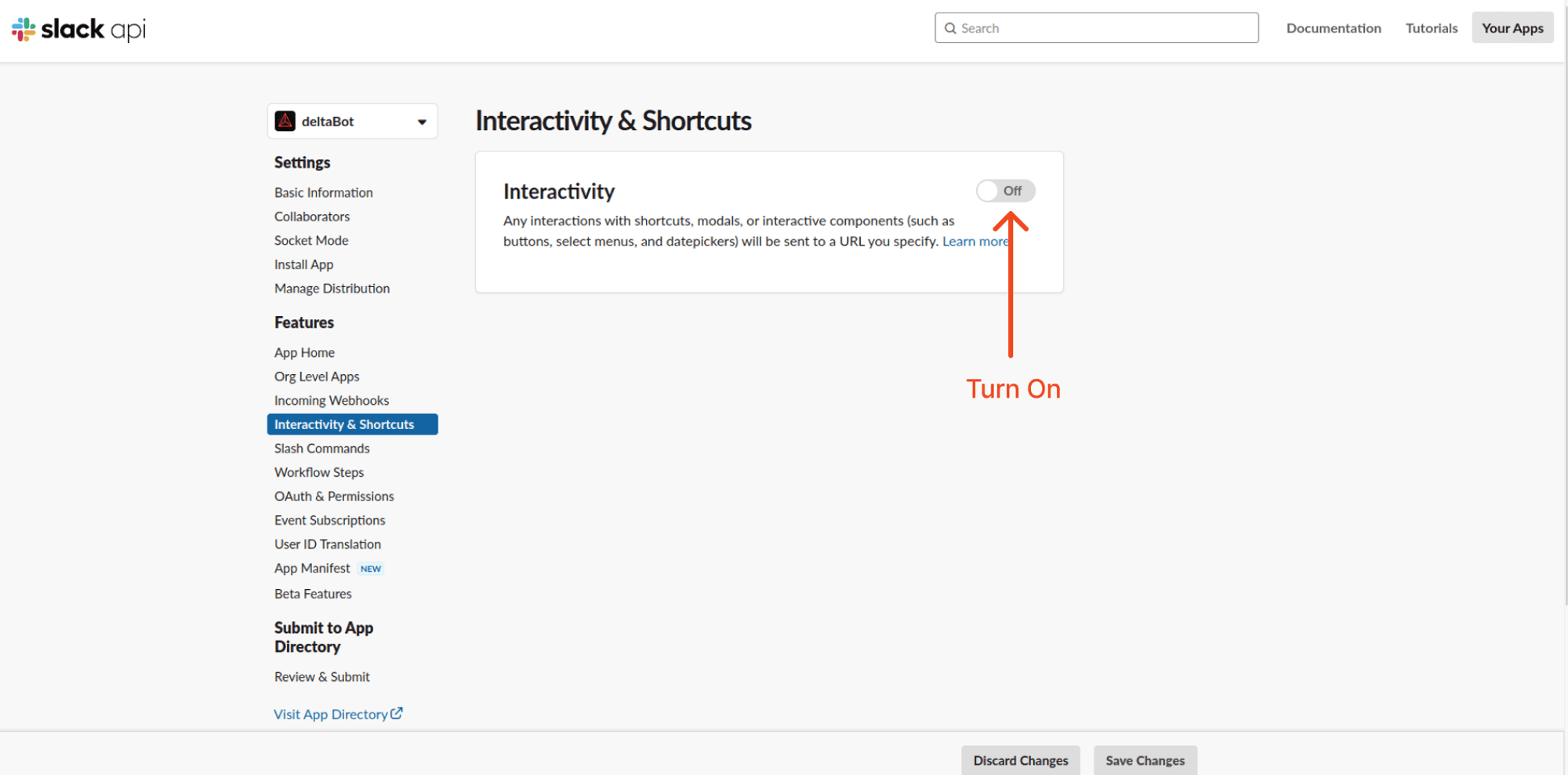
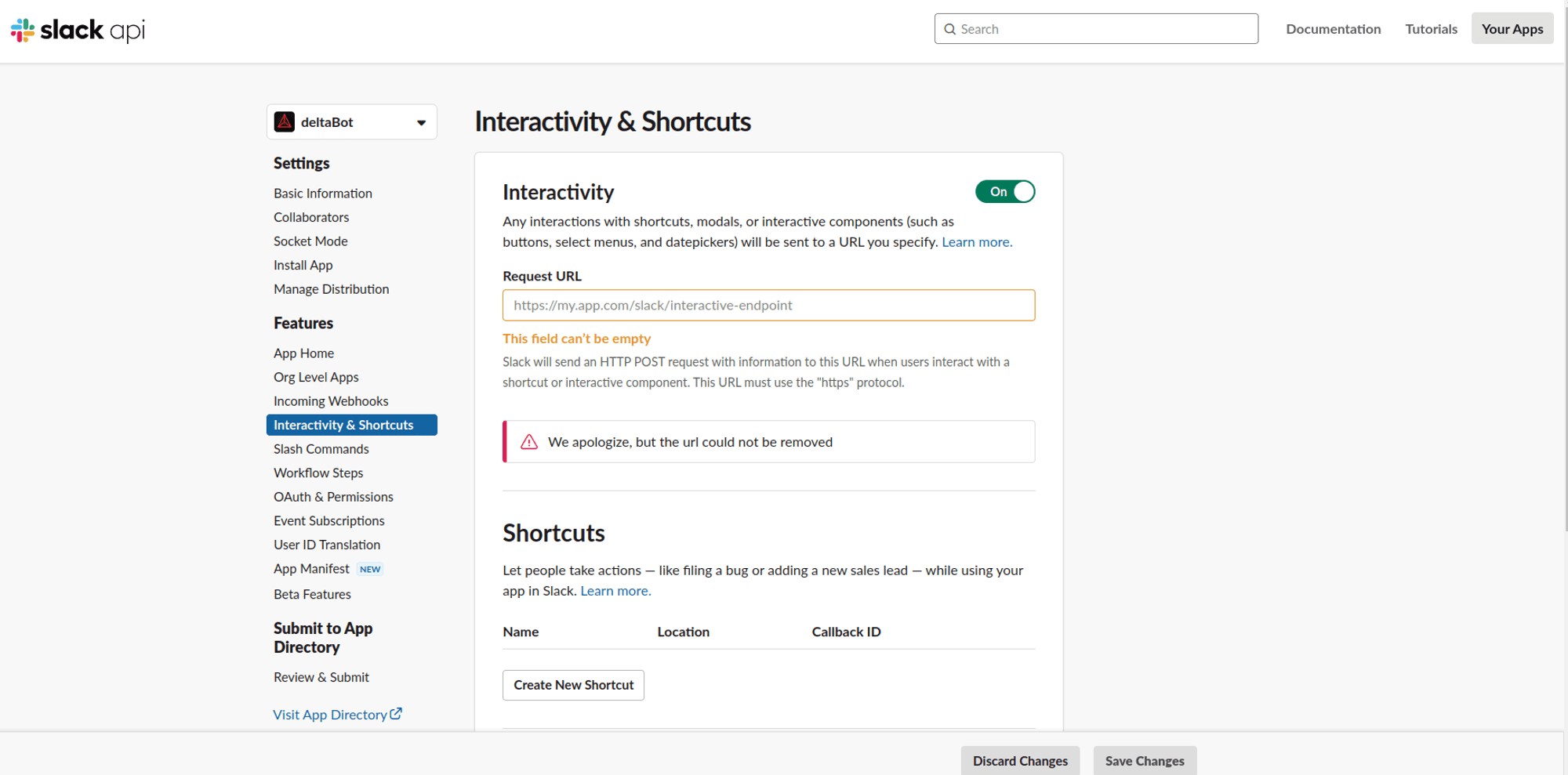
After a successful response, it will be added; otherwise, an error will occur.
Note
Without using a slash command or mentioning the bot (@BOT), responses will only occur in direct messaging, not in general group chats.
Integration Supported Types
The Integration ID for Slack is 16 and the supported types are:
Supported Types
- Text
- Image
- Button
- Carousel
- Card
Not Supported
- Video
- Audio
- File
- Form
By following these steps, you can integrate YourGPT AI chatbot with Slack. For any questions, contact our team via Live support or Mail Us.