Messenger

GPT Chatbot for messenger | Installation Guide

Connecting Your Chatbot with Messenger

Auto Installation
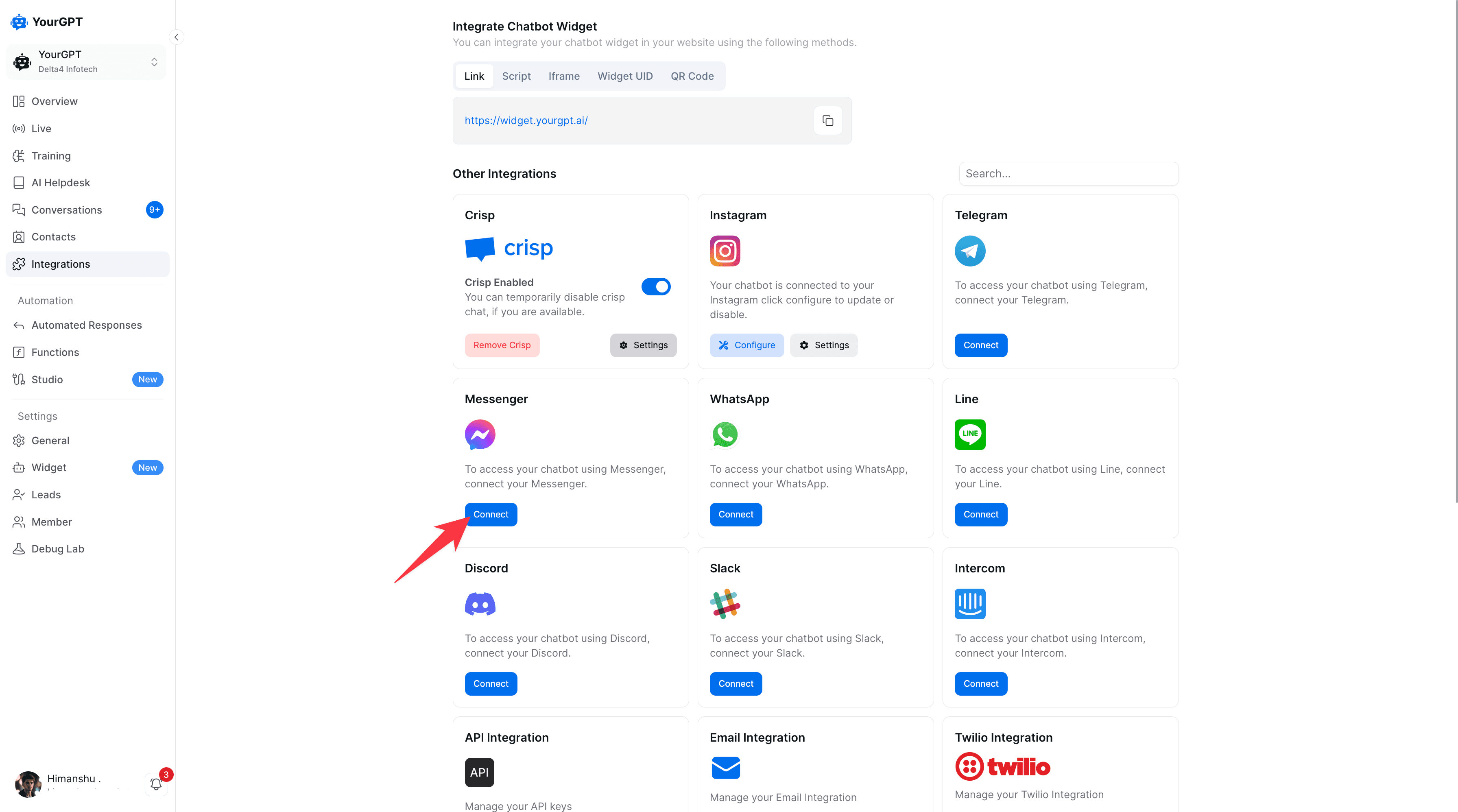
1: Log in to YourGPT’s dashboard and go to the Integrations tab.

Messenger Integration in YourGPT dashboard

2: Under the Messenger section, Select Auto and click Connect.
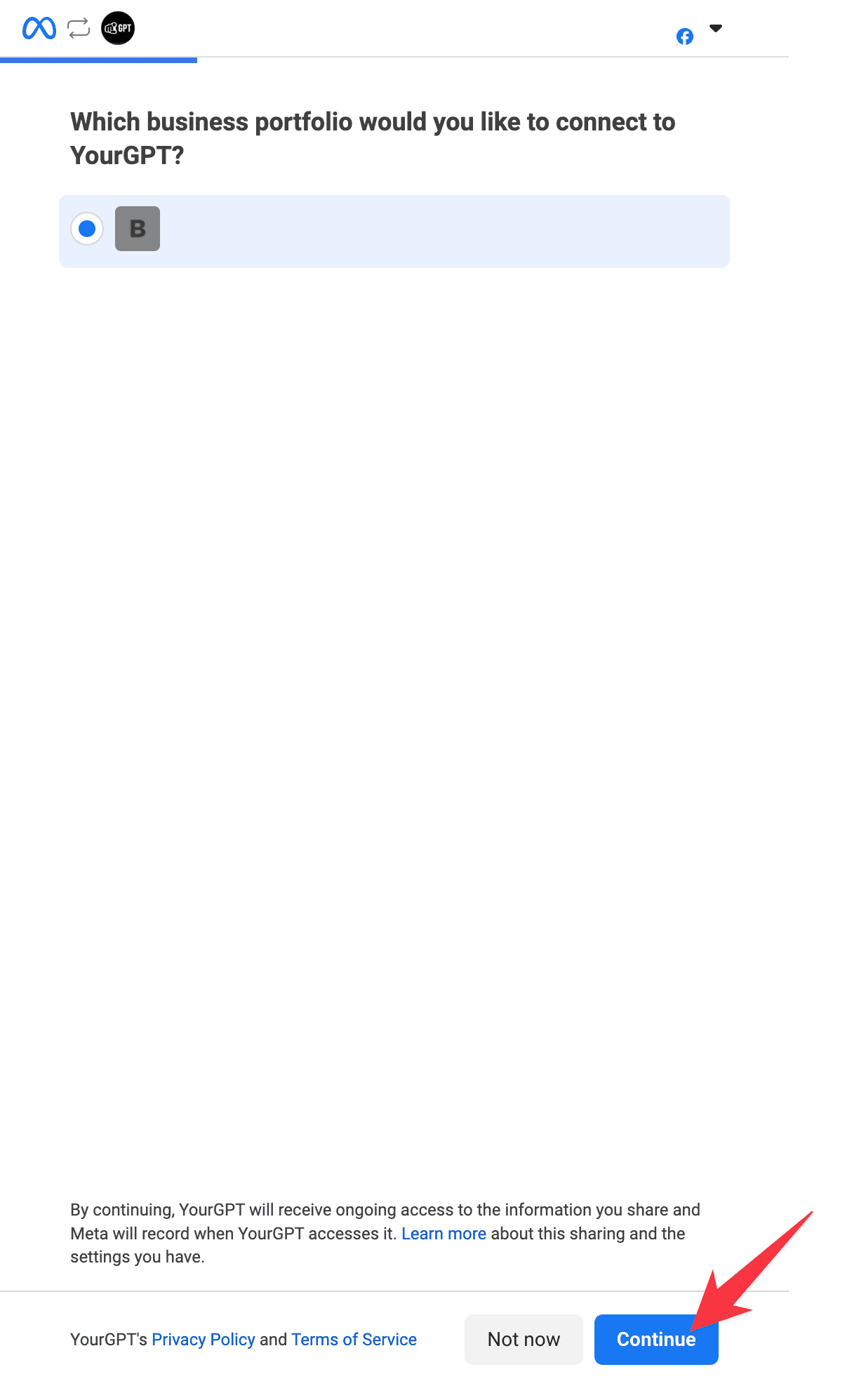
4: Log in to your Facebook account and select Continue as Your Business Name.

Login Facebook account

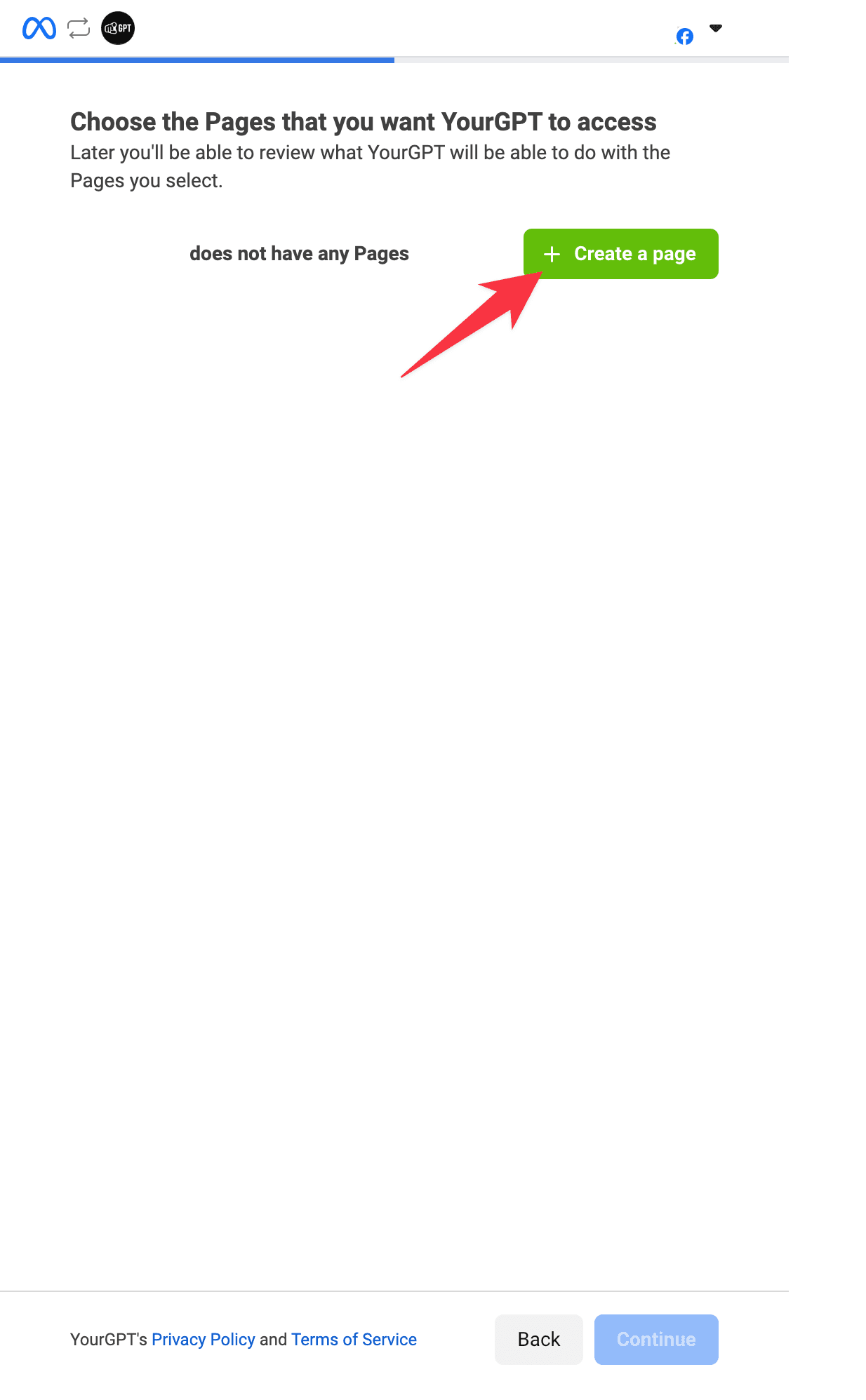
5: Select an existing Facebook Page or create a new one:

Select the Facebook Page or Create one

  • To create a new page, enter the Page Name and Category, then click Create.
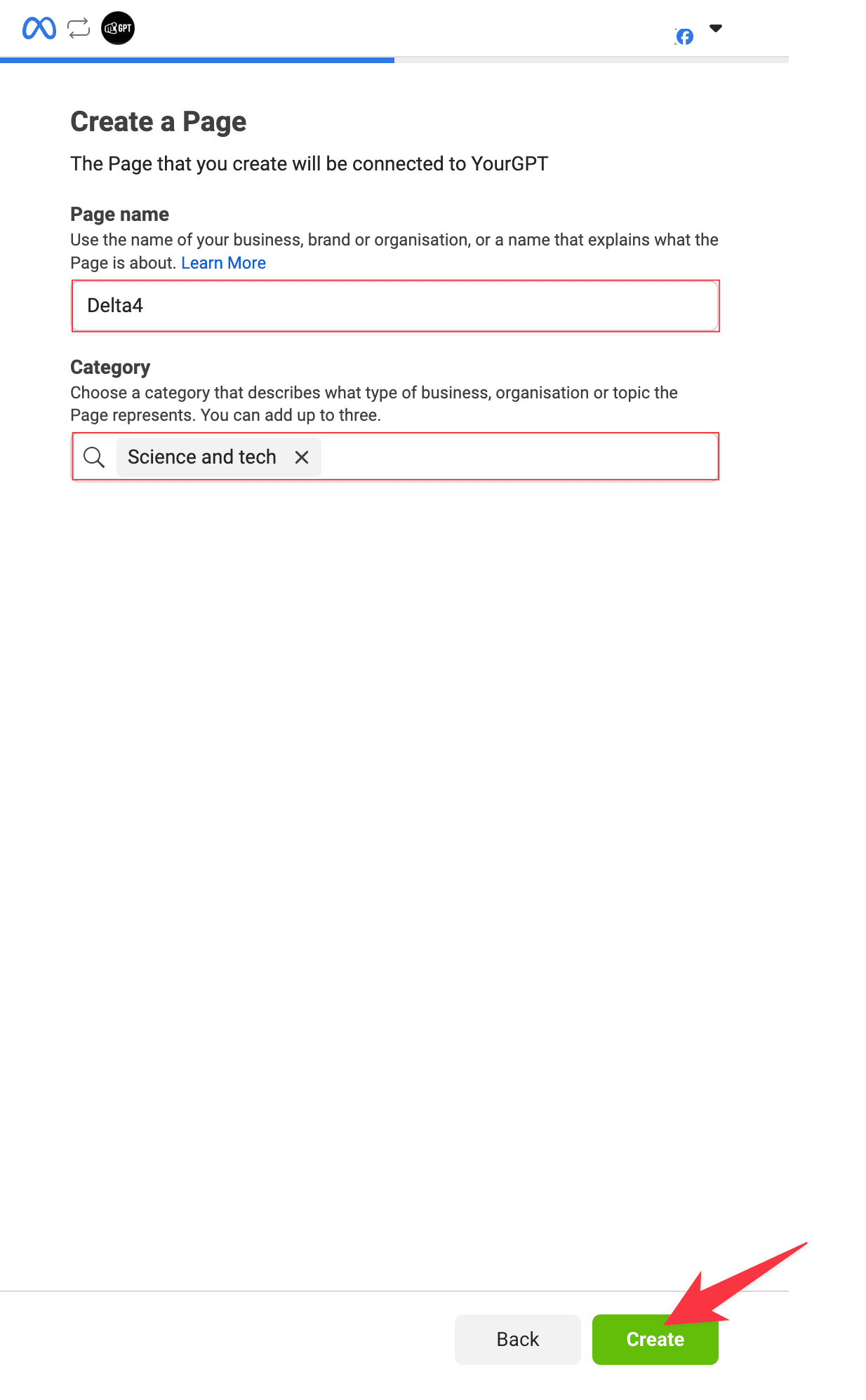
Creating a New Facebook Page

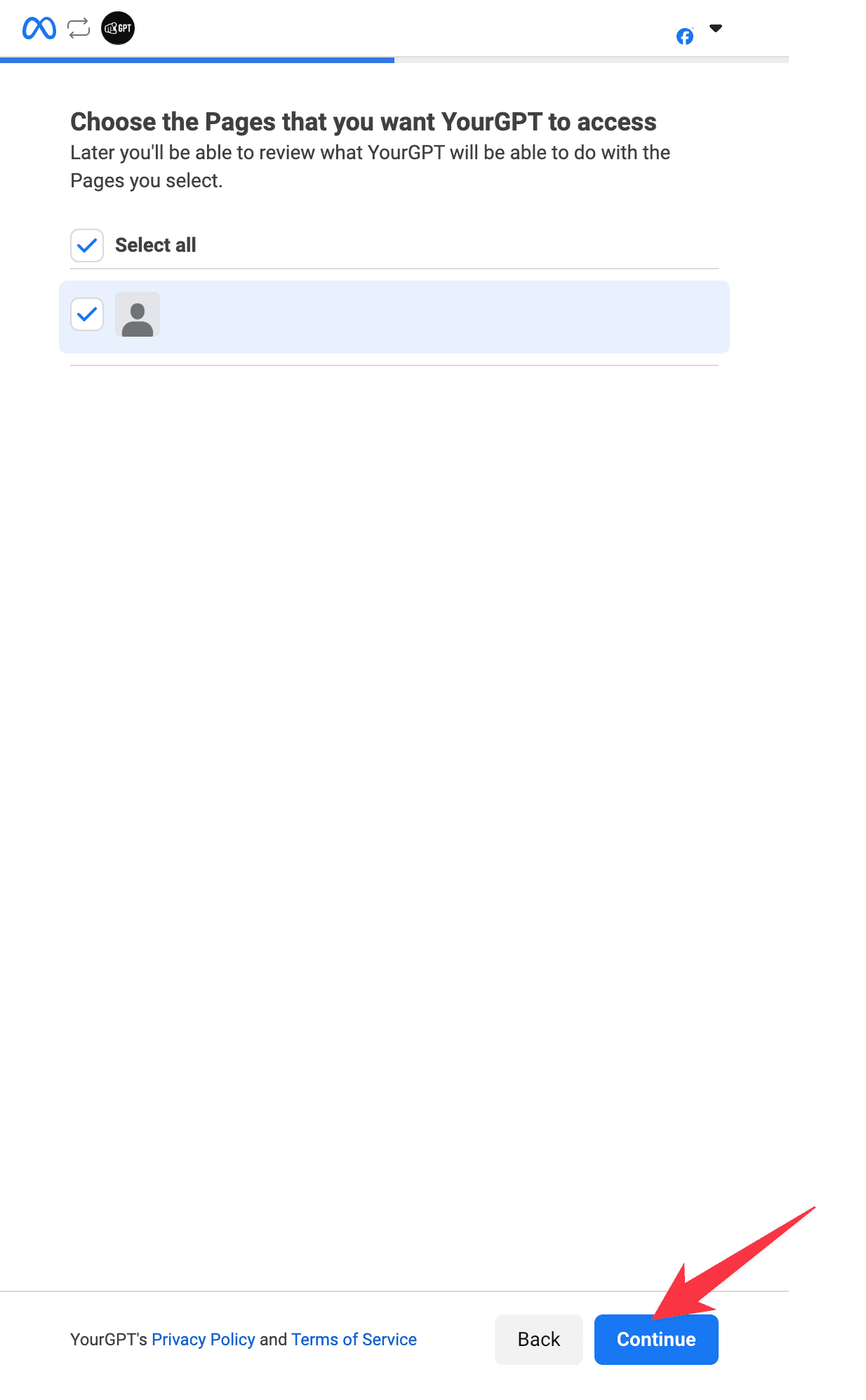
6: Confirm your selected page by checking the box and clicking Continue.

Confirm your selected page

7: Allow all required permissions by clicking Next when prompted.

provide the important required permissions

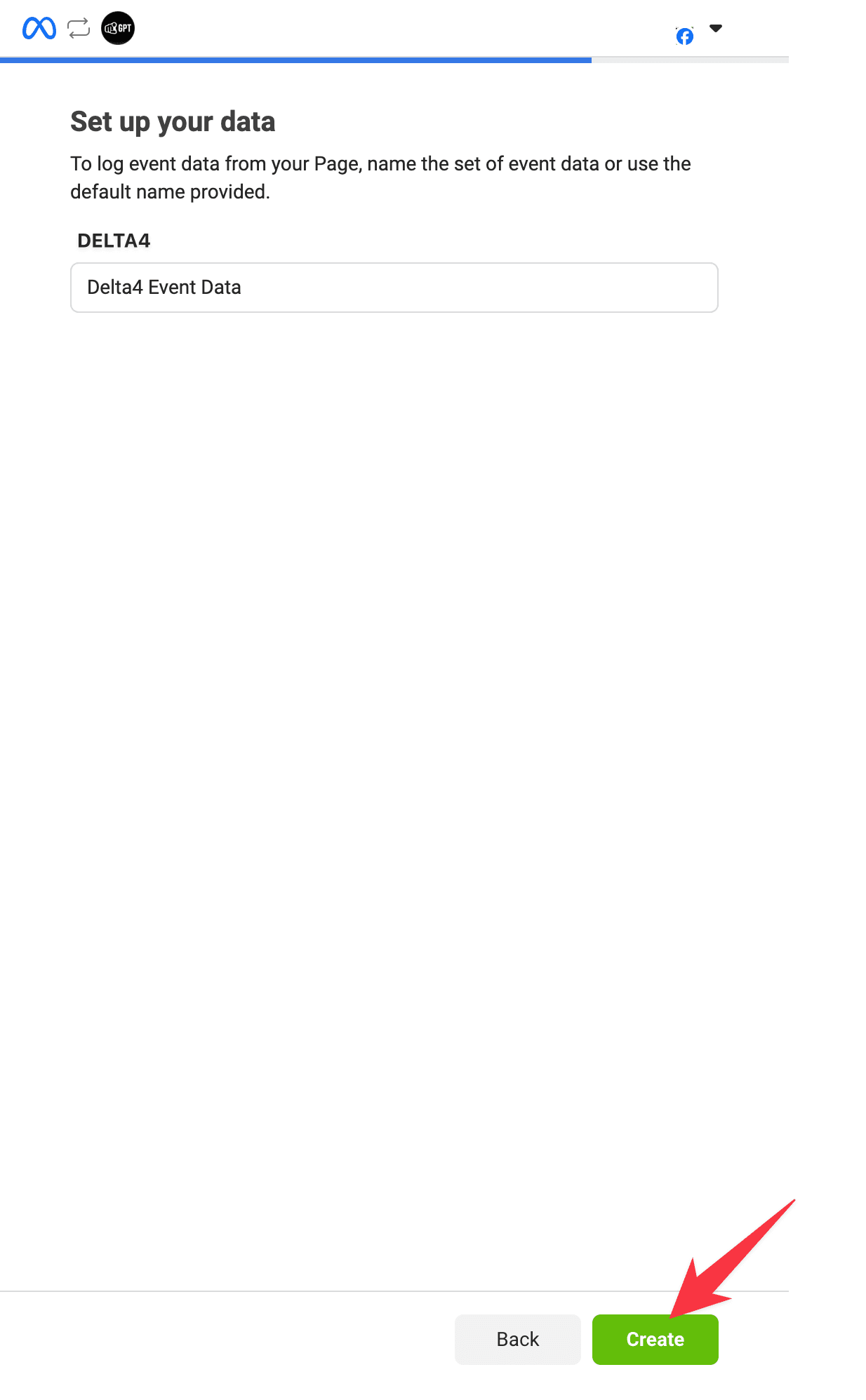
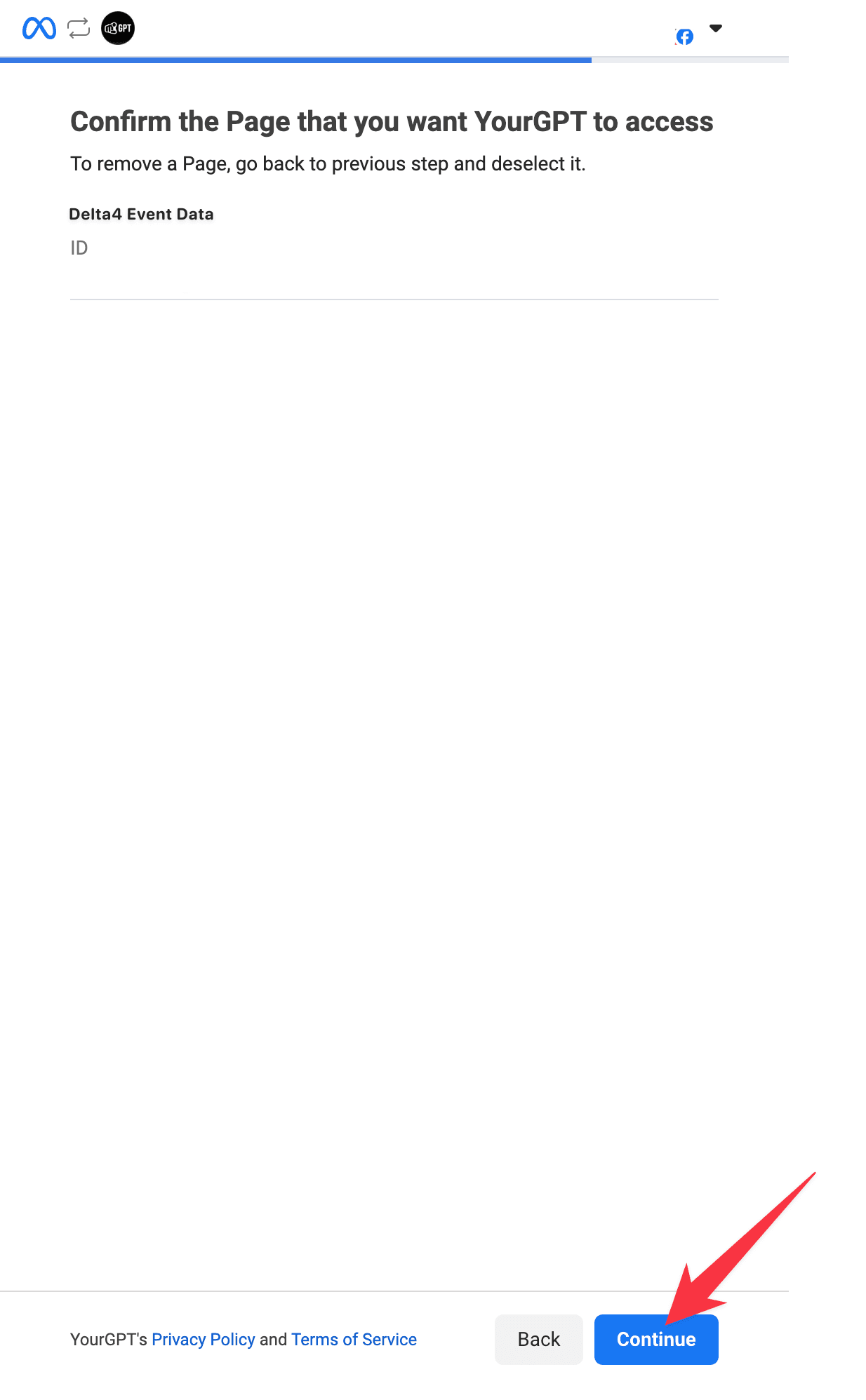
8: Confirm the page for the integration

confirm the page for the integration

9: Follow the further steps, verify and review the integration settings.

10: Finalize the setup. Your Messenger account will now be linked to YourGPT.


Custom Installation
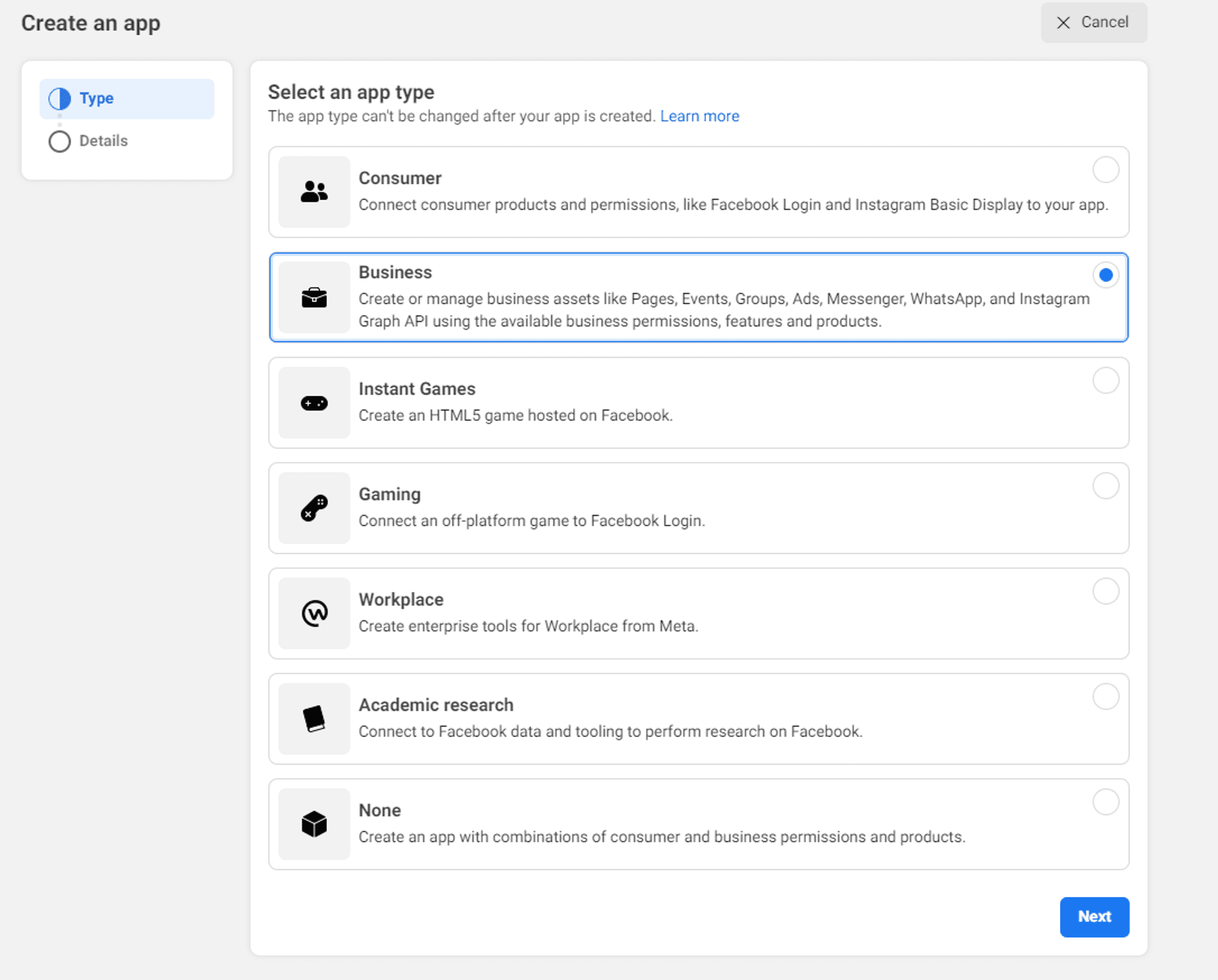
  1. Create a New App

    Create a New App from the

    Meta Developer Console

    .

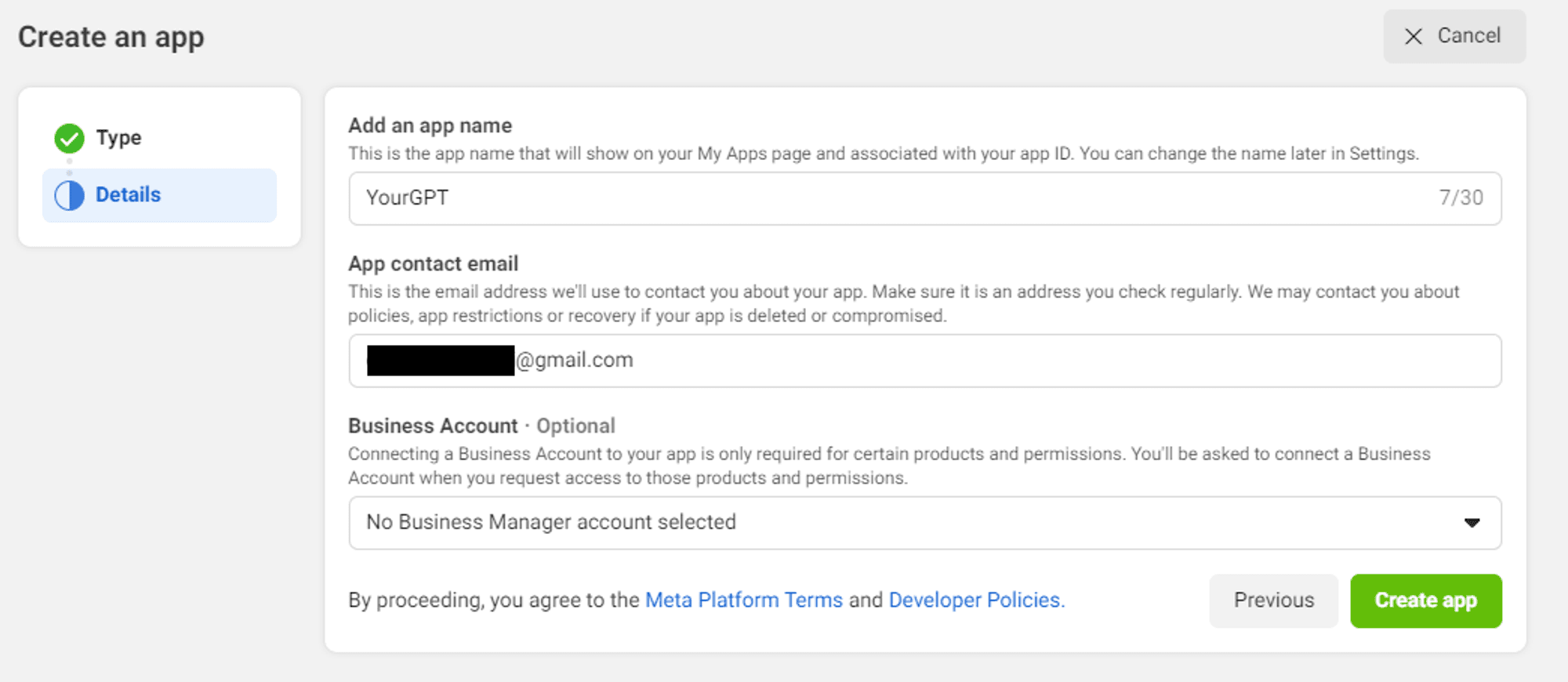
    Step 1: Create New App
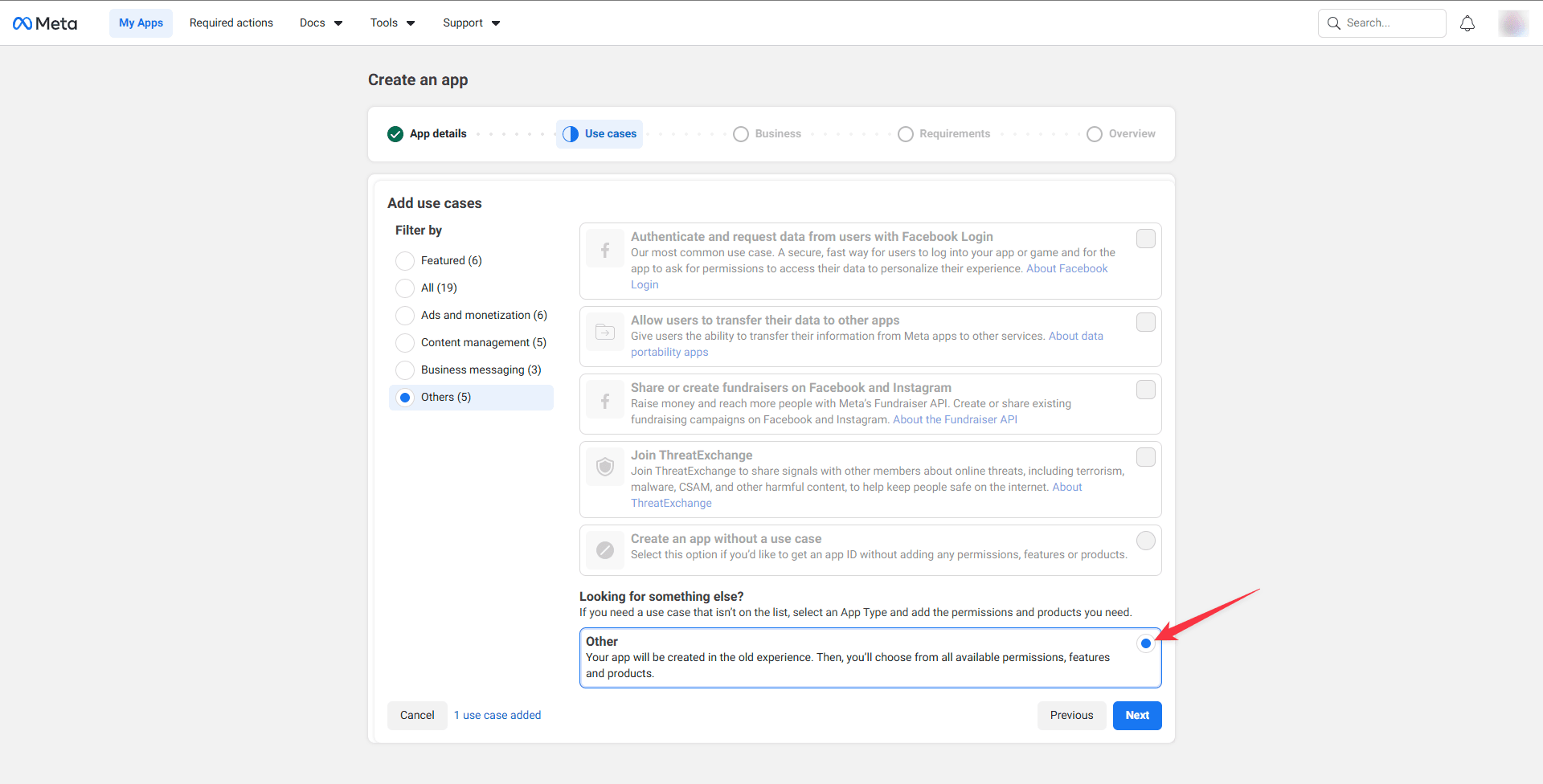
    Step 2: Developer Console
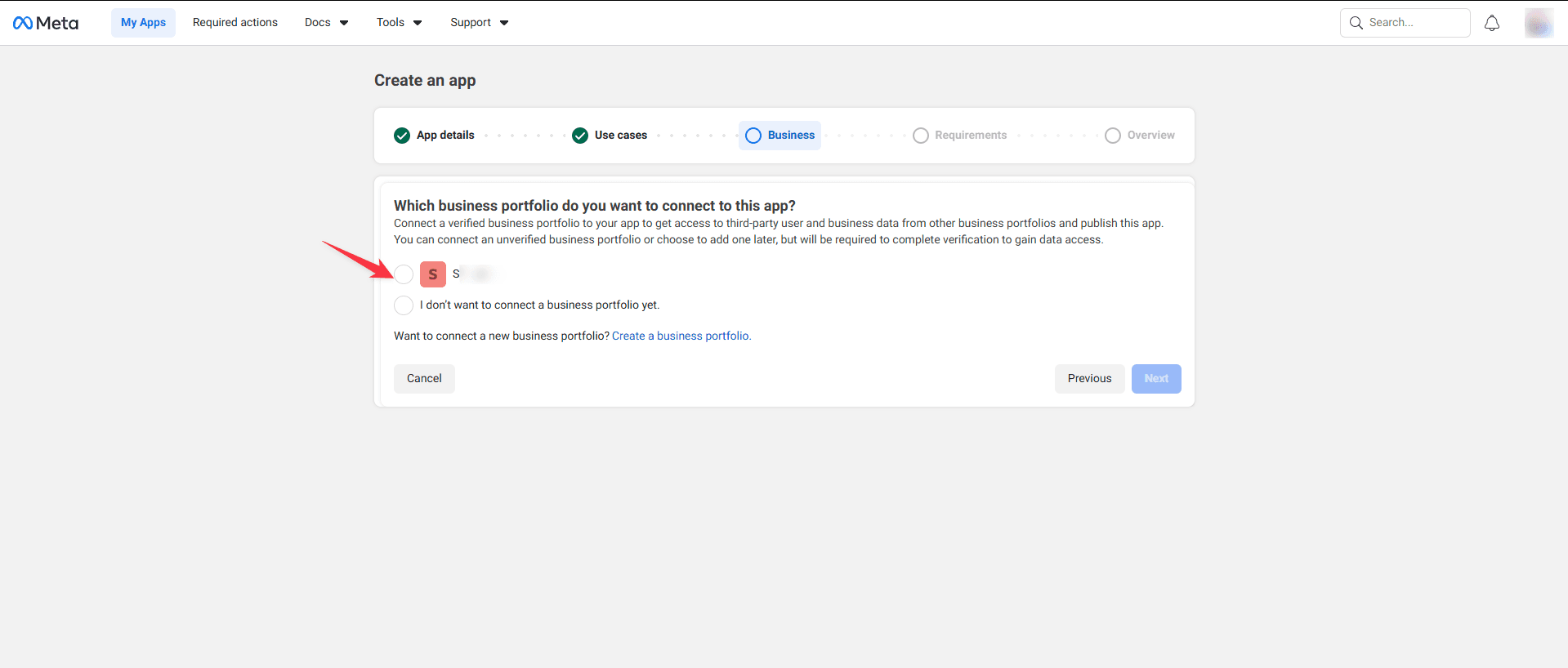
  2. Click On

    • Click on
    Messenger

    Setup

    Step 3: Messenger Setup
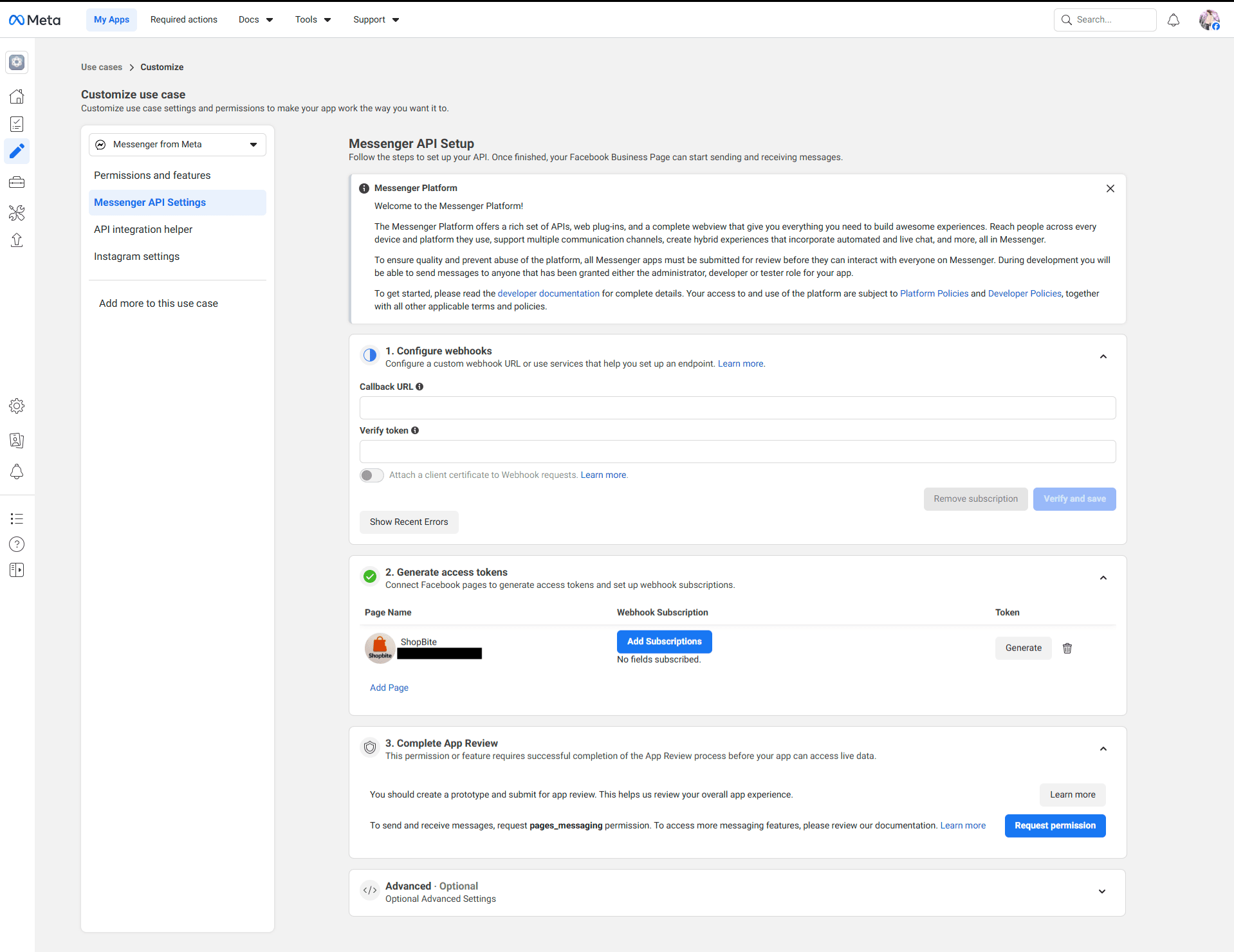
  3. Add Your Facebook Page

    • Add your
    Facebook Page

    Step 4: Add Meta Page
  4. Copy Page ID and Access Token

    • Copy the
    Page ID

    and the

    Generated Access Token

    for your page

    Step 5: Page ID and Access Token
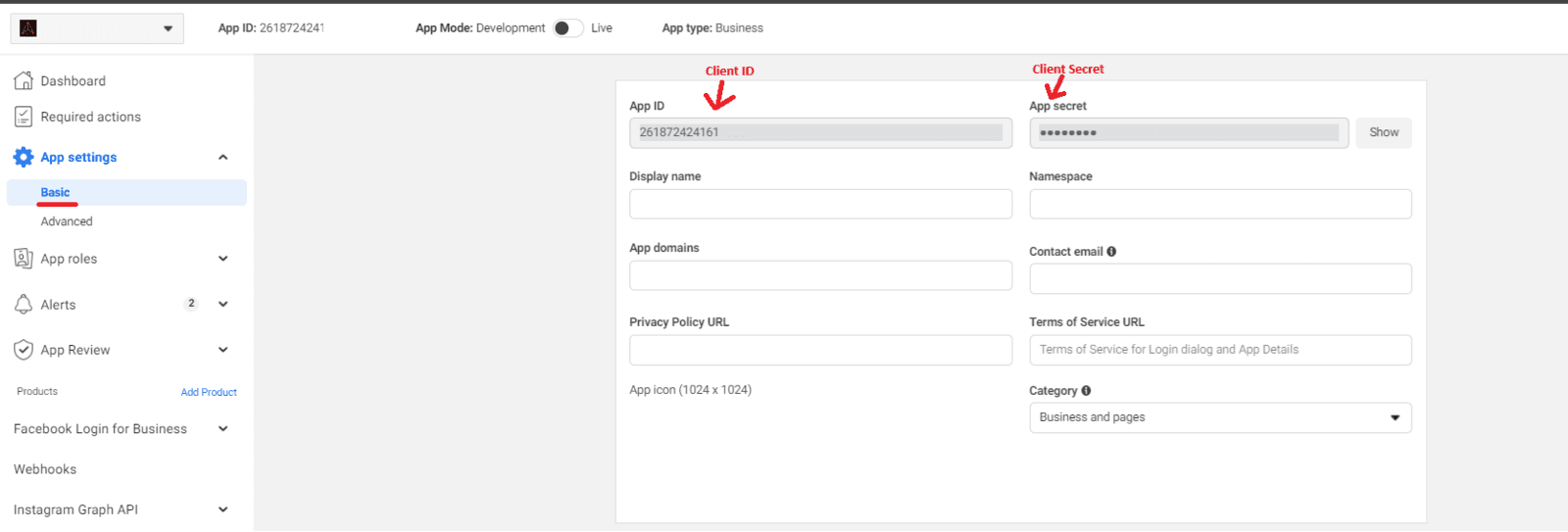
  5. Copy Client ID and Client Secret

    • Copy the
    Client ID

    and the

    Client Secret

    for your page

    Step 5: Client ID and Client Secret
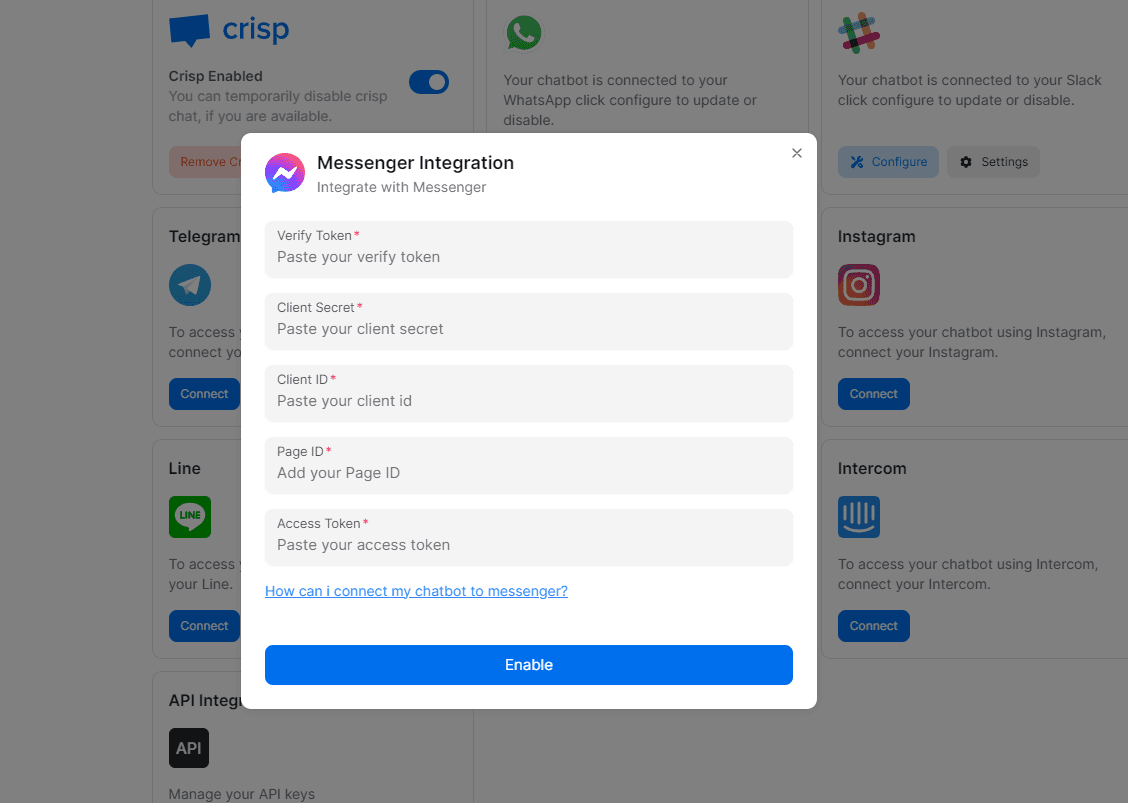
  6. Add Verify Token, Page ID, and Access Token

    • Add a random
    Verify Token

    (this will be used for later webhook verification), the

    Page ID

    , and the

    Generated Access Token

    Step 6: Verify Token, Page ID, and Access Token
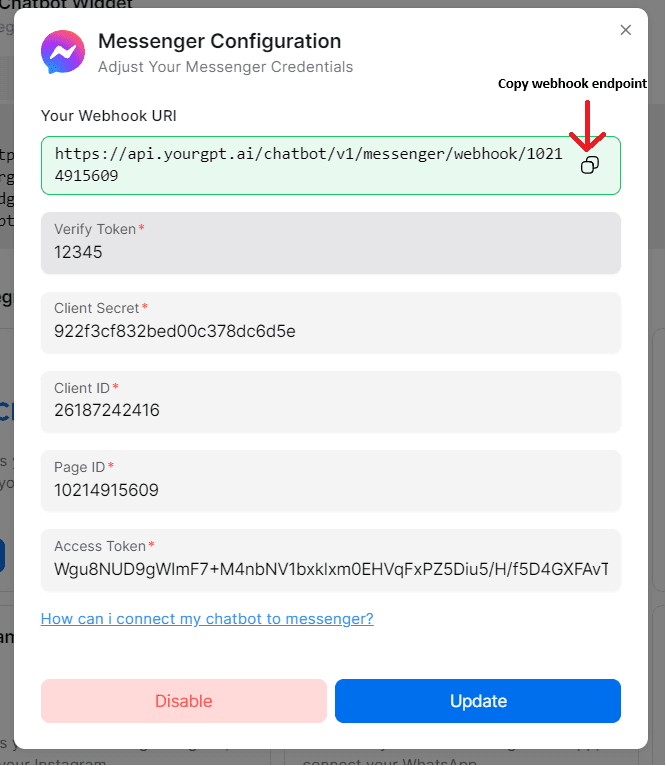
    Step 7: Paste Webhook Endpoint
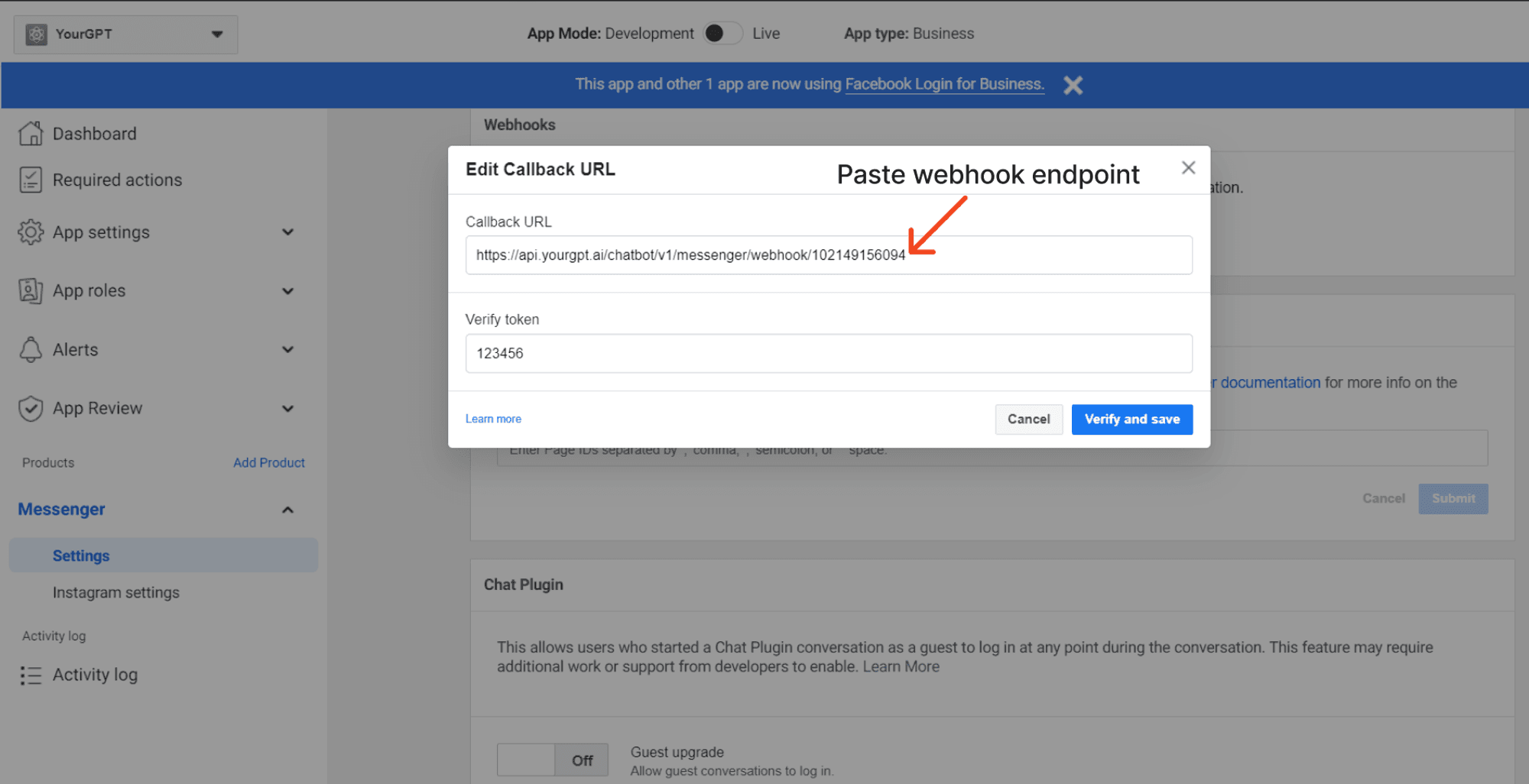
  7. Paste Webhook Endpoint

    • Paste your
    webhook endpoint

    and add the

    verify token

    Step 8: Webhook Endpoint and Verify Token
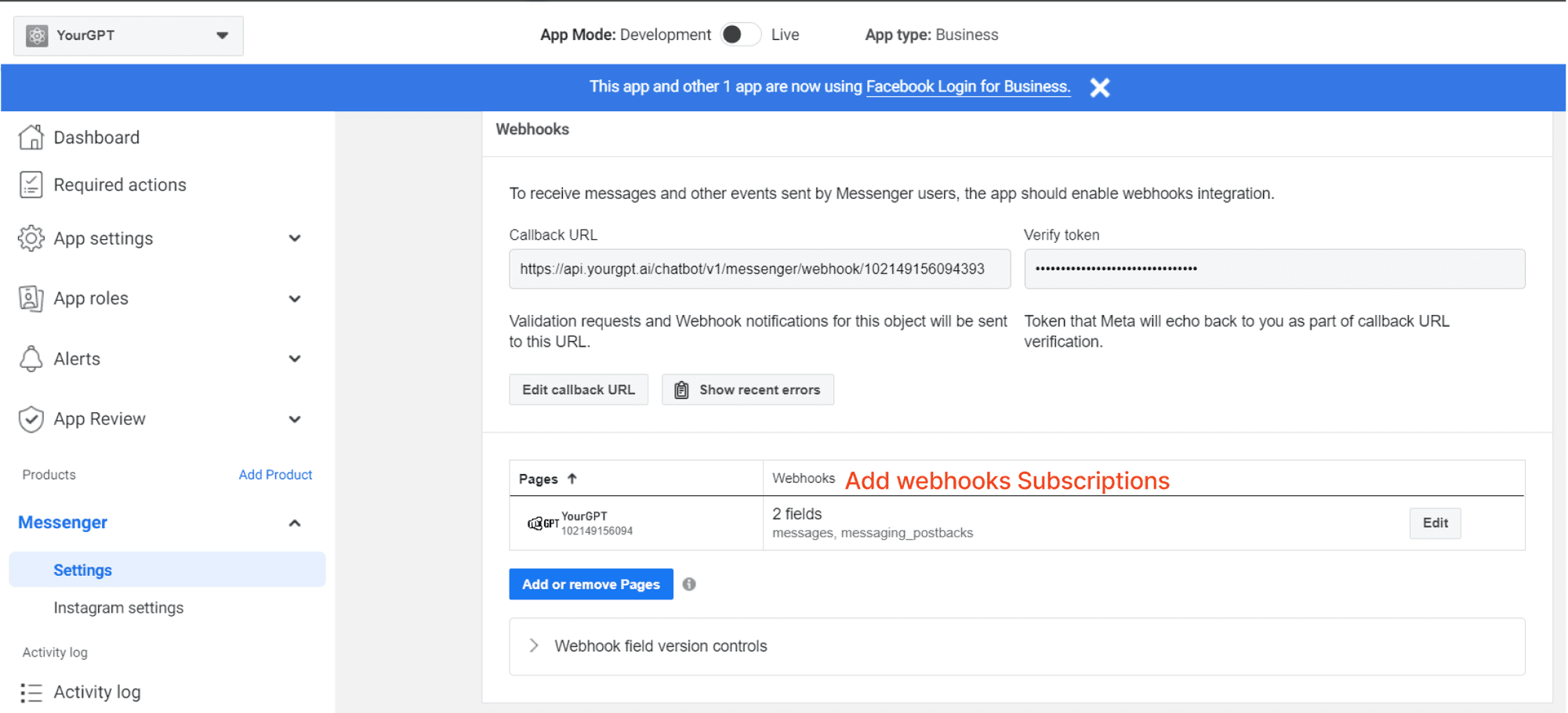
  8. Add Webhook Subscriptions

    • You can Add webhook Subscriptions (messaging, messaging_postbacks)

    Step 9: Webhook Subscriptions
  9. Send App for Review

    • The last step is you need to send your app for review to get the permissions approved by Meta(formely Facebook).

Integration Supported Types

The Integration ID for Messenger is 11 and the supported types for the integration are as follows:

Supported Types

  • Text
  • Image
  • Video
  • Audio
  • File
  • Button
  • Carousel
  • Card

Note: they will be handled as a generic template.

Note: More than 3 buttons with handle action type path will be handled as quick replies; otherwise, they will be handled as a generic template.

Not Supported

  • Form

By following these steps, you can integrate YourGPT AI chatbot with Messenger. For any questions, contact our team via Live support or

Mail Us

.

On this page