iOS
A Swift SDK for integrating YourGPT chatbot widget into iOS applications.
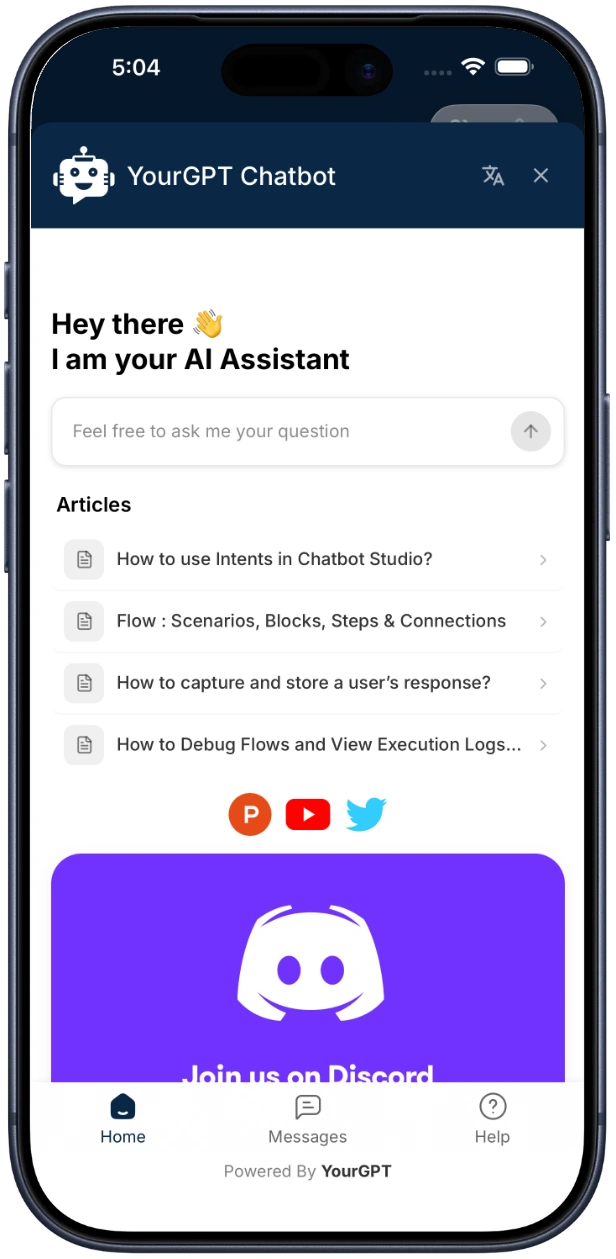
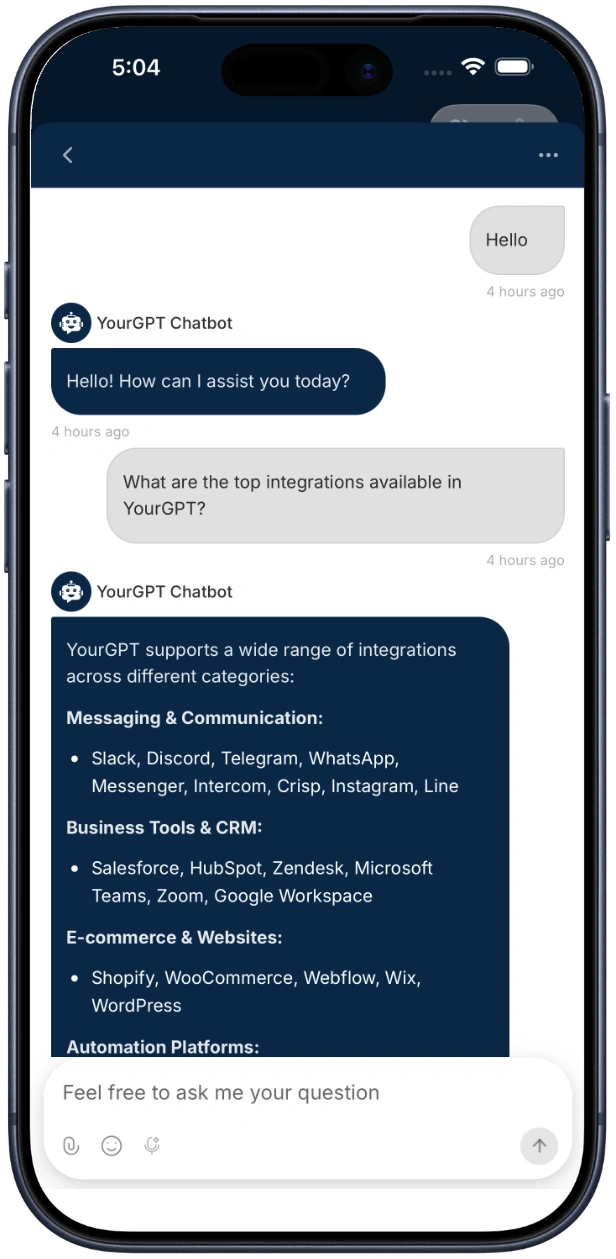
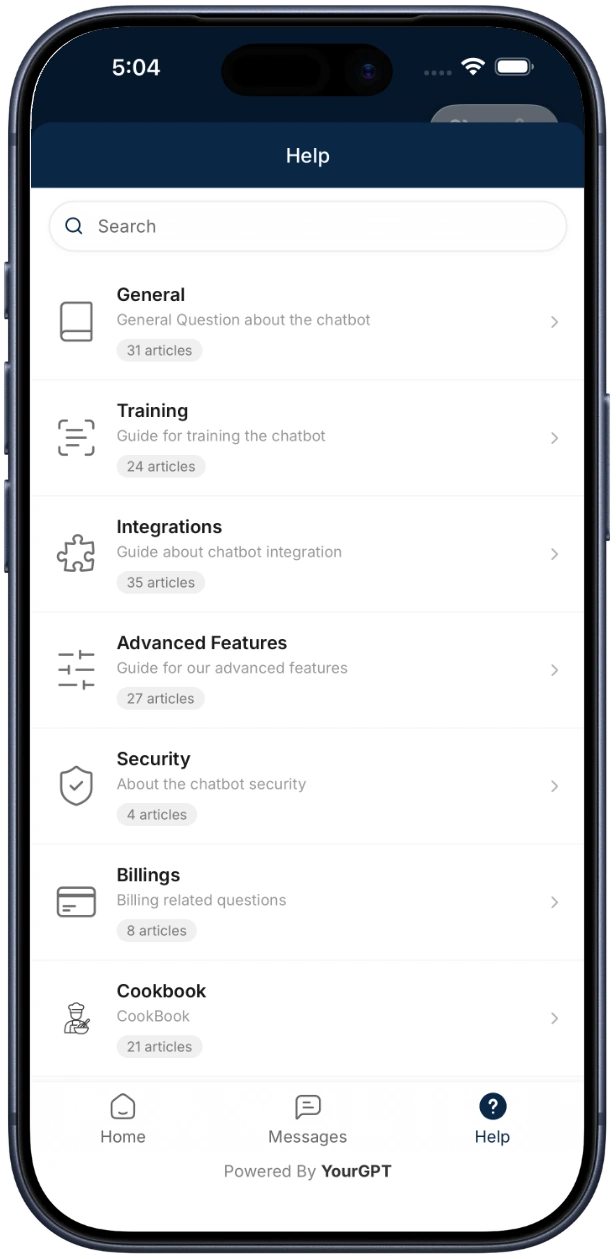
Quick Start
Installation
SDK Repository
View the full SDK source code and examples on GitHub:
yourgpt-widget-sdk-ios
Swift Package Manager (Recommended)
- In Xcode, go to File → Add Package Dependencies
- Enter the repository URL:
https://github.com/YourGPT/yourgpt-widget-sdk-ios.git - Select version
1.0.0or later - Click Add Package
Or add to your Package.swift:
dependencies: [
    .package(url: "https://github.com/YourGPT/yourgpt-widget-sdk-ios.git", from: "1.0.0")
]
CocoaPods
Add this to your Podfile:
pod 'YourGPTSDK', '~> 1.0'Then run:
$ pod installStep 1: Initialize and Open the Chat Widget
import YourGPTSDK

class ViewController: UIViewController {

    override func viewDidLoad() {
        super.viewDidLoad()

        // Initialize SDK
        Task {
            try await YourGPTSDK.initialize(config: YourGPTConfig(widgetUid: "your-widget-uid"))
        }
    }

    @IBAction func openChatTapped(_ sender: UIButton) {
        // Open chatbot
        YourGPTSDK.show(from: self)
    }
}
That's it. The SDK handles the WebView, loading states, and lifecycle internally.
Quick Initialize (One-Liner)
For the simplest setup with notifications auto-enabled:
try await YourGPTSDK.quickInitialize(widgetUid: "your-widget-uid")Push notifications must be configured before using
quickInitialize. See the iOS Push Notifications guide to complete setup first.Configuration
let config = YourGPTConfig(
    widgetUid: "your-widget-uid",      // Required
    debug: true,                        // Optional: Enable debug logs (default: false)
    enableNotifications: true,          // Optional: Enable push notifications (default: false)
    notificationMode: .minimalist       // Optional: .minimalist, .advanced, or .disabled
)

try await YourGPTSDK.initialize(config: config)
Push Notifications
Enable push notifications with optional custom sound:
let notifConfig = YourGPTNotificationConfig(
    soundEnabled: true,
    soundName: "message_sound.wav",
    badgeEnabled: true
)

let config = YourGPTConfig(
    widgetUid: "your-widget-uid",
    enableNotifications: true,
    notificationConfig: notifConfig
)

try await YourGPTSDK.initialize(config: config)
Opening the Chatbot
Simple (uses config from initialize())
YourGPTSDK.show(from: self)With Ad-hoc Config
let config = YourGPTConfig(widgetUid: "your-widget-uid")
YourGPTSDK.show(from: self, config: config)
Open a Specific Conversation
YourGPTSDK.openSession(from: self, sessionUid: "conversation-uid")Create a Standalone ViewController
Use createChatbotViewController() when you want to embed the chatbot in your own navigation or container:
let chatbotVC = YourGPTSDK.createChatbotViewController(
    widgetUid: "your-widget-uid",
    customParams: ["lang": "en"]
)
chatbotVC.delegate = self

// Present however you like
navigationController?.pushViewController(chatbotVC, animated: true)
Custom Loading & Error Views
Inject custom views for the loading and error states:
let chatbotVC = YourGPTSDK.createChatbotViewController(widgetUid: "your-widget-uid")

// Custom loading view
chatbotVC.customLoadingView = myLoadingSpinnerView

// Custom error view (receives the error message)
chatbotVC.customErrorView = { errorMessage in
    let label = UILabel()
    label.text = errorMessage
    label.textAlignment = .center
    return label
}
The default error view includes a "Try Again" button that retries the connection automatically.
SDK State
Observe State Changes (Combine)
import Combine

var cancellables = Set<AnyCancellable>()

YourGPTSDK.statePublisher
    .receive(on: DispatchQueue.main)
    .sink { state in
        switch state.connectionState {
        case .connected:    print("Ready")
        case .connecting:   print("Connecting...")
        case .error:        print("Error: \(state.error?.localizedDescription ?? "")")
        case .disconnected: print("Disconnected")
        }
    }
    .store(in: &cancellables)
Check Readiness
if YourGPTSDK.isReady {
    // SDK is connected and ready
}
Error Handling
The SDK uses structured error types via the YourGPTError enum:
do {
    try await YourGPTSDK.initialize(config: config)
} catch let error as YourGPTError {
    switch error {
    case .invalidConfiguration(let detail):
        print("Invalid config: \(detail)")
    case .notInitialized:
        print("Call initialize() first")
    case .invalidURL:
        print("Failed to build widget URL")
    }
}
Requirements
- iOS 13.0+
- Xcode 12.0+
- Swift 5.0+
Resources
- GitHub Repository: yourgpt-widget-sdk-ios