Android
A Kotlin SDK for integrating YourGPT chatbot widget into Android applications.
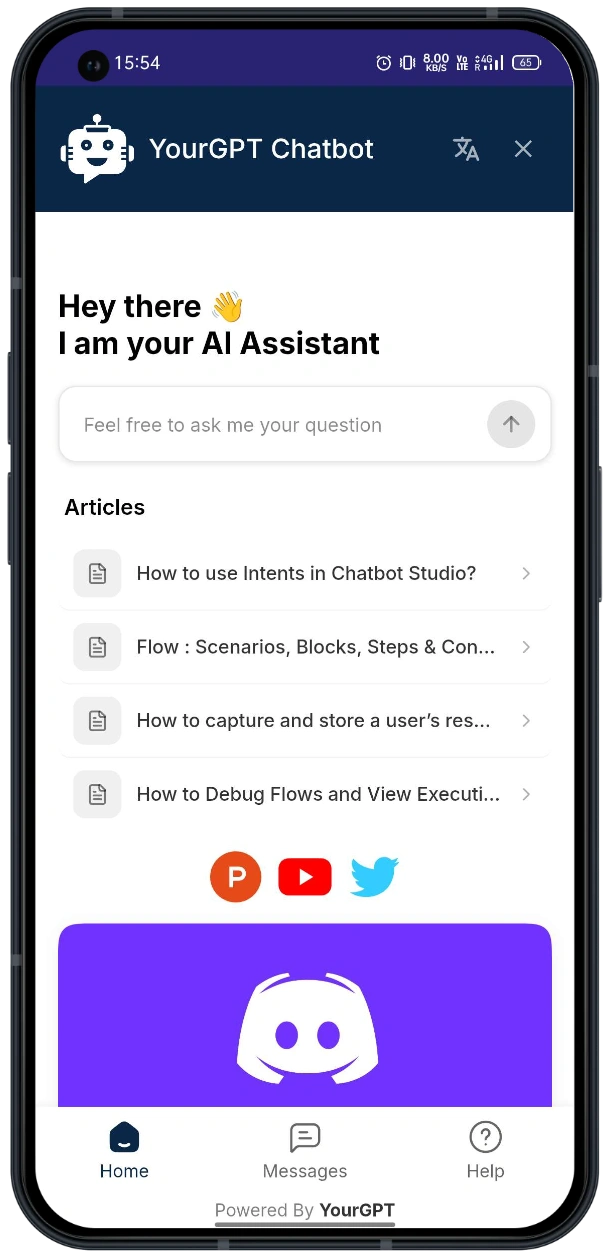
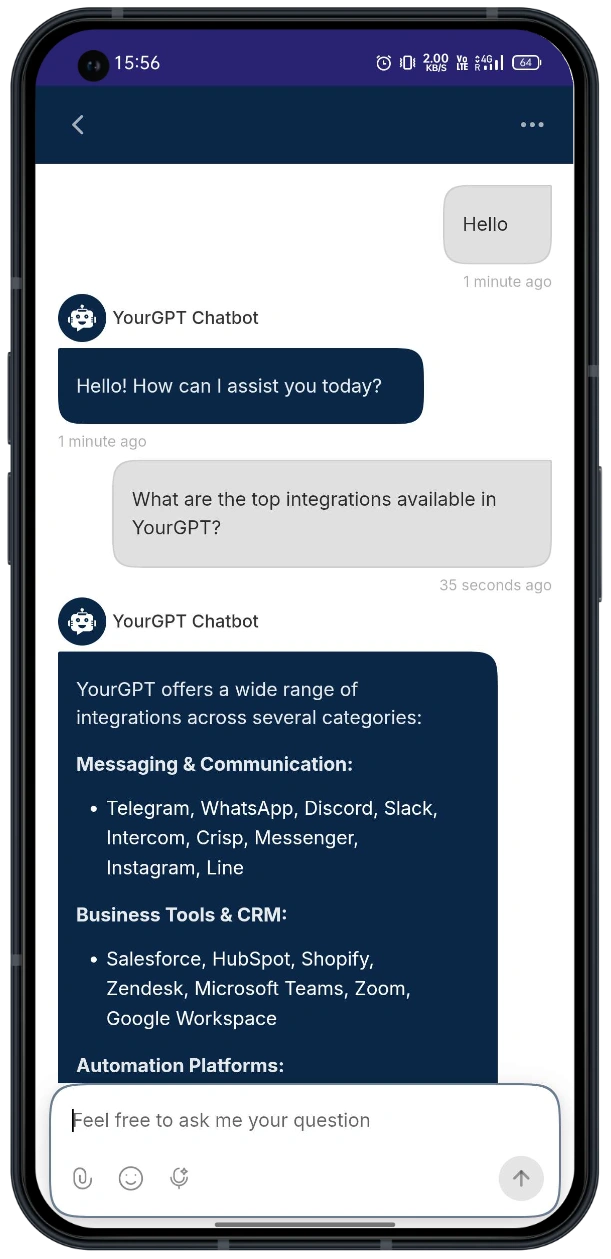
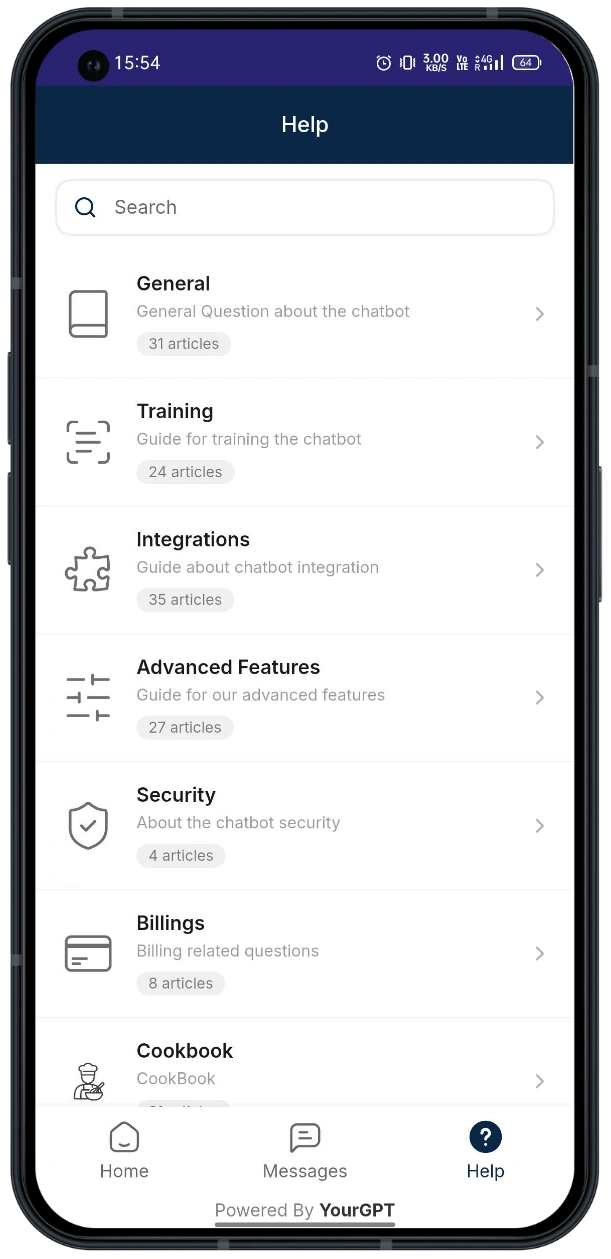
Quick Start
Installation
SDK Repository
View the full SDK source code and examples on GitHub:
yourgpt-widget-sdk-android
The SDK is distributed via JitPack.
Step 1: Add the JitPack repository to your settings.gradle:
dependencyResolutionManagement {
    repositories {
        google()
        mavenCentral()
        maven { url 'https://jitpack.io' }
    }
}
If your project declares repositories in the root
build.gradle instead, add maven { url 'https://jitpack.io' } to the allprojects { repositories { ... } } block there.Step 2: Add the dependency to your app's build.gradle file:
dependencies {
    implementation 'com.github.YourGPT:yourgpt-widget-sdk-android:1.0.0'
    implementation 'androidx.webkit:webkit:1.8.0'
    implementation 'androidx.lifecycle:lifecycle-runtime-ktx:2.7.0'
}
Step 1: Update AndroidManifest.xml
Add required permissions:
<uses-permission android:name="android.permission.INTERNET" />
<uses-permission android:name="android.permission.ACCESS_NETWORK_STATE" />
Step 2: Initialize and Open the Chat Widget
import com.yourgpt.sdk.*
import kotlinx.coroutines.launch

class MainActivity : AppCompatActivity() {

    override fun onCreate(savedInstanceState: Bundle?) {
        super.onCreate(savedInstanceState)
        setContentView(R.layout.activity_main)

        // Initialize SDK
        lifecycleScope.launch {
            YourGPTSDK.initialize(this@MainActivity, YourGPTConfig(widgetUid = "your-widget-uid"))
        }

        // Open chat on button click
        findViewById<View>(R.id.btn_open_chat).setOnClickListener {
            YourGPTSDK.show(this)
        }
    }
}
That's it. The SDK handles the WebView, loading states, and lifecycle internally.
Quick Initialize (One-Liner)
For the simplest setup with notifications auto-enabled:
lifecycleScope.launch {
    YourGPTSDK.quickInitialize(this@MainActivity, "your-widget-uid")
}
Push notifications must be configured before using
quickInitialize. See the Android Push Notifications guide to complete setup first.Configuration
val config = YourGPTConfig(
    widgetUid = "your-widget-uid",    // Required
    debug = true                      // Optional: Enable debug logs (default: false)
)
Push Notifications
Enable push notifications with optional custom icon and sound:
val notifConfig = YourGPTNotificationConfig.builder()
    .setSmallIcon(R.drawable.ic_notification)
    .setSoundUri(Uri.parse("android.resource://${packageName}/raw/notification_sound"))
    .build()

val config = YourGPTConfig(
    widgetUid = "your-widget-uid",
    enableNotifications = true,
    notificationConfig = notifConfig
)

lifecycleScope.launch {
    YourGPTSDK.initialize(this@MainActivity, config)
}
Opening the Chatbot
Simple (uses config from initialize())
YourGPTSDK.show(this)Open a Specific Conversation
YourGPTSDK.openSession(this, sessionUid = "conversation-uid")Create a Standalone Fragment
Use createChatbotFragment() when you want to embed the chatbot in your own container instead of a bottom sheet:
val fragment = YourGPTSDK.createChatbotFragment(
    widgetUid = "your-widget-uid",
    customParams = mapOf("lang" to "en")
)

// Use with your own FragmentTransaction
supportFragmentManager.beginTransaction()
    .replace(R.id.container, fragment)
    .commit()
SDK State
Observe State Changes
lifecycleScope.launch {
    YourGPTSDK.stateFlow.collect { state ->
        when (state.connectionState) {
            YourGPTConnectionState.CONNECTED -> { /* Ready */ }
            YourGPTConnectionState.CONNECTING -> { /* Loading */ }
            YourGPTConnectionState.ERROR -> { /* Error: state.error */ }
            YourGPTConnectionState.DISCONNECTED -> { /* Disconnected */ }
        }
    }
}
Check Readiness
if (YourGPTSDK.isReady) {
    // SDK is connected and ready
}
Error Handling
The SDK uses structured error types via the YourGPTError sealed class:
lifecycleScope.launch {
    try {
        YourGPTSDK.initialize(this@MainActivity, config)
    } catch (e: YourGPTError.InvalidConfiguration) {
        // Invalid or missing configuration
    } catch (e: YourGPTError.NotInitialized) {
        // SDK not initialized — call initialize() first
    } catch (e: YourGPTError.NotReady) {
        // SDK not ready (still loading or in error state)
    } catch (e: YourGPTError) {
        // Other SDK errors (InvalidURL, WebViewError)
    }
}| Error Type | Description |
|---|---|
YourGPTError.InvalidConfiguration | Configuration is invalid or missing required fields |
YourGPTError.NotInitialized | SDK has not been initialized |
YourGPTError.NotReady | SDK is not ready (still loading or in error state) |
YourGPTError.InvalidURL | Failed to build a valid widget URL |
YourGPTError.WebViewError | An error occurred in the WebView |
Requirements
- Android API level 21 (Android 5.0) or higher
- Kotlin 1.8.0 or higher
- AndroidX libraries
Resources
- GitHub Repository: yourgpt-widget-sdk-android