Identity Verification
Secure user sessions with HMAC encryption.
Identity verification helps you to setup a secure chatbot.
The identity verification system uses HMAC (Hash-based Message Authentication Code) to securely verify user identities. When enabled, users must provide valid authentication credentials to interact with the chatbot.
Step 1: Get your secret key
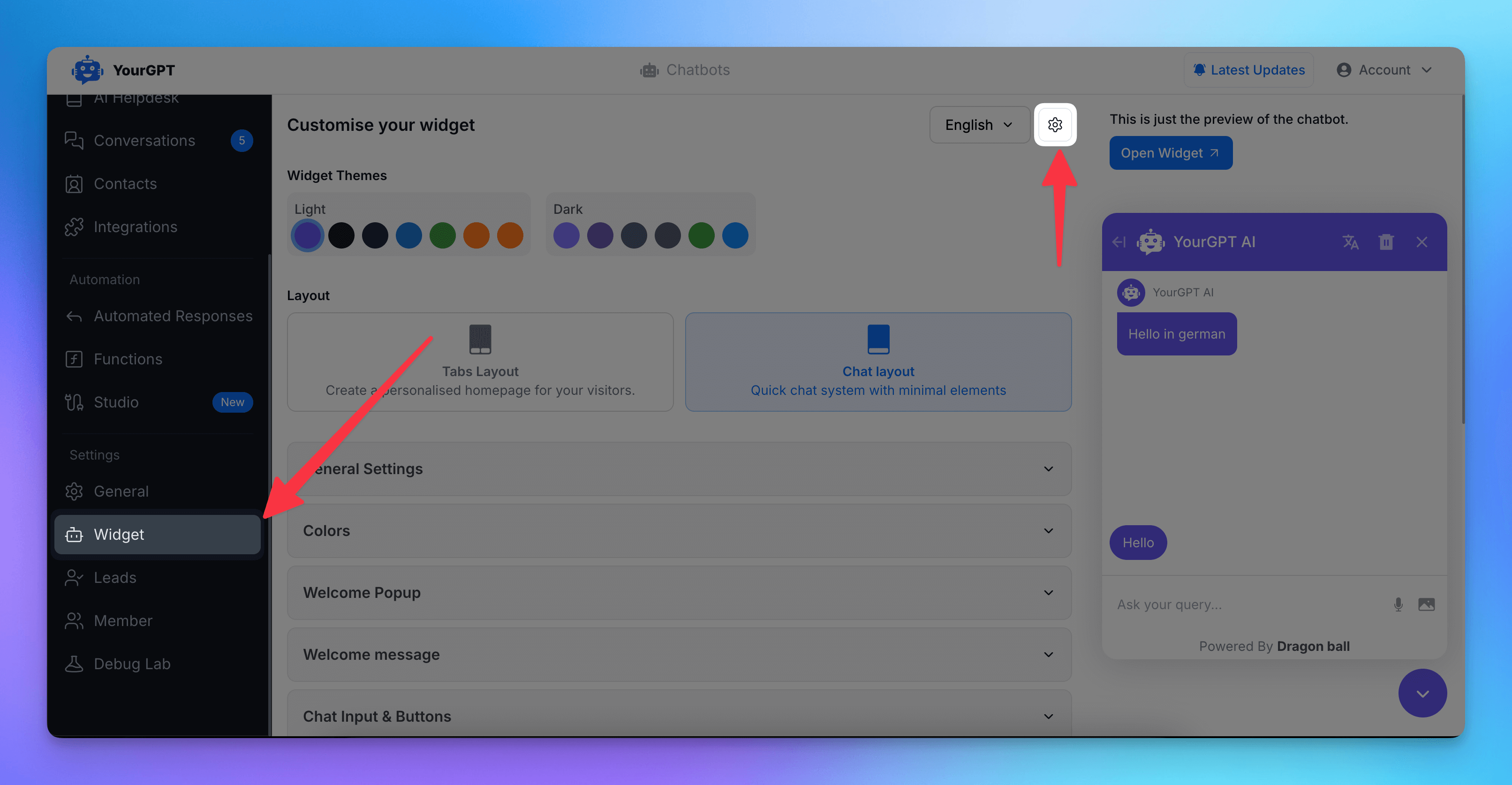
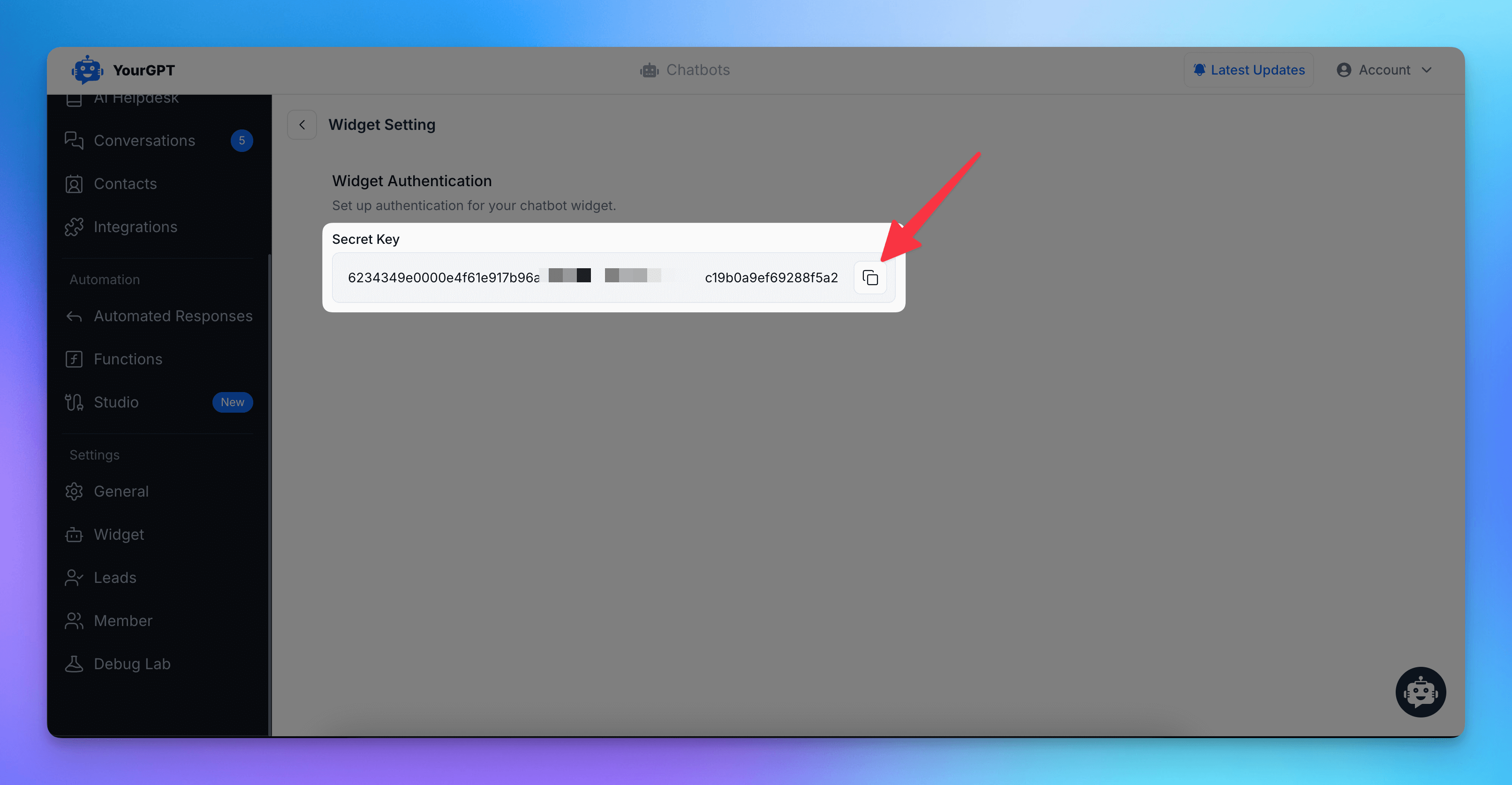
First, get your widget secret key from your widget settings:
- Open your chatbot from the dashboard
- Go to Widget → Settings
- Copy your Secret Key — you'll need it for generating HMAC signatures
Step 2: Generate HMAC Signature
The HMAC verification follows a specific priority order:
- external_user_id (highest priority)
- phone (lowest priority)
Generate the HMAC signature using your secret key and the highest-priority parameter available.
const crypto = require('crypto');

function generateHMAC(data, secret) {
    // Create a new HMAC object using SHA-256 and the secret key
    let generatedHash = crypto.createHmac('sha256', secret);
    // Write the data to be hashed
    generatedHash.write(data);
    // Finalize the HMAC calculation
    generatedHash.end();
    // Return the HMAC as a hexadecimal string
    return generatedHash.read().toString('hex');
}

const secretKey = 'your_secret_key';

// Example: Generate HMAC using external_user_id
const externalUserId = '<unique user id>';
const hmacForExternalUserId = generateHMAC(externalUserId, secretKey);

// Example: Generate HMAC using email
const email = '<valid email>';
const hmacForEmail = generateHMAC(email, secretKey);

// Example: Generate HMAC using phone
const phone = '<valid phone number>';
const hmacForPhone = generateHMAC(phone, secretKey);
Step 3: Perform identity verification
You can perform identity verification by setting the user's contact information using the set method and including the HMAC hash in the user_hash parameter.
$yourgptChatbot.set("contact:data", {
    email: "<valid email>",
    phone: "<valid phone number>",
    name: "<user name>",
    ext_user_id: "<unique user id>",
    user_hash: hmac
});
Note
When setting user data, include a valid HMAC hash that matches the highest-priority identifier in your data. Verification order: external_user_id → email → phone. If the hash doesn't match, you will receive an "invalid hmac hash" error.
Security Considerations
- Keep your secret key secure and never expose it in client-side code
- Implement proper error handling for failed verifications
Troubleshooting
If you encounter verification issues:
- Ensure your secret key matches the one in your dashboard
- Check that all parameters match between HMAC generation and visitor identification
- Confirm your HMAC generation algorithm matches the specifications
For additional support or questions, please contact our support team.